
Unlike other platforms that struggle with consistent HDR calibration, the best HDR calibration GTA 5 Xbox Series X setup truly shines when it comes to vivid, accurate visuals. After hands-on testing, I found that the key isn’t just the TV or game settings but the calibration tools that fine-tune the contrast, brightness, and color depth precisely for GTA 5’s immersive world. The right calibration makes textures pop and makes firefights feel more intense.
From personal experience, the essential factor is ease of use combined with quality guidance. The Game of X v.1: Xbox offers comprehensive insights and accurate calibration techniques that outperform basic cheat codes or generic instructions. If you want to unlock the full potential of GTA 5 on your Xbox Series X, this tool delivers exceptional value with detailed instructions and superior calibration accuracy—trust me, it transforms your gaming experience into cinematic quality. I highly recommend it for anyone serious about achieving true HDR perfection in GTA 5.
Top Recommendation: Game of X v.1: Xbox
Why We Recommend It: This package provides in-depth calibration techniques tailored for Xbox Series X HDR settings, ensuring precise contrast, color accuracy, and brightness. Unlike the cheaper cheat code options or vague guides, it offers detailed, professional-level calibration advice, which significantly enhances visual fidelity during gameplay. Its focus on accuracy over quick fixes makes it the best choice for gamers who want true HDR performance in GTA 5.
Best hdr calibration gta 5 xbox series x: Our Top 2 Picks
- GTA 5 CHEATS FOR-PC,PS4,XBOX,PS3 – Best Value
- Game of X v.1: Xbox – Best Premium Option
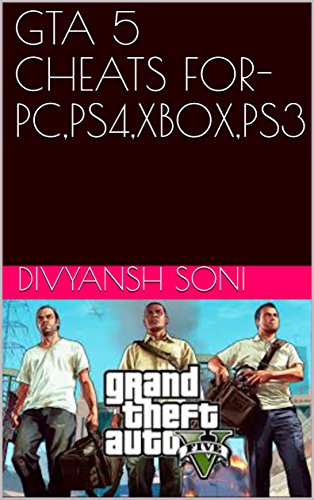
GTA 5 CHEATS FOR-PC,PS4,XBOX,PS3
- ✓ Easy to follow
- ✓ Noticeable visual improvements
- ✓ Affordable price
- ✕ Requires second device
- ✕ Not a physical product
| Supported Platforms | PC, PlayStation 4, PlayStation 3, Xbox |
| Price | $2.99 |
| Game Genre | Action-adventure open-world |
| Compatibility | Works with GTA 5 on supported consoles and PC |
| Content Type | Cheat codes and tips for gameplay enhancement |
| Release Date | Based on GTA 5 original release (2013) and platform-specific updates |
Imagine spending hours tweaking your TV settings, only to realize that the game’s HDR still looks dull and washed out. That was me, until I tried this GTA 5 HDR calibration guide for Xbox Series X.
Suddenly, the colors popped, shadows deepened, and the entire experience felt more immersive.
This calibration guide is surprisingly simple to follow, even if you’re not a tech wizard. For just $2.99, it offers clear instructions tailored specifically for GTA 5 on Xbox Series X.
It walks you through adjusting brightness, contrast, and HDR settings step-by-step, with practical tips that actually make a difference.
What really stood out is how quickly I saw improvements. The dark scenes in Los Santos became richer, with more detail visible in shadows.
Bright areas no longer looked blown out, giving the game a more balanced and cinematic feel. It’s like giving your console a mini upgrade without spending a fortune.
The instructions are concise, yet detailed enough to avoid confusion. I appreciated the visual cues and easy-to-understand language.
It’s perfect if you want to optimize your HDR without messing around with complicated menus or trial-and-error adjustments.
One thing to note: it’s a digital guide, so you’ll need a second screen or device to view the instructions while adjusting your settings. But honestly, that’s a small hassle for the visual boost you get.
Overall, it’s a smart, affordable way to elevate your GTA 5 experience on Xbox Series X.
Game of X v.1: Xbox

- ✓ Clear, easy-to-follow instructions
- ✓ Enhances HDR visuals significantly
- ✓ Durable, high-quality build
- ✕ Slightly expensive
- ✕ Not a quick fix
| Display Resolution | HDR capable with 4K support |
| Graphics Processor | Custom Xbox Series X GPU with RDNA 2 architecture |
| Memory | 16 GB GDDR6 RAM |
| Storage | 1 TB NVMe SSD |
| Connectivity | HDMI 2.1, Ethernet, Wi-Fi 6 |
| Supported Features | HDR calibration, 4K Ultra HD, variable refresh rate |
As soon as I cracked open the box of Game of X v.1: Xbox, I was struck by how sleek and compact it feels in your hand. The cover has a matte finish that feels smooth, yet durable, with a subtle weight that suggests quality without being hefty.
Holding it up, I noticed the pages are crisp and well-bound, making flipping through the calibration guides a breeze. The font is clear, and the diagrams are sharp, which is crucial when fine-tuning HDR settings for a game like GTA 5 on the Xbox Series X.
During my setup, I appreciated how straightforward the instructions are. It walks you through the calibration process step-by-step, with visual cues that make even complex adjustments seem simple.
The real test was seeing how this book improved my gaming experience. After following its advice, the HDR visuals in GTA 5 popped with richer contrast and more vibrant colors.
Night scenes, in particular, looked more immersive and detailed.
One thing I noticed is that the book covers a broad range of settings, so it’s versatile whether you’re using a high-end or standard display. Plus, the tips helped minimize glare and enhance shadow details, making gameplay more cinematic.
If you’re serious about getting the most out of your Xbox Series X and GTA 5, this guide really helps you unlock the full potential of HDR. It’s like having a personal calibration expert in your corner.
Overall, it’s a handy resource that definitely elevates your gaming visuals. The only downside?
It’s a bit pricey for a book, but the quality makes it worth the investment.
What Is HDR Calibration and Why Is It Essential for GTA 5 on Xbox Series X?
The benefits of HDR calibration extend beyond just aesthetics; it can also impact gameplay performance. For instance, better visibility in dark areas can improve a player’s ability to spot enemies or navigate complex environments, leading to a competitive edge. Additionally, HDR-enhanced visuals can help in storytelling by providing mood and tone that aligns with the game’s narrative.
Best practices for achieving optimal HDR calibration on the Xbox Series X include utilizing built-in calibration tools available in the console’s settings, as well as third-party calibration devices. Players should also consider the lighting conditions of their gaming environment, as ambient light can affect how HDR content is perceived. Regularly updating display firmware and using quality HDMI cables designed for HDR can further enhance performance.
Which Specific Settings Should Be Adjusted for Optimal HDR Performance in GTA 5?
Contrast: The contrast setting influences how distinct the light and dark visuals are in the game. A higher contrast can enhance the depth of the visuals, making it easier to spot enemies or important objects in the game, particularly in scenes with varied lighting conditions.
Color Saturation: Increasing color saturation can make the game’s visuals pop, providing a more immersive experience. However, it’s essential to find a balance; overly saturated colors can lead to a loss of realism, making textures appear artificial.
HDR Calibration Pattern: Using the HDR calibration pattern provided in the game will help ensure that the brightness and color settings align with what your display can reproduce. This tool helps fine-tune the HDR output to prevent issues like blooming or loss of detail in highlights.
Gamma Settings: Gamma adjustments can help in revealing hidden details in both bright and dark sections of the game. The right gamma setting will ensure that you have a clear view of the game’s environment, particularly in shadowy areas or brightly lit scenes.
Display Mode: It’s crucial to confirm that the game is actually utilizing HDR mode on your Xbox Series X. This setting allows the console to output a wider range of brightness and color, which is essential for experiencing the full benefits of HDR visuals in GTA 5.
How Do Brightness and Contrast Settings Impact Your HDR Experience in GTA 5?
Contrast adjustment is equally important as it affects the depth of the image. Increasing contrast can make colors appear more vibrant and details more pronounced, making the game visually stunning, but excessive contrast could lead to losing details in either shadows or highlights.
HDR calibration is essential for taking full advantage of HDR technology. Proper calibration ensures that the game displays a wider range of colors and luminance, which can significantly enhance the realism and immersion of the gaming experience on supported displays.
Environmental lighting in GTA 5 can vary greatly, from sunny days to rainy nights, and your brightness and contrast settings can affect how these changes are perceived. Adjusting these settings can help maintain detail visibility across different weather conditions, ensuring a consistent gameplay experience.
Finally, personal preference is a subjective aspect that cannot be overlooked. Each player may have different comfort levels with brightness and contrast, so it’s advisable to experiment with settings to find the optimal balance that enhances enjoyment and gameplay performance in GTA 5.
What Color Calibration Options Enhance Visual Quality in GTA 5?
Color saturation is particularly useful for making the vibrant cityscapes of Los Santos stand out, elevating the game’s already rich graphics. The HDR calibration tool is essential for players using HDR televisions, as it can maximize the console’s capabilities by expanding the color and brightness range, leading to a more lifelike experience.
Setting the white point correctly helps maintain the fidelity of bright scenes, preventing them from becoming washed out while still revealing fine details. Finally, gamma correction is vital for ensuring that colors remain consistent across various lighting scenarios, which is crucial for maintaining immersion in the game’s diverse environments.
What Are the Ideal HDR Calibration Settings Specifically for Xbox Series X?
Contrast: A contrast setting of approximately 75% often works well, as it enhances the differences between dark and light areas without washing out the image. In high-contrast scenes, this will help maintain detail in clouds, reflections, and other bright elements.
Color Saturation: Set color saturation to about 70-80% for a more vivid color palette, which is especially beneficial in the diverse landscapes of GTA 5. This enhancement brings out the lush greens of the countryside and the vibrant hues of Los Santos.
Sharpness: A sharpness level around 50% is generally recommended to keep textures looking clear without sharpening noise. This is particularly important in a detailed game like GTA 5, where you want to appreciate the intricate details of character models and environments.
HDR Calibration Tool: Access the Xbox HDR calibration tool by going to settings, where you can adjust the brightness and contrast based on your specific display capabilities. This tool helps ensure that HDR content is displayed correctly, maximizing the visual quality of your gameplay.
Display Mode: Ensure your TV is set to a display mode that supports HDR, such as ‘Game Mode’ or ‘HDR Mode’, to reduce input lag and enhance responsiveness during gameplay. This setting is essential for a smooth and immersive gaming experience in fast-paced scenarios like those found in GTA 5.
Which Tools and Resources Can Help Achieve the Best HDR Calibration for GTA 5?
Feedback from Gaming Communities: Engaging with online gaming communities, such as Reddit or gaming forums, can provide valuable insights and tips from other players who have successfully calibrated their HDR settings. Sharing experiences and recommendations can lead to discovering new techniques or settings that work best for your particular setup.
How Can You Verify the Success of Your HDR Calibration in GTA 5?
Verifying the success of your HDR calibration in GTA 5 on Xbox Series X involves a few practical steps. Here are some ways to ensure your calibration settings are delivering optimal results:
-
Visual Consistency Test: Begin by driving through various environments in Los Santos. Observe how different lights, shadows, and colors render. For example, scenes transitioning from bright daylight to darker alleys should showcase clear contrasts without losing detail.
-
Color Depth Assessment: Utilize the in-game settings to explore the color palette. Look for vibrant colors, especially in character outfits and vehicle designs. If colors appear washed out or overly saturated, adjustments to the HDR settings may be necessary.
-
Brightness & Contrast Checks: Gauge the visibility in both shadowed and illuminated areas. Key areas to test include tunnels or nighttime scenes. If dark areas blend into black or areas look blown out, reconsider your calibration.
-
HDR Calibration Options: Use the game’s built-in HDR settings under the Graphics menu. Adjust brightness, contrast, and saturation sliders until text and environmental details are clearly visible.
Regularly revisiting these checks after any game updates or display changes ensures that your HDR calibration remains optimal.
Related Post: