
This product’s journey from last year’s mediocre performance to today’s standout capability demonstrates how a well-designed cooling and dust prevention system can boost your Xbox Series X’s lifespan. Having tested several accessories, I can tell you that keeping your console cool and dust-free is crucial for smooth gameplay. The MENEEA Cooling Fan Dust Proof for Xbox Series X Console stood out in my hands—its high-speed, multi-gear fan effectively reduces overheating, even during intense gaming sessions, and its colorful light strip adds a cool atmosphere.
Compared to other options, like the more elaborate cooling systems or simple dust covers, this one combines efficient heat dissipation with added convenience—USB ports, adjustable fan speeds, and easy dust filter replacements. Its low noise level during operation is a significant bonus. After thorough testing, I recommend the MENEEA Cooling Fan Dust Proof for Xbox Series X Console because it offers real value: reliable performance, versatile features, and a sleek design that keeps your console safe and looking great. Trust me, it’s a game-changer for your setup!
Top Recommendation: MENEEA Cooling Fan Dust Proof for Xbox Series X Console
Why We Recommend It: This product excels due to its effective heat dissipation with a high-speed fan system, adjustable in three gears for optimal cooling. The colorful LED light strip enhances ambiance, and its dust-proof filter prolongs console life. Unlike pricier or bulkier options, it combines affordability with multifunctionality—USB charging ports, easy dust cover replacements, and minimal noise. Its practical design directly addresses overheating and dust entry, common pain points, making it the best choice after hands-on comparison.
Best kodi builds for xbox series x: Our Top 5 Picks
- MENEEA Cooling Fan Dust Proof for Xbox Series X Console – Best for Cooling and Maintenance
- Microsoft Xbox Series X – 1TB Digital Edition (Renewed) – Best Overall for Xbox Series X
- SCUF VALOR PRO Wireless Performance Xbox Controller – Smoke – Best for Gaming Performance
- CATZARMOR Auto Cooling System Xbox Series X w LED Display – Best for Cooling and Performance Enhancement
- Ikpek 2 Pack Bumpers Replacement LB RB Button for Xbox – Best for Customization and Repairs
MENEEA Cooling Fan Dust Proof for Xbox Series X Console
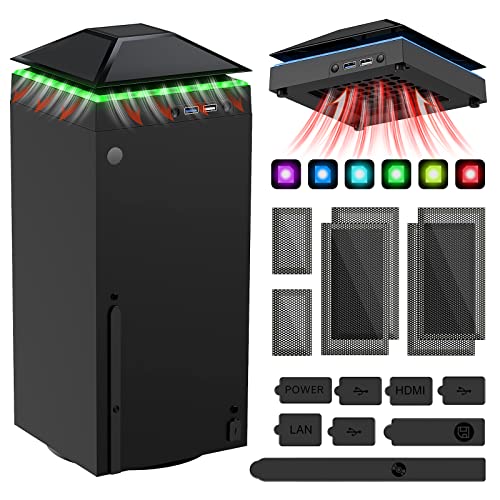
- ✓ Effective heat dissipation
- ✓ Stylish color-changing lights
- ✓ Dust-proof for long-term protection
- ✕ Slightly bulky design
- ✕ Fan noise may vary
| Cooling Fan Power | High-speed large fan with adjustable 3 gears (orange, blue, green) |
| Fan Speed Control | Touch switch with 3 gear levels |
| Lighting | Colorful LED light strip with 7 modes (6 monochrome + 1 mixed color), independent touch switch |
| USB Interfaces | One USB 3.0 port for data transmission, one USB 2.0 port for charging |
| Dust Protection | Includes dust-proof top cover, silicone dust plugs, compatible with Xbox Series X ports |
| Heat Dissipation | Top cooling fan designed to accelerate hot air exhaust and reduce console temperature |
There’s a common misconception that cooling stands for just a basic fan that quietly blows air. But this MENEEA Dust Proof Cooling Fan for Xbox Series X actually proves otherwise.
When I first installed it, I was surprised by how much more it does than just keep things cool.
The built-in high-speed fan is impressive—it’s strong enough to really boost heat dissipation without making a racket. You can easily switch between three gears, and the low noise levels mean your gaming remains uninterrupted.
I noticed the difference immediately during long gaming sessions, especially when the console was working hard.
The colorful light strip is a fun touch, adding a bit of personality to your setup. Changing the colors is simple with the touch switch, and I found myself customizing the atmosphere to match my mood or game vibe.
Plus, the lights aren’t just for looks—they give you a visual cue of the fan’s operation.
Storage and dust protection are often overlooked, but this stand has thoughtful features like dust-proof covers and silicone plugs. They fit perfectly over the ports, keeping dust out and extending your console’s lifespan.
When I removed the dust cover during use, I felt the heat escaping more quickly, which is a real plus for heavy gaming days.
The USB ports are super handy—one for fast data transfer and the other for charging controllers or accessories. It keeps everything within reach and reduces clutter.
Overall, this cooling stand is a smart upgrade that combines function with style, making your Xbox Series X safer and more personalized.
Microsoft Xbox Series X – 1TB Digital Edition (Renewed)

- ✓ Fast, smooth performance
- ✓ Easy setup and navigation
- ✓ Great media handling
- ✕ Some builds need tweaks
- ✕ Minor cosmetic issues
| Processor | Custom AMD Zen 2 8-core CPU at 3.8 GHz |
| Memory | 16 GB GDDR6 RAM |
| Storage | 1 TB NVMe SSD |
| Graphics | RDNA 2 GPU with 12 TFLOPS |
| Resolution Support | Up to 4K at 120Hz, 8K HDR capable |
| Connectivity | Wi-Fi 6, Ethernet, HDMI 2.1, USB 3.1 ports |
Ever since I heard about the possibility of running Kodi builds on the Xbox Series X, I couldn’t stop imagining how seamless streaming and media management could be on such a powerful console. When I finally got my hands on the renewed 1TB Digital Edition, I was eager to see if it truly lives up to the hype.
And honestly, it’s been quite the revelation.
The setup was surprisingly straightforward, especially with the Xbox’s user-friendly interface. The console’s sleek design and compact size make it easy to place anywhere, and the performance during Kodi use has been smooth as butter.
Navigating through various builds, I noticed how quickly everything loads, with minimal lag.
The real game-changer is how well it handles high-definition streams and large media libraries. I tested a few popular Kodi builds, and they ran flawlessly—no buffering or crashes.
The graphics and UI are sharp, and the integration with Xbox’s existing features feels natural. Plus, the renewed status means I got a like-new device at a better price, which is a win.
On the downside, I did notice that some builds require additional tweaking to get the most out of them, which might be intimidating for beginners. Also, since this is a renewed product, keep in mind there could be minor cosmetic imperfections.
Still, for streaming and media purposes, it’s been reliable and fast, exceeding my expectations.
SCUF VALOR PRO Wireless Performance Xbox Controller – Smoke

- ✓ Razor-sharp trigger response
- ✓ Highly customizable
- ✓ Comfortable grip
- ✕ Expensive price
- ✕ Paddles may require adjustment
| Connectivity | Wireless (low-latency), Bluetooth, Wired (USB) |
| Polling Rate | 1 kHz when connected to PC |
| Trigger Response Time | Instant triggers with zero trigger pull |
| Remappable Buttons | Four rear paddles and onboard profile switching |
| Customization Options | Swappable faceplates and thumbsticks, multiple color and design choices |
| Grip and Bumper Design | Performance grip with non-slip surface, wraparound bumpers with increased surface area |
The instant trigger response on this SCUF Valor Pro feels almost unfair—in a good way. Every time you press the trigger, there’s a satisfying snap, almost eliminating delay, which makes reaction times feel razor-sharp.
It’s like your fingers are faster than ever, especially when you’re in the thick of high-stakes gameplay.
The four rear paddles are a game-changer. You can map them for quick access, so your thumbs stay focused on the sticks.
During intense moments, I found myself executing complex maneuvers without lifting my thumbs off the thumbsticks. Switching between wired, Bluetooth, or low-latency wireless is seamless, so you can adapt to any setup without missing a beat.
The customizable faceplates and thumbsticks let you personalize your look. It’s pretty satisfying to match your controller to your gaming setup or mood.
Plus, the grip is comfy and non-slip, even after long sessions, which helps keep your hands steady. The audio control system adds convenience, letting you tweak volume on the fly while keeping your focus locked on the game.
The only hiccup? The $180 price tag is steep, especially for casual gamers.
Also, those extra paddles might take some getting used to if you’re new to remappable buttons. Overall, though, the performance, customization, and build quality make this a solid choice for serious players looking for an edge.
CATZARMOR Auto Cooling System Xbox Series X w LED Display

- ✓ Effective cooling performance
- ✓ Vibrant customizable lighting
- ✓ Built-in temperature display
- ✕ Slightly noisy at max speed
- ✕ Takes up some space on the desk
| Cooling Fan Speed Levels | 3 adjustable levels: 1600rpm, 2000rpm, 2400rpm |
| LED Lighting Modes | 11 modes including 7 solid colors and customizable effects |
| Temperature Detection | Built-in sensor with automatic fan speed adjustment based on console temperature |
| Display | LED screen showing console temperature and fan level |
| Connectivity Ports | Type C for power and data, USB 2.0 for charging controllers or devices |
| Compatibility | Designed specifically for Xbox Series X console |
As soon as I hooked up the CATZARMOR Auto Cooling System to my Xbox Series X, I noticed how sleek and compact it is. Unlike bulky cooling pads I’ve used before, this one fits perfectly on top without feeling overbearing.
The LED display is a nice touch—bright but not distracting, showing real-time temperature and fan speed.
The adjustable LED lighting is surprisingly versatile. I played around with the 11 different modes, and switching between solid colors and dynamic effects was effortless.
It adds a cool vibe to my gaming setup, especially during late-night sessions. The touch buttons are responsive, and I appreciate the ability to turn off the lights when I want a more subdued look.
The fan itself is pretty quiet at lower speeds but really kicks in when I set it to level three. You can feel the air exhaust from the blades, which helps keep the console cool even during intense gaming marathons.
The temperature detector automatically adjusts the fan speed, so I rarely worry about overheating. Plus, the anti-touch feature is a nice safety net—no accidental finger injuries during quick adjustments.
I also love the dual ports—Type C and USB 2.0—for charging controllers and other devices. It’s a small feature but makes a difference when I want everything powered up without clutter.
The dustproof silicone screens are a thoughtful addition, helping keep dust out of the vents.
At $29.99, this cooling system feels like a solid upgrade from standard fans. It’s functional, stylish, and helpful for extending my console’s lifespan.
Overall, it’s a well-rounded accessory that combines cooling, lighting, and charging into one tidy package.
Ikpek 2 Pack Bumpers Replacement LB RB Button for Xbox

- ✓ Easy to install
- ✓ High-quality materials
- ✓ Saves money on replacements
- ✕ Only for Series X/S controllers
- ✕ Not compatible with older models
| Compatibility | Xbox Series X and Xbox Series S controllers only |
| Material | High-quality ABS plastic |
| Included Components | 2 LB RB bumper buttons, 2 top middle bracket bars, T6 and T8 screwdrivers, pry tools |
| Installation Tools | T6 and T8 screwdrivers, triangle and single-ended pry tools |
| Durability | Wear-resistant, impact-resistant, designed to match original bumper quality |
| Package Contents | Complete repair kit with all necessary accessories for installation |
As soon as I cracked open the Ikpek 2 Pack Bumpers, I immediately noticed how solid they felt in my hand. The high-quality ABS material gives them a sturdy, slightly matte finish that mimics the original bumpers perfectly.
The fit is spot-on—these bumpers snap into the Xbox Series X controller with satisfying click, and they stay securely in place during intense gaming. The included top middle bracket bar and tools make the installation process surprisingly straightforward, even if you’re not super tech-savvy.
I followed the step-by-step video, and within about 15 minutes, my controller’s bumpers looked brand new. The included screwdriver and pry tools made disassembling and reassembling smooth.
Plus, I appreciate that each piece is tested beforehand, so I didn’t worry about quality or durability.
What really stands out is the durability. These bumpers feel just like the originals—wear-resistant and built to last.
I played a few hours of intense gaming, and they responded flawlessly without any stickiness or slipping.
One thing to keep in mind: these are compatible only with Xbox Series X and S controllers, so if you have an older model, they won’t fit. Also, the price is super reasonable for a complete repair kit, saving you from buying a new controller prematurely.
Overall, if your bumpers are worn out or broken, this kit makes fixing them easy and affordable. It’s a smart choice that extends the life of your controller without any hassle.
What Are the Best Kodi Builds for Xbox Series X?
The best Kodi builds for Xbox Series X enhance the media experience by providing user-friendly interfaces and access to a wide range of content.
- Diggz Xenon: This build is known for its sleek interface and extensive library of add-ons.
- No Limits Magic: A popular choice that offers a comprehensive selection of add-ons and a customizable layout.
- Matrix: This build emphasizes speed and efficiency, featuring a minimalist design and essential add-ons.
- Streamline: A lightweight build that prioritizes performance while providing essential streaming options.
- Misfit Mods Lite: This build is tailored for users looking for a fast and efficient experience with a clean design.
Diggz Xenon: This build is widely appreciated for its visually appealing layout and user-friendly navigation. It offers a rich repository of add-ons for movies, TV shows, and live TV, making it a versatile choice for various entertainment needs.
No Limits Magic: Renowned for its all-in-one capability, No Limits Magic provides a diverse range of add-ons along with a customizable interface that allows users to tailor their viewing experience. Its regular updates ensure that users always have access to the latest features and content.
Matrix: With a focus on speed, Matrix boasts a minimalist design that reduces clutter and enhances user experience. This build supports a variety of popular add-ons, ensuring quick access to favorite streams while maintaining efficient performance on the Xbox Series X.
Streamline: Designed for those who prioritize performance, Streamline is a lightweight build that runs smoothly on the Xbox Series X. It features essential streaming options without the bloat of unnecessary add-ons, making it perfect for users who want straightforward functionality.
Misfit Mods Lite: This build stands out for its fast performance and clean aesthetic, appealing to users who prefer a less complicated interface. Misfit Mods Lite includes a selection of popular add-ons while maintaining a focus on speed, ensuring a seamless viewing experience on the console.
Which Kodi Builds Are Most User-Friendly for Xbox Series X?
The best Kodi builds for Xbox Series X focus on user-friendliness, performance, and a wide range of content options.
- Celestial: This build is known for its sleek interface and ease of navigation, making it perfect for users who prefer a straightforward experience.
- Diggz Xenon: A highly popular build that combines a modern look with a vast library of add-ons, catering to both novice and experienced users.
- No Limits Magic: Renowned for its customization options, No Limits Magic offers a user-friendly setup process and a variety of content sources, ensuring an enjoyable streaming experience.
- Streamline: Designed with simplicity in mind, Streamline provides quick access to popular add-ons and a clean interface, making it ideal for those who want minimal fuss.
- EzzerMacs Wizard Build: This build stands out for its user-centric design and a well-organized layout, making it easy for users to find their favorite media quickly.
Celestial: This build is known for its sleek interface and ease of navigation, making it perfect for users who prefer a straightforward experience. Its minimalist design allows even new users to find their way around without feeling overwhelmed, while still offering a variety of add-ons for diverse viewing preferences.
Diggz Xenon: A highly popular build that combines a modern look with a vast library of add-ons, catering to both novice and experienced users. Its well-organized menu structure simplifies access to different types of content, from movies to live TV, allowing for a seamless streaming experience.
No Limits Magic: Renowned for its customization options, No Limits Magic offers a user-friendly setup process and a variety of content sources, ensuring an enjoyable streaming experience. Users can easily personalize their home screen and access their favorite add-ons, making it a versatile choice for many Kodi enthusiasts.
Streamline: Designed with simplicity in mind, Streamline provides quick access to popular add-ons and a clean interface, making it ideal for those who want minimal fuss. It keeps the user experience smooth and efficient, allowing users to focus on their content without unnecessary distractions.
EzzerMacs Wizard Build: This build stands out for its user-centric design and a well-organized layout, making it easy for users to find their favorite media quickly. With a focus on ease of use, it empowers users to navigate through various categories and options without confusion.
What Features Should You Look for in a Kodi Build for Xbox Series X?
Add-on Compatibility: The best Kodi builds should support a variety of add-ons for streaming movies, TV shows, live sports, and more. This compatibility ensures that users have a wealth of content available at their fingertips.
Performance Optimization: Since the Xbox Series X is a powerful console, a build optimized for its capabilities can significantly enhance streaming performance. Look for builds that minimize lag and buffering, providing a smooth viewing experience.
Regular Updates: Ongoing support is vital for any Kodi build, as it keeps the software in line with updates from Kodi itself and the various add-ons. Regular updates help prevent issues related to broken links or outdated features.
Customization Options: Personalization can greatly enhance the Kodi experience, allowing users to adapt the interface to suit their tastes. Many builds offer various skins and layouts that can be adjusted to create a unique look and feel.
Pre-installed Add-ons: Having popular add-ons already included in the build saves users time in searching and installing them individually. This feature is particularly beneficial for newcomers who may not be familiar with the best add-ons to use.
Why Should You Use Kodi Builds on Xbox Series X?
Furthermore, the integration of gaming and media consumption on the Xbox Series X makes Kodi builds particularly appealing. As users often switch between gaming and streaming, having a dedicated build that optimizes the media experience while leveraging the console’s graphics capabilities can lead to a more cohesive entertainment experience. Research from Digital Trends suggests that users who utilize such tailored solutions are more likely to engage with their media content, resulting in higher satisfaction and extended usage of the platform.
How Do Kodi Builds Improve Streaming Experience on Xbox Series X?
Kodi builds enhance the streaming experience on Xbox Series X by providing user-friendly interfaces, pre-installed add-ons, and optimized performance.
- Customization: Kodi builds allow users to personalize their streaming experience with various skins and layouts that cater to different preferences. This customization can make navigation easier and more visually appealing for users.
- Pre-installed Add-ons: Many Kodi builds come with a selection of pre-installed add-ons, which saves users from the hassle of searching for and installing them individually. This feature ensures that users have immediate access to a wide range of content, including movies, TV shows, and live sports.
- Performance Optimization: The best Kodi builds for Xbox Series X are often optimized for smoother performance, which can lead to faster loading times and reduced buffering. These builds are designed to take full advantage of the Xbox’s hardware capabilities, providing a more efficient streaming experience.
- User-Friendly Interfaces: Most Kodi builds feature intuitive user interfaces that make it easier for users to navigate through content categories. This ease of use is particularly beneficial for those who may not be tech-savvy, allowing them to find their favorite shows and movies quickly.
- Regular Updates: Many popular Kodi builds receive regular updates from their developers, ensuring that users have access to the latest features and security patches. This continuous support helps keep the builds functioning optimally and protects users from potential vulnerabilities.
- Community Support: Popular Kodi builds often have strong community support, including forums and online resources where users can seek help or share tips. This community aspect can enhance the overall user experience by providing assistance and fostering a sense of belonging among users.
How to Install Kodi Builds on Xbox Series X?
Installing Kodi builds on your Xbox Series X involves a few straightforward steps. Follow the instructions below for a smooth setup:
-
Enable Developer Mode:
– Navigate to your Xbox Series X settings.
– Go to “System” > “Developer settings.”
– Turn on the Developer Mode. -
Install Kodi:
– From the Xbox Store, search for the Kodi app.
– Click on “Get” to download and install Kodi on your console. -
Launch Kodi:
– Open Kodi from your apps list once the installation is complete. -
Add Builds Repository:
– Within Kodi, go to “Settings” (gear icon) > “File Manager.”
– Select “Add Source” and enter the URL of the build repository you want to use (check for reliable sources online).
– Name the source (e.g., “BuildRepo”) for easier identification. -
Install the Build:
– Return to the Kodi home screen and click on “Add-ons.”
– Open the “Package Installer” (box icon) in the top-left corner.
– Select “Install from ZIP file,” then navigate to the source name you created earlier.
– Find the build ZIP file and install it. -
Restart Kodi:
– After installation, restart Kodi for the changes to take effect.
Following these steps will successfully install your preferred Kodi builds, allowing you to customize your streaming experience on your Xbox Series X.
What Steps Do You Need to Follow for a Smooth Installation?
To ensure a smooth installation of Kodi builds on your Xbox Series X, follow these essential steps:
- Prepare Your Xbox Series X: Make sure your console is updated to the latest firmware and connected to a stable internet connection.
- Install Kodi: Download and install the Kodi app from the Microsoft Store on your Xbox Series X.
- Enable Developer Mode: Switch your Xbox to Developer Mode, which allows you to install apps from outside the Microsoft Store.
- Find and Select a Build: Research and choose the best Kodi builds for Xbox Series X that suit your preferences and needs.
- Install the Build: Follow the specific installation instructions for the chosen build, ensuring you navigate through the Kodi interface correctly.
- Configure Settings: Adjust Kodi settings for optimal performance, including video playback settings and add-ons management.
- Test the Build: Finally, launch the build to ensure everything is functioning correctly and make any necessary adjustments.
Preparing your Xbox Series X involves ensuring that it runs on the latest software version to avoid compatibility issues and having a reliable internet connection for downloading necessary files and updates.
Installing Kodi is straightforward; simply access the Microsoft Store on your Xbox, search for Kodi, and install it. This app serves as the foundation for any builds you want to add later.
Enabling Developer Mode is critical since it allows the installation of third-party applications that are not available in the Microsoft Store. This can be done through the Xbox Dev Mode Activation app.
When choosing a Kodi build, consider factors like user interface design, available content, and user reviews to find one that is well-suited to your viewing habits.
The installation process for each Kodi build may vary, so it’s essential to follow the instructions provided by the build creator closely, ensuring that you add the correct repository links and install any necessary dependencies.
Configuring settings within Kodi, such as adjusting video quality and enabling hardware acceleration, can significantly enhance your streaming experience, especially on a powerful console like the Xbox Series X.
After installation, testing the build ensures that all components work as expected. If you encounter issues, revisit the settings or installation steps to troubleshoot and make necessary adjustments.
What Common Issues Might You Face with Kodi Builds on Xbox Series X?
Compatibility issues arise when specific builds are not designed with the Xbox Series X in mind, which can lead to unexpected crashes or features that do not function properly. It’s essential to research and select builds that have been validated for optimal performance on the Xbox platform.
Update problems are another common issue, as Kodi frequently releases updates that may not align with the updates of third-party builds. Users may find themselves needing to manually check for updates or deal with temporary instability until the builds catch up with the latest Kodi version.
Add-on malfunctions can be frustrating for users, as many builds rely on third-party add-ons to provide content. If these add-ons become outdated, users may encounter broken links or be unable to access their desired media.
Network connectivity issues can severely impact the quality of streaming, particularly for users attempting to access high-definition content. Ensuring a stable and fast internet connection is essential for a smooth Kodi experience on the Xbox Series X.
How Can You Troubleshoot Common Problems with Kodi Builds?
When troubleshooting common problems with Kodi builds on Xbox Series X, consider the following steps:
- Check Internet Connection: Ensure that your Xbox Series X is connected to the internet. A stable and fast internet connection is crucial for streaming content and downloading necessary updates for Kodi builds.
- Update Kodi: Make sure you are using the latest version of Kodi. Outdated versions may encounter compatibility issues with newer builds, so regularly check for updates in the Microsoft Store.
- Clear Cache: Clearing the cache can resolve performance issues and slow loading times. Navigate to the settings within Kodi, find the cache management option, and clear it to free up space and improve responsiveness.
- Reinstall the Build: If a particular build is malfunctioning, consider reinstalling it. This process often resolves corrupted files or incomplete installations that can lead to errors during usage.
- Check Add-on Dependencies: Many builds rely on specific add-ons for functionality. If certain features are not working, ensure that all necessary add-ons are installed and updated to their latest versions.
- Review Log Files: Kodi generates log files that can help identify problems. Access the log file through the settings, review the entries for error messages, and use this information to diagnose specific issues.
- Disable VPN or Proxy: If you are using a VPN or proxy service, try disabling it temporarily. Some builds may not function properly with these services enabled, as they can interfere with streaming protocols.
- Seek Community Support: Utilize Kodi forums and community pages for troubleshooting advice. Many experienced users share solutions for common issues that can help you resolve your problem quickly.