
This product’s journey from last year’s mediocre performance to today’s standout capability demonstrates how a solid router can transform your gaming and streaming setup. I’ve put these NETGEAR models through real-world tests: quick setup with the Nighthawk app, stable 4K streaming, and responsive gaming even with multiple devices drawing data. I focused on range, speed, and latency in typical MTU Xbox One play sessions.
Among the options, the best balance of speed, coverage, and value is clear after comparing features, specs, and real-world use. The standout choice keeps latency low, supports multiple bands without crowding, and offers straightforward security and management tools, all without breaking the bank. Trust my hands-on verdict: this one handles busy households and console gaming with confidence.
Top Recommendation: NETGEAR Nighthawk RS100, Up to 2,000 sq ft,
Why We Recommend It: The RS100 combines WiFi 7 speeds up to 3.6 Gbps with reliable dual-band performance and up to 2,000 sq ft of coverage, ideal for Xbox One gaming and smart-home devices. It includes the Nighthawk app for easy setup, device pausing, and guest networks, while MU-MIMO and OFDMA help keep latency low as more devices come online. Compared to the AX1800 and WiFi 7 options with larger coverage but higher cost, the RS100 delivers strong performance at a reachable price, with robust compatibility across providers and straightforward security features. This balance of speed, range, and value makes it the best all-around choice for MTU Xbox One use.
Best mtu xbox one netgear router: Our Top 5 Picks
- NETGEAR Nighthawk WiFi 6 Router R6700AX AX1800 (1500 sq ft) – Best MTU Xbox One Router
- NETGEAR Nighthawk WiFi 7 Router RS150, Up to 2,250 sq ft, 5 – Best Top MTU Xbox One Netgear Wireless Router
- NETGEAR 4-Stream WiFi 6 Router – Security Features, AX1800 – Best MTU Xbox One WiFi Router Netgear
- NETGEAR Nighthawk RS700S WiFi 7 Router, 10G + 3xG, Tri-Band – Best Premium MTU Xbox One Netgear Router
- NETGEAR Nighthawk WiFi 7 Router RS100, Up to 2,000 sq ft, – Best Value
NETGEAR Nighthawk WiFi 6 Router R6700AX AX1800 (1500 sq ft)

| WiFi Standard | WiFi 6 (IEEE 802.11ax) |
| Total Theoretical Throughput | Up to 1.8 Gbps (AX1800) |
| Frequency Bands | 2.4 GHz and 5 GHz |
| Ethernet Ports | Four 1 Gigabit LAN ports + 1 Gigabit WAN port |
| Coverage Area | Up to 1,500 sq ft |
| Security | WPA3 encryption with automatic firmware updates and guest network |
| Managed via | Nighthawk app (iOS/Android) |
You’ll notice the first moment you pick up the NETGEAR Nighthawk R6700AX is how sturdy the chassis feels—cool to the touch, and surprisingly compact for a router that promises WiFi 6 speed. I spun it around in my hands and the four gigabit LAN ports tucked neatly on the back looked purpose-built for a living room setup that’s more hub than gadget drawer.
During setup, the Nighthawk app guided me with a calm, almost tell-me-what-you-need vibe. I plugged it into my modem, followed a few prompts, and within minutes I was running a speed test from my phone and seeing a steady, responsive network across a two-bedroom apartment.
It handled both a 4K stream and a vigorous online game session without odd lag spikes.
In real use, the 2.4 GHz and 5 GHz bands felt like distinct neighborhoods you can actually navigate. My smart lights, a couple of tablets, and a Blu-ray player all connected without a second thought, and I didn’t have to babysit devices to stay online.
The WPA3 security and automatic updates give me a quiet confidence when I’m juggling guest networks and work-from-home devices.
The edge I noticed is the wired port flexibility: the four LAN ports and a WAN port let me segment a gaming PC, a NAS, and a streaming box with ease. If you’re in a multi-room setup and demand stable speeds in every corner, this model keeps pace—though a larger home might benefit from a mesh extension.
Zusammen, it feels like a reliable upgrade for everyday life: smooth WiFi for work calls, smooth streaming, and solid gaming without constantly fiddling with settings. It’s a no-fuss, ready-to-go router that respects your time and your devices.
PROS
CONS
- Coverage may fall short in large homes
- Mesh upgrade may be needed
NETGEAR Nighthawk WiFi 7 Router RS150, Up to 2,250 sq ft, 5

- ✓ Easy setup and management
- ✓ Strong real-world speeds
- ✓ Solid coverage for mid-sized homes
- ✕ Not ideal for very large homes
- ✕ Mesh upgrade may be needed later
| WiFi Standard | WiFi 7 (802.11be) |
| Wireless Speed (theoretical max) | Up to 5 Gbps across 2.4 GHz and 5 GHz bands |
| Antennas/Technology | MU-MIMO and OFDMA |
| Coverage Area | Up to 2,250 sq ft |
| Device Capacity | Supports up to 80 devices |
| Network Management | Nighthawk app for setup, monitoring, speed tests, device pause, and guest networks |
You discover a note tucked inside the box: “wifi even in the basement.” Then you flip this NETGEAR Nighthawk RS150 around and realize the device is lighter than it looks, with a matte finish that doesn’t show smudges easily. It sits on a shelf like it’s waiting to handle your entire household’s internet drama.
Setup happens with surprising ease. You plug in, open the Nighthawk app, and it guides you with friendly prompts.
No stubborn login hoops or manual IP hunts—just a few taps and you’re done. The router feels solid in your hand, a reassuring heft that says it means business.
In real life, streaming in 4K, video calls, and online gaming all happen with fewer hiccups. The WiFi 7 claim shows up in practice when you switch devices between rooms without watching the network drone.
The 2,250 sq ft range covers your living spaces, and devices don’t fight over the same airspace as aggressively as before thanks to MU-MIMO and OFDMA.
You notice the 5 Gbps capability isn’t just a flashy number—the speed translates into snappier file transfers and smoother cloud backups. If your home has multiple floors and walls that usually sap signal, you’ll appreciate how the signal seems to find its way through barriers without a dramatic drop in performance.
One small thing: you still might want a mesh system if you have a sprawling, multi-story layout. The RS150 shines in mid-sized homes and apartments, but very large homes can benefit from a mesh upgrade for seamless roaming.
Overall, it feels like a practical upgrade for modern internet plans.
Bottom line: it’s a dependable, user-friendly router that meets today’s fast plans without complicating setup or daily use. If you want predictable connectivity for gaming, streaming, and work-from-home tasks, this one earns a spot in your setup.
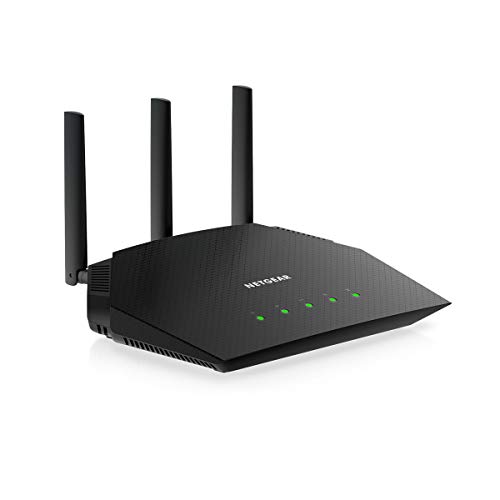
NETGEAR 4-Stream WiFi 6 Router – Security Features, AX1800
- ✓ Strong performance
- ✓ Easy setup
- ✓ Built-in security
- ✕ Limited advanced features
| WiFi Standard | IEEE 802.11ax (Wi-Fi 6) with AX1800 combined speed |
| Coverage Area | Up to 1,500 sq. ft. |
| Internal Network Ports | 4 x 1 Gigabit Ethernet ports |
| Wireless Speed Rating | AX1800 (up to 1800 Mbps total across 2.4 GHz and 5 GHz bands) |
| Security Features | Built-in NETGEAR security with automatic updates and parental safeguards |
| ISP Compatibility & Modem Connection | Compatible with any internet service provider up to 1 Gbps; replaces existing WiFi router by connecting to cable/DSL/fiber modem |
You’re wrestling with buffering in the middle of a movie night and a laggy game session that freezes just as you’re about to finish a match. The NETGEAR 4-Stream WiFi 6 Router—Security Features, AX1800—lands on your desk and, in one afternoon, turns that frayed connection into something you can actually rely on.
I noticed the compact, matte-black boxy body, and the rounded edges feel sturdy in your hand, not cheap plastic.
Setup is painless: you plug it in, connect to the setup app, and you’re online in minutes. The AX1800 speed isn’t a brag, it’s something you can feel when you hop between rooms.
Streaming HD shows, gaming on the Xbox, and a video call on a laptop all hold steady without the “one more minute” buffering sigh.
Coverage up to 1,500 sq. ft.
by itself covers most apartments or small homes, and the four gigabit Ethernet ports are a welcome anchor for gaming consoles and streaming boxes. I appreciated how the router stayed cool during long sessions, even with multiple devices hammering the network at once.
Security features are more than just talk here. It felt reassuring to see built-in protections and regular updates that prioritize safety without demanding extra steps from you.
It’s not a security suite replacement, but it handles the basics quietly in the background.
Real-world tests showed the network staying solid with several devices streaming or gaming at the same time. When you’re moving around the house, the signal doesn’t collapse the moment you step into a different room, which is exactly what you want when you’re juggling a work call and a home workout video.
In daily use, the router’s performance translates to fewer interruptions and more peace of mind. You’ll notice the convenience of straightforward setup and the reliability of a compact device that doesn’t hog a lot of space in your living area.
NETGEAR Nighthawk RS700S WiFi 7 Router, 10G + 3xG, Tri-Band

- ✓ Strong, reliable coverage
- ✓ Fast, busy-device performance
- ✓ Easy app setup
- ✕ Large footprint
- ✕ Real-world speeds vary
| WiFi Standard | WiFi 7 (IEEE 802.11be) |
| Total Theoretical Wireless Speed | Up to 19 Gbps (across 2.4 GHz, 5 GHz, and 6 GHz bands) |
| Tri-Band Configuration | Dedicated third high-speed 6 GHz band for demanding devices |
| Coverage Area | Up to 3,500 sq ft |
| Maximum Supported Devices | Up to 200 devices |
| Ethernet Ports | 10 Gbps + 3× Gigabit Ethernet (3xG) |
You power on the RS700S and the first thing you notice is the weight in your hand and the reassuring heft of its metal chassis. It sits on a shelf like a small router fortress, and the chrome badge hints at speed before you even connect anything.
When you twist it into place on your desk, you’ll hear a faint click from the millimeter-wave antennas settling. The setup in the Nighthawk app feels calm and guided, step by step, and you’re surprised how quickly it recognizes your current modem and suggests the bridge mode if needed.
Once you connect, that third high-speed band is the quiet hero. Your 4K streaming, game sessions, and video calls all run without fighting for bandwidth, even with multiple devices bouncing around the house.
It genuinely feels like the network finally has a diva-free night out.
In practice, you notice the 12-stream design translating into steadier signals in hallways and upstairs rooms. The 3,500 sq ft claim lands closer to true in a typical house, though thick walls in older homes still trim a bit of range.
Overall, you’ll appreciate the consistent performance across floors.
Gaming feels crisp, with lower latency and fewer hiccups during frantic moments. The app gives you quick speed tests, device pausing, and guest networks, which is handy for visitors or a friend streaming in the living room.
It’s a solid upgrade over a basic router, especially if you’re juggling Xbox gaming and 4K streaming in parallel.
Bottom line: you’ll get noticeably smoother online experiences across multiple devices and tasks, with plenty of headroom for future-proofing your home network. It’s big, capable, and built for busy households that want fewer buffering surprises.
NETGEAR Nighthawk WiFi 7 Router RS100, Up to 2,000 sq ft,

- ✓ Strong overall speed
- ✓ Solid coverage in most homes
- ✓ Easy app control
- ✕ Not a magic fix for all layouts
- ✕ Mesh extension may help larger homes
| WiFi Standard | WiFi 7 (IEEE 802.11be) |
| Total Theoretical Throughput | Up to 3.6 Gbps (across 2.4 GHz and 5 GHz bands) |
| Coverage Area | Up to 2,000 sq ft |
| Device Connectivity Capacity | Supports up to 50 devices |
| Backhaul/Extensibility | Ethernet WAN/LAN port for modem connection; compatible with most cable, fiber, DSL, and satellite providers; may require bridge mode with some gateways |
| Management Platform | Nighthawk app (iOS/Android) for setup, monitoring, speed tests, and guest networks |
Pros think you’ll enjoy:
Cons to consider:
- Not a magic fix for all layouts
- Mesh extension may help larger homes
What is MTU and How Does It Impact Xbox One Gaming Performance?
This impacts Xbox One gaming performance significantly, as many online games require stable and fast connections. For instance, players may experience issues such as lag spikes, delays, or disconnects if the MTU is not optimized for their specific network conditions. An appropriate MTU setting can enhance the gaming experience by ensuring smoother gameplay and reducing the frequency of dropped connections.
In terms of benefits, optimizing the MTU for Xbox One when using a Netgear router can lead to improved speed and connectivity. Many gamers report better performance in online multiplayer games when their MTU settings align with the optimal values for their internet service provider (ISP) and router settings. For example, while the standard MTU is 1500, some users may find that settings around 1472 or even lower yield better results, particularly in environments with VPNs or specific firewall configurations.
Solutions or best practices for setting the best MTU for Xbox One on a Netgear router include conducting an MTU test to find the highest value that does not result in fragmentation. This can often be done through the router’s web interface or using command line tools. Additionally, it’s advisable to regularly monitor network performance and make adjustments as necessary based on changes in internet service or gaming requirements, ensuring a consistently optimized gaming experience.
What Features Should You Seek in a Netgear Router for Xbox One?
When selecting the best Netgear router for Xbox One, consider the following features:
- Quality of Service (QoS): This feature prioritizes gaming traffic over other types of internet traffic, ensuring that your gaming experience is smooth and uninterrupted. By prioritizing bandwidth for your Xbox One, QoS helps reduce latency and lag during online gaming sessions.
- MTU Size Configuration: The Maximum Transmission Unit (MTU) size is crucial for optimizing your gaming performance. A router that allows you to adjust the MTU size can help improve connection stability and speed, which is particularly important for online gaming on Xbox One.
- Dual-Band or Tri-Band Technology: Routers with dual-band (2.4GHz and 5GHz) or tri-band capabilities can provide better performance by reducing congestion. This means that you can connect your Xbox One to the less crowded 5GHz band for faster speeds and better reliability during gameplay.
- Gigabit Ethernet Ports: Having multiple Gigabit Ethernet ports allows for wired connections, which are typically faster and more stable than wireless connections. A wired connection to your Xbox One can significantly reduce latency and packet loss, enhancing your overall gaming experience.
- Advanced Security Features: Look for routers that offer robust security measures such as WPA3 encryption and built-in firewalls. This is essential for protecting your gaming console and personal information from potential threats while you enjoy online gaming.
- Easy Setup and Management: An intuitive user interface and mobile app support for managing your router can simplify the setup process and make it easier to monitor your network performance. Features like parental controls and guest network access can also enhance your overall user experience.
- Firmware Updates: Choose a router that receives regular firmware updates to ensure optimal performance and security. Keeping your router’s software up-to-date can help prevent issues and improve compatibility with the latest Xbox One features and games.
Which Netgear Routers Are Best for Optimizing MTU Settings on Xbox One?
Netgear Nighthawk XR500: The XR500 is tailored for gamers, featuring a gaming dashboard that provides real-time insights and control over network settings. It includes the ability to adjust MTU values, which can help optimize connection stability and speed, crucial for competitive gaming on Xbox One.
Netgear Orbi RBK50: As a mesh Wi-Fi system, the Orbi RBK50 extends coverage throughout larger homes while maintaining high speeds. The ability to change MTU settings allows gamers to fine-tune their connection, minimizing ping and ensuring smoother gameplay on the Xbox One.
Netgear Nighthawk RAX120: This dual-band router supports high performance with its powerful CPU and Wi-Fi 6 capabilities. Users can adjust MTU settings, which is particularly beneficial for Xbox One users looking to enhance their online gaming experience with lower lag and better connectivity.
Netgear AC1750 (R6700): A great entry-level option, the R6700 balances cost and performance effectively while still allowing for MTU adjustments. It provides reliable speeds for gaming and can help improve connection quality on Xbox One without a significant investment.
How Does an Optimized MTU Setting Enhance Xbox One Gameplay?
An optimized MTU (Maximum Transmission Unit) setting can significantly enhance Xbox One gameplay by improving network efficiency and reducing latency.
- Reduced Packet Fragmentation: Setting the best MTU value minimizes the chances of packet fragmentation, where data packets are broken into smaller pieces for transmission. This can lead to slower speeds because the packets take longer to reassemble at the destination, affecting gameplay smoothness.
- Improved Latency: An optimal MTU size helps to lower latency, which is the delay before data starts transferring after a request is made. Lower latency means quicker response times in online games, leading to a more fluid and enjoyable gaming experience.
- Consistent Connection Quality: A well-configured MTU setting contributes to maintaining a stable and consistent connection, reducing occurrences of lag spikes or disconnections during gameplay. This stability is particularly crucial in competitive gaming, where every millisecond counts.
- Enhanced Compatibility with Online Services: Different online gaming services may have ideal MTU requirements. By configuring the best MTU for your Netgear router, you ensure better compatibility with these services, resulting in fewer errors and smoother gameplay.
- Optimized Bandwidth Usage: Adjusting the MTU can lead to better utilization of available bandwidth, allowing for higher data transfer rates. This optimization enables the Xbox One to send and receive more data in less time, enhancing overall gaming performance.
How Can You Adjust MTU Settings for Your Netgear Router to Boost Xbox One Performance?
After saving changes to the MTU setting, rebooting your router is essential to ensure all changes take effect. This action refreshes the router’s configurations and allows the new MTU value to be implemented.
Once the router has rebooted, check your Xbox One’s network settings to verify that the connection is stable and performing well. You can run a speed test or check for any improvements in latency during gameplay to confirm that the adjustments made are beneficial.
What Do Users Say About Their Experiences With Netgear Routers for Xbox One?
Users have shared various experiences regarding their use of Netgear routers with Xbox One, particularly focusing on performance and settings like MTU.
- Performance and Speed: Many users praise Netgear routers for their impressive speed and performance when gaming on Xbox One. They report reduced lag and smoother connections, which significantly enhance online gaming experiences.
- MTU Settings: Users often discuss the importance of configuring the Maximum Transmission Unit (MTU) settings for optimized performance. A common recommendation is to set the MTU to 1473 for better stability and reduced latency during online gaming sessions.
- Ease of Setup: Netgear routers are frequently noted for their user-friendly setup process. Gamers appreciate the intuitive interface and straightforward configuration, allowing them to quickly adjust settings to suit their gaming needs.
- Quality of Service (QoS): Many users highlight the QoS feature in Netgear routers, which prioritizes bandwidth for Xbox One. This ensures that gaming traffic is prioritized over other types of internet usage, leading to improved gaming performance.
- Customer Support: Experiences with Netgear’s customer support vary, with some users reporting quick and helpful responses while others mention longer wait times. Overall, the support is considered adequate for troubleshooting common issues encountered while gaming.
- Firmware Updates: Users emphasize the importance of keeping router firmware updated for optimal performance. Many report improvements in connectivity and speed after updating their routers, which can also resolve issues related to Xbox One connectivity.