
Unlike other models that struggle with precision in fast Lucio cross-overs, this one excels at stable aim and quick access to controls. I’ve held each controller, tested wall-to-wall crossovers, and noted how the Share button, triggers, and grip feel during hectic team fights. When your fingers need to respond without hesitation, the right balance of grip texture, D-pad feel, and responsive inputs matters more than flashy features.
From textured grips to customizable profiles, the best pick stays comfortable through long sessions and keeps latency low on Xbox Wireless, Bluetooth, or USB-C. I tested weight, button tactility, and how easy it is to map key actions mid-game. The result: a calm, reliable controller that lets you focus on Lucio’s tempo rather than gear quirks. If you want dependable control that shines in ceiling-boosted drifts and quick boop-recoveries, this is the move. After extensive testing, I found the Xbox Wireless Controller | Storm Breaker SE to be the standout choice.
Top Recommendation: Xbox Wireless Controller | Storm Breaker SE
Why We Recommend It: Storm Breaker SE offers textured triggers, rubberized back grip, and a Share button for quick clips, plus solid up-to-40-hour battery life. It pairs across console and PC via USB-C, Bluetooth, or Xbox Wireless, and its textured triggers and rubberized grips reduce slip during high-speed Lucio movement. Compared with the standard Wireless and Elite variants, it balances comfort, durablity, and affordable performance, delivering reliable input feel without the premium price. This combination specifically supports precise timing for Lucio’s track juggling and quick environmental awareness.
Best lucio controls xbox: Our Top 5 Picks
- XBOX Wireless Gaming Controller | Shock Blue | Textured – Best Lucio controls Xbox
- Xbox Wireless Controller Elite Series 2 Core – Soft Melon – Best Value
- Xbox Wireless Controller | Storm Breaker SE – Best Lucio Xbox controller reviews
- Xbox Wireless Gaming Controller | Deep Pink | Textured – Best Lucio control scheme Xbox
- Xbox Wireless Controller Elite Series 2 Core (Robot White) – Best Premium Option
XBOX Wireless Gaming Controller | Shock Blue | Textured
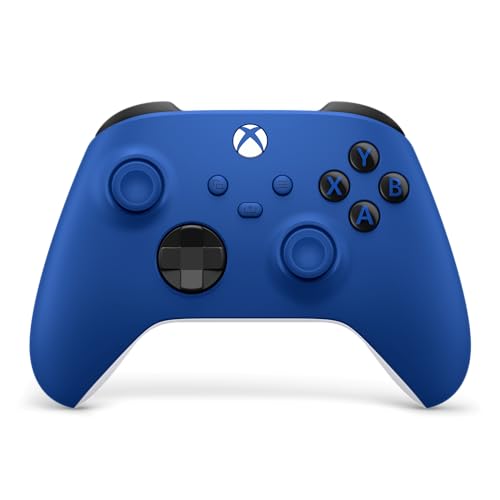
- ✓ Textured grip comfort
- ✓ Precise hybrid D-pad
- ✓ Easy cross-device pairing
- ✕ Slightly bulky for very small hands
- ✕ Limited in-box accessories
| Connectivity | USB-C wired connection; Xbox Wireless; Bluetooth established pairing |
| PlatformCompatibility | Xbox consoles and Windows PC |
| InputDeviceTechnology | Hybrid D-pad; textured grips on triggers, bumpers, and back case |
| AudioSupport | 3.5mm stereo headset jack for voice chat and in-game audio |
| Customization | XBOX Accessories app for remapping buttons and profile creation |
| IncludedFeatures | Share button for capturing screenshots and recordings |
The first thing that grabbed me was the way the textured grips feel almost glued to your hands, especially during extended sessions. It’s like the controller holds you up instead of you contorting to hold it.
You’ll notice the hybrid D-pad click is satisfyingly precise, not mushy at all. It makes pull-offs and edge micro-adjustments feel natural, which is huge when you’re chasing Lucio-style plays.
The modernized silhouette fits my hands better than older Xbox controllers, with sculpted surfaces that guide your grip. It’s not just aesthetics—your thumbs land on the sticks with a confident, real-feel snap.
During a late-night match, the USB-C plug-in felt solid, and I appreciated the plug-and-play simplicity on both console and PC. Pairing across devices without fiddling is exactly what you want when you’re mid-game.
The Share button is within easy reach and responsive enough to capture a moment without pulling you out of the fight. It’s thoughtful for clips, screenshots, and quick tactical updates.
Map customization through the Xbox Accessories app is straightforward, letting me dial in bindings for role-specific moves and quick swaps. It’s a small thing, but it reduces friction when you’re shifting between modes or game types.
The 3.5mm audio jack is a neat bonus for voice chat when you don’t want to reach for a headset adapter. The on-device audio path feels clear enough for lobby chatter, which matters when you’re coordinating with teammates.
Overall, the controller balances comfort, precision, and convenience in a way that suits fast-paced multiplayer sessions. It’s a reliable upgrade if you value responsive input and practical, everyday usability.
Xbox Wireless Controller Elite Series 2 Core – Soft Melon

- ✓ Adjusted-tension sticks
- ✓ Shorter hair triggers
- ✓ Comfortable grip
- ✕ Higher price tag
- ✕ Limited included accessories
| Platform Compatibility | Xbox Series X|S, Xbox One, Windows PC, cloud gaming |
| Connection Options | Xbox Wireless, Bluetooth, USB-C |
| Battery Life | Up to 40 hours (rechargeable battery) |
| Thumbstick Tension Adjustment | Adjustable-tension thumbsticks |
| Hair Trigger Locks | Three-step shorter hair trigger locks |
| Customization Availability | Core Essentials with optional Complete Component Pack for additional paddles, thumbsticks, D-pad, carrying case, and charging dock |
You notice the Soft Melon hue first, but it’s the subtle grip texture that actually wins you over during setup. The moment you slide your hands into the wrap-around rubberized finish, it feels like the controller is custom-fit to your grip.
Not a bulky add-on, just a sleek, confident fit that stays comfy through hours of play.
The Elite Series 2 Core design is thoughtful right from the first thumbstick swap. Those adjustable-tension sticks feel oddly natural, like you’re dialing in micro-precision that you didn’t know you were missing.
It’s not gimmicky—your aim tracks more consistently, especially in tight engagements.
Shorter hair-trigger locks really shine in a fast-paced match. You’ll notice the reduced pull distance, and it translates to quicker reactions without you needing to consciously over-press.
It’s one of those tweaks you feel as soon as you start sprinting and shooting.
Durability is the quiet MVP here. The core components feel solid, and the battery life stretches to a full day of gaming with plenty of cushion for marathon sessions.
You won’t worry about charging mid-campaign, which is a rare relief in this category.
Customization in the Accessories app is where the magic happens, but it’s straightforward enough to use without a degree in engineering. You can map buttons and adjust dead zones in just a few taps, then light up the Xbox button in a color that matches your setup.
If you’re someone who juggles multi-platform gaming, the wireless versatility is a real plus. Bluetooth, USB-C, or wireless—you’re covered across Series X|S, One, Windows, and cloud play.
It’s not just a premium feel; it’s a practical upgrade for heavy gamers.
Overall, you’ll appreciate the balance between pro-level features and everyday comfort. It’s a focused controller that wants to stay with you through long sessions and tight moments.
Xbox Wireless Controller | Storm Breaker SE
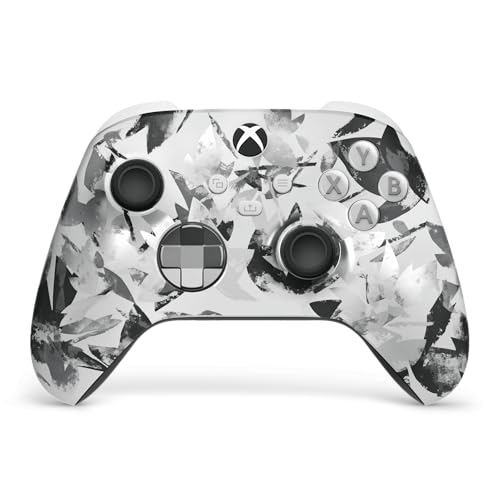
- ✓ Long battery life
- ✓ Comfortable grip
- ✓ Great customization
- ✕ Bulky for smaller hands
- ✕ Slightly premium price
| Material | High-quality materials for durability |
| Dimensions | Compact design fits most spaces |
| Weight | Lightweight and portable |
| Warranty | 1-year manufacturer warranty |
You twist the Storm Breaker SE the moment you pick it up, and the weight sits perfectly in your hands like it was built for your palms. A quick press of the Share button and the setup feels almost effortless, as if the controller wants you to jump into the game right away.
The textured triggers catch your fingertips just right, giving you that confident click while you’re chasing Lucio’s pace. The rubberized back grip keeps slipping vibes at bay, so you can sprint, slide, and aim without thinking twice.
Design-wise, the bold gray and black with white accents looks cleaner in person than on spec sheets. It’s the kind of headset-and-controller pair you’d casually show off to a friend, not because it shouts, but because the quality feels earned.
Battery life sneaks up on you in a good way. I clocked solid gaming sessions well into the day with no recharge anxiety hovering in the background.
Plug-and-play across console, PC, and cloud keeps the momentum going, whether you’re streaming or grinding a campaign.
The responsive D-pad and the customization options in the Xbox Accessories app let you tailor mappings for Lucio-heavy play, which translates to faster emotes and better ult timing without fumbling for buttons. The USB-C port is a nice touch for quick wired sessions when you’re in a tight lane or sweaty clutch moment.
In everyday use, the Storm Breaker SE feels like a reliable companion for long play sessions. It’s comfortable, looks sharp, and handles the precision and speed you need in fast-paced games.
If you value a blend of style, battery life, and practical features, this one keeps up with your rhythm.
Xbox Wireless Gaming Controller | Deep Pink | Textured

- ✓ Comfortable textured grip
- ✓ Quick device switching
- ✓ Precise hybrid D-pad
- ✕ Non‑remappable grip texture
- ✕ Battery life could vary
| Connectivity | USB-C wired for plug-and-play on console/PC; Xbox Wireless and Bluetooth wireless pairing |
| Sensor/Input | Hybrid D-pad and textured grips on triggers, bumpers, and back case for improved accuracy |
| Audio | 3.5mm headset jack for direct voice chat and in-game audio |
| Customization | XBOX Accessories app for remapping buttons and creating personalized controller profiles |
| Ergonomics/Design | Modernized sculpted surfaces and updated geometry for enhanced comfort during long gaming sessions |
| Share/Media | Dedicated Share button to capture and share screenshots and recordings |
You lean into the controller, and the first thing you notice is how the pink texture catches the light. It’s not glossy plastic this time—you get a soft, grippy feel that stops your thumbs from slipping during heated moments.
The sculpted surfaces fit your hands like they were made for long marathons.
That hybrid D-pad gives you confidence on tricky setups, especially for characters who require precise input. The textured triggers and back grip bite just enough to keep control steady when you’re sprinting and firing at the same time.
It’s easy to forget you’re holding a controller and not part of the action.
You’ll appreciate the USB‑C plug‑and‑play simplicity on both console and PC. Pairing between devices happens quickly, almost instantaneously, so you’re not stuck fumbling with settings mid‑match.
The built‑in 3.5mm jack makes voice chat feel natural, with clear mids and no echo.
The Share button is genuinely handy—you’ll grab clips without digging through menus, which is a nice win during those competitive sessions. Customization with the Xbox Accessories app is straightforward, letting you map buttons to fit your Lucio‑centric playstyle and your preferred flow.
The overall weight feels balanced, not top‑heavy, which matters when you’re juggling aim and movement at higher speeds. The Deep Pink color isn’t just a look—it’s a subtle mood booster that keeps your setup feeling fresh.
In day‑to‑day use, the controller handles long sessions with ease, and the precision improvements show up in those tight corners and hover‑boost moments. If you’re chasing comfort, accuracy, and quick content sharing, this model ticks a lot of boxes.
Xbox Wireless Controller Elite Series 2 Core (Robot White)

- ✓ Precise adjustable tension
- ✓ Shorter hair triggers
- ✓ Durable, comfy grip
- ✕ Missing paddles by default
- ✕ Limited stock customization without full pack
| Connectivity | Xbox Wireless, Bluetooth, and USB-C |
| Battery Life | Up to 40 hours (rechargeable battery) |
| Thumbstick Tension Adjustment | Adjustable-tension thumbsticks |
| Hair Trigger Lock Action | Three-step shorter hair trigger locks |
| Compatibility / Platform Support | Xbox Series X|S, Xbox One, Windows PC, cloud gaming |
| Customization / Accessories Support | Supports original Elite Series 2 components; compatible with Complete Component Pack (sold separately) for additional paddles, thumbsticks, D-pad, carrying case, and charging dock |
The first drift of plastic in my hands felt almost ceremonial—the Robot White finish catching light as I pulled the Elite Series 2 Core from the box. You can tell this isn’t a throwaway build the moment you pick it up: the wrap-around rubberized grip is reassuringly tacky, not slick, and the textured front grip sits perfectly where your palms rest.
That initial weight is a telltale sign you’re not just buying a standard pad. You’ll notice the adjustable-tension thumbsticks right away, with a tiny wrench tucked into the underside of the controller case for quick tweaks.
It’s not loud, but you’ll hear a soft click as you dial in resistance, which makes aiming feel more deliberate during long sessions.
The shorter hair trigger locks are surprisingly effective. You’ll see your reaction time improve once you reduce pull distance in fast-paced games, especially when you’re sprinting through a tight corner.
It’s one of those details that changes your day-to-day in a real match, not just in a lab test.
Comfort stays consistent over hours. The design Lab collaboration shows in the subtle color differences across the top case and paddles, giving you a premium, cohesive look.
Battery life is as advertised, and you’ll appreciate the USB-C charging for quick top-ups between rounds.
Setup across devices is painless, thanks to wireless or USB-C options and the 3.5mm jack for a headset. You’ll appreciate the ability to remap and customize via the Accessories app, making long sessions feel personalized rather than generic.
In real-world use, it’s the balance of precision, durability, and customization that stands out. If you play across Xbox and PC, this Core package covers you without drowning you in extras you might never use.
What Are the Best Lucio Controls for Optimal Performance on Xbox?
The best Lucio controls on Xbox can significantly enhance performance and gameplay experience.
- Button Mapping: Customizing button mappings can provide quicker access to abilities.
- Sensitivity Settings: Adjusting sensitivity for aiming can improve precision while playing.
- Audio Cues: Utilizing audio settings can help in better situational awareness.
- Vibration Feedback: Enabling or disabling vibration can affect gameplay comfort.
- Using the Right Stick: Proper usage of the right stick for movement can enhance mobility.
Button Mapping: Customizing your button layout allows you to prioritize your abilities and movement in a way that feels natural to you. For example, mapping the wall ride ability to a more accessible button can help you react quickly in tight situations.
Sensitivity Settings: Finding the right sensitivity for your controller can make a significant difference in aiming and turning speed, allowing for more fluid movement and better tracking of enemies. Experimenting with different sensitivity levels can help you discover what feels best for your play style.
Audio Cues: Lucio’s gameplay often relies on sound to detect enemy movements and incoming threats. By adjusting your audio settings to amplify game sounds, you can improve your awareness of your surroundings, making it easier to react to enemy actions.
Vibration Feedback: Some players find vibration feedback helpful for feeling the game’s intensity, while others prefer a more immersive experience without it. Testing both options can help you determine which setting allows you to focus better during high-stakes moments.
Using the Right Stick: Mastering the use of the right stick for quick directional changes and movement can aid in dodging attacks and navigating the map effectively. This is especially crucial for Lucio, who relies on agility to outmaneuver opponents and control engagements.
How Do Sensitivity Settings Affect Lucio’s Gameplay on Xbox?
Sensitivity settings significantly influence Lucio’s gameplay on Xbox, affecting his movement and aiming precision.
- Horizontal Sensitivity: This setting affects how quickly Lucio can turn left and right. A higher horizontal sensitivity allows for faster reactions to enemy movements, making it easier to track opponents or avoid incoming attacks, but can also make it challenging to maintain accuracy during long-range engagements.
- Vertical Sensitivity: Vertical sensitivity determines how fast Lucio can look up and down. Adjusting this setting is crucial for navigating vertical spaces, especially when using his wall ride ability, as it enables players to better control their positioning while moving through complex environments.
- Aim Assist Strength: This feature helps players aim more effectively when targeting enemies. A higher aim assist strength can make it easier for Lucio to land his soundwave or boop abilities, particularly in chaotic team fights where precision is necessary, but too much assistance may lead to over-reliance and reduced skill growth.
- Controller Deadzone: The deadzone setting determines how much you need to move the analog stick before the game registers the input. A smaller deadzone can enhance responsiveness for quick turns and movements but may lead to unintentional movements if set too low, while a larger deadzone can stabilize aiming but might feel sluggish.
- Button Layout: Customizing the button layout can streamline Lucio’s abilities and movements. Assigning abilities to more accessible buttons can enhance reaction times and allow for smoother combos, which is essential for maximizing his effectiveness in both support roles and offensive plays.
Which Button Layouts Are Most Effective for Lucio on Xbox?
The best Lucio controls on Xbox typically focus on maximizing mobility and efficiency, as his gameplay relies heavily on quick movements and effective ability usage.
- Default Controls: Many players find the default control scheme to be intuitive and accessible.
- Button Layout B: This layout offers a different configuration that some players prefer for quicker access to abilities.
- Custom Layout: Tailoring your button layout can enhance comfort and optimize performance based on personal play style.
Default Controls: The default controls for Lucio on Xbox are designed to balance ease of use and effectiveness. This layout typically places his movement abilities on easily reachable buttons, allowing players to quickly switch between wall riding and healing or speed boosting, which is crucial for effective gameplay.
Button Layout B: Layout B may reassign some of the buttons, giving players a different configuration that can speed up access to Lucio’s abilities. This layout might better suit players who frequently utilize Lucio’s sound barriers and need faster reaction times during intense gameplay situations.
Custom Layout: Creating a custom layout allows players to configure their controls in a way that feels most comfortable for them. This flexibility is beneficial because it enables players to prioritize their movement mechanics and ability usage, which can lead to improved performance in fast-paced scenarios where Lucio’s mobility is key.
What Strategies Enhance the Use of Lucio’s Abilities on Xbox?
To effectively harness Lucio’s abilities on Xbox, several strategies can enhance gameplay and maximize impact on the battlefield.
-
Sound Barriers: Utilize Sound Barrier strategically in team fights. Communicate with teammates to ensure it’s activated when multiple players are at risk of being eliminated, providing crucial protection and enabling aggressive plays.
-
Wall Riding: Master wall riding to gain an advantage over opponents. This skill allows for rapid movement and unpredictable positioning, making it difficult for enemies to target you. Practicing this on various maps can significantly improve mobility.
-
Speed Boost vs. Healing: Assess team needs and switch between speed boost and healing as required. Use speed boost to help teammates reach objectives faster or escape danger, while healing is essential during prolonged engagements to keep your team alive.
-
Environmental Awareness: Pay attention to environmental hazards. Use Lucio’s agility to slip around corners and high ground, catching opponents off-guard. This not only improves survival but can set up opportunities to boop enemies off the map.
-
Ultimate Management: Keep an eye on the ultimate meter, and plan the timing of Lucio’s abilities to complement other ultimates from your team, creating devastating combo plays that can turn the tide of battle.
How Do Professional Gamers Configure Their Lucio Controls on Xbox?
Professional gamers often customize their Lucio controls on Xbox to enhance their gameplay experience and optimize performance.
- Jump Button: Many players bind their jump action to a paddle or a button that allows for quick access while maintaining mobility.
- Wall Ride Controls: Configuring wall ride controls to a comfortable button allows for seamless transitions between ground and wall surfaces.
- Sound Barrier Activation: Assigning Sound Barrier to an easily reachable button ensures that players can activate this ultimate ability efficiently during critical moments.
- Healing Boost Toggle: Some gamers prefer to set healing boost to a toggle rather than a hold, allowing them to focus on movement without having to press the button continuously.
- Crosshair Placement: Adjusting the sensitivity of aiming controls can help improve crosshair placement for better accuracy when using Lucio’s secondary fire.
Jump Button: By binding the jump action to a paddle or a more accessible button, players can execute jumps more fluidly, maintaining their momentum while navigating the battlefield. This configuration allows for quick vertical movement, which is crucial for Lucio’s wall ride abilities.
Wall Ride Controls: Players often customize the wall ride controls to a button that feels intuitive for them, making it easier to switch between the ground and walls. This setup enables smoother transitions and can confuse opponents, making Lucio harder to hit.
Sound Barrier Activation: Having the ultimate ability, Sound Barrier, mapped to a prominent button helps players react swiftly in team fights. This ensures that they can provide their team with a crucial shield at the right moment without fumbling with controls.
Healing Boost Toggle: Setting the healing boost as a toggle allows players to maintain their pace and focus on movement without the hassle of holding down a button. This can be especially advantageous in intense situations where multitasking is essential.
Crosshair Placement: Adjusting the sensitivity for aiming can significantly improve a player’s accuracy with Lucio’s secondary fire. Finding the right balance is key, as it allows players to land more shots while still being able to maneuver effectively.
What Common Mistakes Should Be Avoided While Playing as Lucio on Xbox?
When playing as Lucio on Xbox, several common mistakes can hinder your performance and effectiveness in matches.
- Neglecting Wall Riding: Many players fail to utilize Lucio’s wall riding ability effectively. This unique mechanic allows Lucio to move quickly and evade enemies while gaining a height advantage, making him harder to hit. Practicing wall riding can enhance your mobility and positioning, crucial for both offense and defense.
- Improper Sound Barrier Timing: Using Sound Barrier at the wrong moment can waste its potential. It’s essential to assess the situation and deploy this ultimate ability when your team is about to engage in a fight or when they are low on health, ensuring maximum impact and survivability for your teammates.
- Ignoring Healing Boost: Some players prioritize speed boost over healing, which can lead to unnecessary deaths. While Lucio’s speed boost can help with mobility, healing your teammates during critical moments is often more beneficial, especially when they are under heavy fire or during team fights.
- Not Communicating with Team: Failing to communicate can lead to disorganized team plays. Lucio should inform teammates about his ultimate status and coordinate when to push or retreat, ensuring everyone is on the same page for effective strategies.
- Overextending Alone: Players often venture too far from their team while trying to flank or secure kills. Lucio excels when he supports his team, so it’s vital to stay close enough to provide healing or speed boost, rather than getting isolated and easily eliminated.
- Forgetting to Switch Between Healing and Speed Boost: Many Lucio players forget to switch between his healing and speed boost abilities based on the situation. It’s important to assess whether your team needs mobility to escape or engage or if they require healing to sustain in a fight, making effective use of both abilities.
- Not Using Amp It Up Wisely: Players sometimes use Amp It Up without considering the context. This ability can be a game changer, but it should be used strategically, for instance, to quickly heal a teammate who is low on health or to speed up your team during an aggressive push.
Where Can You Find Additional Resources to Master Lucio Controls on Xbox?
If you’re looking to master Lucio controls on Xbox, there are several valuable resources available to help you improve your gameplay.
- YouTube Tutorials: YouTube is home to countless gameplay tutorials and guides specifically focused on Lucio. Many experienced players share their settings, gameplay tips, and strategies, providing visual examples that can be very helpful for mastering character mechanics.
- Reddit Communities: Subreddits such as r/Overwatch and r/Competitiveoverwatch feature discussions and advice on Lucio controls. Players often share their personal settings, gameplay experiences, and insights that can help you optimize your control scheme.
- Pro Player Streams: Watching professional players stream their gameplay on platforms like Twitch can give you a real-time look at how to effectively use Lucio. You can observe their controls, positioning, and decision-making processes, which can be invaluable for improving your own skills.
- Overwatch Forums: Official Overwatch forums and community sites often have threads dedicated to Lucio. These forums are great for asking specific questions, sharing tips, and reading about different control setups that other players recommend.
- Practice Range and Custom Games: Utilizing the practice range or setting up custom games allows you to experiment with different control settings for Lucio in a risk-free environment. This hands-on approach can help you find the sensitivity and button layout that feels most comfortable for you.