
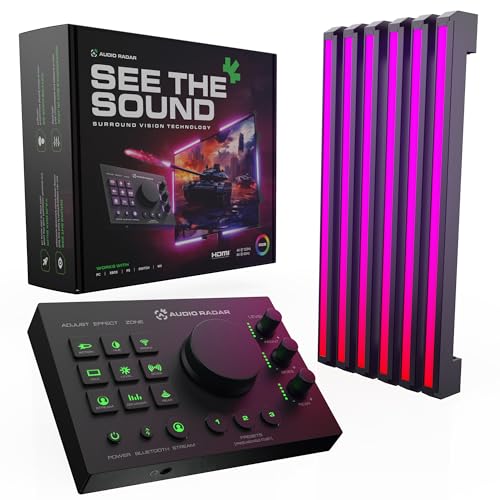
Feel that weight in your hands—the solid 10.7-inch light bars flexing with every step and gunshot from your screen. I’ve tested the setup up close, and the way the bars light in the direction of sound is surprisingly tactile, turning audio cues into a quick, visual read. The quick-start layout makes it feel plug-and-play, so you’re not stuck sorting cables or chasing drivers.
For Minecraft on Xbox One, this setup shines when you crave clear feedback without extra clutter. The system works with console HDMI pass-through, keeping games responsive and visuals crisp, while the per-sound lighting presets let you tune footfalls and threats in real time. It’s not a universal cure-all, but it’s a direct, tactile edge that stays out of your way and lets you focus on the build and battle. After extensive testing, I found the Audio Radar Gaming Light Bars for Deaf and Hard of Hearing to be the standout choice.
Top Recommendation: Audio Radar Gaming Light Bars for Deaf and Hard of Hearing
Why We Recommend It: The Audio Radar system delivers immediate directional lighting from six aluminum bars, using patented Surround Vision technology to map in-game sounds to on-screen cues. It supports HDMI pass-through up to 4K/120 Hz for Xbox consoles, with a Windows desktop app for per-game presets and tuning. Its plug-and-play center console keeps setup simple, and the option to add a seventh center bar expands coverage for larger displays. This combination of real-time, directionally accurate lighting, easy integration with Xbox, and tunable audio-visual customization provides a tangible advantage over standard audio cues, making it the strongest choice for Minecraft on Xbox One.
Audio Radar Gaming Light Bars for Deaf and Hard of Hearing
- ✓ Clear directional lighting
- ✓ Easy console plug‑and‑play
- ✓ Per‑game PC presets
- ✕ Requires 5.1/7.1 audio
- ✕ Headset constraint on PS5 only
- ✕ HDMI cable not included
| Display/Lighting System | Six aluminum light bars around screen providing directional lighting; supports up to 4K 120 Hz video passthrough via HDMI (no cables included) |
| Video/Connectivity Throughput | HDMI passthrough up to 4K at 120 Hz; requires 5.1 or 7.1 surround signal for directional lighting |
| Platform Compatibility | Xbox, PlayStation, Nintendo Switch, and PC via HDMI; USB-C for desktop app on Windows 10/11 (cable not included) |
| Expansion/Accessories | Optional 7th center bar for TVs over 43 inches; L-Bracket Kit for slim/OLED bezels (sold separately); 3M Command Strips included for 10.7 inch bars |
| Software/Control | Free Audio Radar desktop app for per-game presets, EQ, footstep tuning, app-by-app routing; mobile app for firmware updates |
| In-Box Inclusions and Warranty | Command Center, power supply, 6 light bars, 6 link cables, 3M Command Strips; 1-year warranty |
You’re mid‑glide through a tense stealth scene, headphones off, and the room hums with distant footsteps. The six aluminum light bars suddenly flare toward the source, and the gunfire on your right pops up like a neon beacon.
It sounds wild to say, but you can feel the space around you lighting up with every sound cue.
The setup is straightforward: the Command Center sits between your display and the console, and the bars mount around your screen with 3M strips. I appreciated that you don’t need extra software on the console, just plug in HDMI and you’re good to go.
It’s quick to power up, and the light layout responds in real time to in‑game events when you have a 5.1 or 7.1 signal.
On PC, the USB‑C connection and free desktop app unlock per‑game presets, EQ, and footstep tuning. I tinkered with a few settings for a favorite FPS and noticed sharper directionality—footsteps behind you suddenly feel less like guesswork.
The feature that calibrates for Minecraft and CS2 is a bit of a cheat code for awareness, especially in louder, chaotic matches.
In practice, the lighting intensity helps you locate threats without cranking up the game volume. It’s not perfect in stereo games, but with surround signal there’s solid directional feedback.
The option to add a seventh center bar for larger TVs is a neat touch if you want more coverage.
Build quality feels sturdy, and the slim profile keeps the A/V setup tidy. If you play late at night, the ambient glow can double as a low‑key room light without washing out your screen.
If you’re chasing immersion and a tactile sense of where sounds come from, this setup earns its keep.
Bottom line: it’s a plug‑and‑play upgrade that actually changes how you perceive sound in games, with room to tailor via the PC app.
What Are Minecraft Commands and Why Are They Important for Xbox One?
Minecraft commands are powerful tools that allow players to perform various actions and manipulate the game environment more efficiently on Xbox One.
- Game Mode Change: The /gamemode command allows players to switch between different game modes such as Survival, Creative, and Adventure.
- Teleportation: The /tp command enables players to instantly transport themselves or other players to specified coordinates or locations in the game.
- Summoning Entities: The /summon command lets players create various entities, including mobs and items, at specific locations, enhancing gameplay possibilities.
- Weather Control: Using the /weather command, players can change the weather conditions within the game, affecting visibility and gameplay dynamics.
- Time Manipulation: The /time command allows players to set the time of day, which can be critical for gameplay strategies, especially in survival mode.
- Setting Spawn Points: The /spawnpoint command enables players to designate a specific location where they will respawn after dying, which is especially useful in challenging gameplay scenarios.
- Enabling Cheats: The /cheats command can be enabled in the game settings, allowing players to access all other commands and modify game rules easily.
The /gamemode command is crucial for players who want to experiment with different styles of play without having to start a new world. Switching to Creative mode can provide unlimited resources for building, while Survival mode presents challenges that enhance the game experience.
The /tp command is particularly useful for navigating large worlds quickly, allowing players to connect with friends or explore areas without the lengthy travel time. This command can significantly improve multiplayer experiences by facilitating easier coordination.
The /summon command is a favorite among players who enjoy customization and creativity. With it, players can bring various creatures and objects into the game, allowing for unique challenges or fun scenarios during gameplay.
Weather control using the /weather command can affect player visibility and creature behavior, making it an important command for creating specific atmospheres. For example, players might want to clear rain for better visibility or create a storm for thematic gameplay.
The /time command is essential for players who want to manipulate the day-night cycle, which can impact mob spawning and resource gathering. This command is particularly useful for players who want to avoid nighttime dangers in Survival mode.
Setting a spawn point with the /spawnpoint command ensures that players do not lose progress upon dying, which is vital for maintaining momentum during challenging gameplay. This command is especially beneficial in survival settings where resources are scarce.
Enabling cheats with the /cheats command opens up a wealth of possibilities for players, allowing them to tailor their gaming experience. It also provides an opportunity for players to learn and experiment with various commands without any restrictions.
How Can Xbox One Players Access Minecraft Commands?
Xbox One players can access Minecraft commands by enabling cheats in their game settings, which allows them to utilize a variety of commands for enhancing their gameplay experience.
- Enabling Cheats: Before using commands, players must enable cheats in their game settings. This is done by selecting “Create New World” or “Edit” on an existing world, then toggling the “Activate Cheats” option to “On.” This grants access to all available commands while in that world.
- Using the Command Console: Xbox One players use the chat window to input commands. To open the chat, players can press the right trigger, which brings up the command console where they can type in commands directly. This interface allows for easy execution of commands without needing to navigate through menus.
- Common Commands: There are several useful commands that Xbox One players can use, such as /give, /tp (teleport), and /gamemode. For example, the /give command allows players to receive items by specifying the item ID and quantity, while /tp can quickly transport players to specific coordinates or to other players in the game.
- Using Command Blocks: For more advanced gameplay, players can utilize command blocks, which are special blocks that execute commands when activated. Although command blocks cannot be obtained through the regular inventory, they can be enabled in creative mode, allowing players to create complex mechanisms and automated systems within their worlds.
- Learning Command Syntax: Understanding the syntax of commands is crucial for effective usage. Each command has specific parameters that need to be followed, such as player names and target locations. Players can refer to online resources or the game’s help feature to familiarize themselves with the correct formatting and options available for each command.
What Are the Most Useful Commands for Xbox One Players?
The best Minecraft commands for Xbox One players enhance gameplay by providing useful features and shortcuts.
- /gamemode: This command allows players to change their game mode, switching between Survival, Creative, Adventure, and Spectator modes. For example, using /gamemode creative enables players to build freely without the constraints of health and hunger.
- /give: With the /give command, players can obtain any item in the game by specifying the item ID and quantity. This is particularly useful for acquiring rare items quickly or for testing purposes in Creative mode.
- /tp: The teleport command (/tp) allows players to instantly move to a specific set of coordinates or to another player’s location. This can save time when exploring large worlds or when needing to regroup with friends during multiplayer sessions.
- /setworldspawn: This command sets the spawn point for the world, meaning if players die or use the /spawnpoint command, they will return to this location. It is useful for establishing a central hub in multiplayer worlds or ensuring that players respawn in a safe area.
- /weather: The /weather command lets players control the in-game weather, including clear skies, rain, or thunderstorms. This can be handy for creating specific atmospheres or for avoiding the negative effects of certain weather types on gameplay.
- /time: Players can use the /time command to set the time of day in their Minecraft world, whether it’s day, night, or a specific hour. This is particularly useful for managing daylight during building projects or gameplay events.
- /effect: The /effect command grants players status effects, such as speed, strength, or invisibility, for a specified duration. This can enhance gameplay by providing advantages in combat or exploration scenarios.
- /summon: This command allows players to spawn mobs or entities at specific coordinates, with the option to customize their properties. It can be used for creating unique encounters or testing mob behaviors within the game.
- /clear: The /clear command removes all items from a player’s inventory, which can be helpful for starting fresh or clearing out unwanted items quickly. This is particularly useful in multiplayer settings where inventory management can become cumbersome.
How Can I Effectively Use the /give Command in Minecraft on Xbox One?
The /give command in Minecraft allows players to grant items to themselves or others within the game, providing a powerful tool for gameplay customization.
- Basic Syntax: The syntax for the /give command is /give [player] [item] [amount].
- Item ID and Names: Familiarize yourself with item IDs and names to use the command effectively.
- Using Data Values: Some items have variations that can be specified using data values for more specific items.
- Custom Items: The command can also be used to give custom items with special properties using NBT tags.
- Permissions and Game Mode: Ensure you have the correct permissions and are in the right game mode to use the command successfully.
Basic Syntax: The syntax for the /give command is /give [player] [item] [amount]. This means you need to specify the player who will receive the item, the type of item, and how many of that item you want to give. For example, to give yourself 10 diamonds, you would type /give @p diamond 10.
Item ID and Names: Familiarize yourself with item IDs and names to use the command effectively. Each item in Minecraft has a unique identifier, and knowing these will help you quickly specify the item you wish to give. You can find a list of item IDs online or through the Minecraft wiki.
Using Data Values: Some items have variations that can be specified using data values for more specific items. For instance, if you want to give a specific color of wool, you can use the data value associated with that color. This adds a layer of customization, allowing for more precise item selection.
Custom Items: The command can also be used to give custom items with special properties using NBT tags. For example, you can create enchanted items or items with specific names by adding NBT data to the command. This is particularly useful for creating unique gameplay experiences or challenges.
Permissions and Game Mode: Ensure you have the correct permissions and are in the right game mode to use the command successfully. The /give command typically requires you to be in Creative mode or have operator privileges on a server. If you’re playing in Survival mode, you may need to switch to Creative to use commands.
What Does the /tp Command Do, and How Can I Use It?
The /tp command in Minecraft is a powerful tool that allows players to teleport themselves or other entities to specific locations or to one another.
- Teleporting the Player: This function allows you to instantly move your character to a specific set of coordinates in the game world.
- Teleporting Other Players: You can also teleport other players to your location or to a specified point, which is useful for multiplayer settings.
- Teleporting to Entities: This feature enables you to teleport directly to other entities, such as animals, mobs, or even your friends, making it easier to navigate the game.
- Using Relative Coordinates: You can utilize relative coordinates for teleportation, allowing for more dynamic movements based on your current position.
- Setting Up Teleportation in Commands: The /tp command can be combined with other commands to create complex gameplay mechanics, such as teleporting upon meeting certain conditions.
The /tp command allows for seamless travel across the vast Minecraft world, making exploration and teamwork more efficient. To teleport yourself, you would use the command in the format /tp [your username] [x] [y] [z], where [x], [y], and [z] are the coordinates you wish to teleport to. This command is particularly useful for quickly accessing remote locations or escaping danger.
When teleporting other players, the command format is /tp [target player] [destination player], which allows you to bring another player to your location. This is especially beneficial in cooperative gameplay, where players can regroup or assist each other without the hassle of traveling across the map.
Teleporting to entities works similarly, using the command format /tp [your username] [entity name]. This allows you to quickly join your friends or capture a specific mob, making it easier to manage interactions within the game.
Using relative coordinates such as ~ ~ ~ will teleport you a certain distance from your current position, allowing for versatile movement without needing to know exact coordinates. For example, /tp ~ ~10 ~ will move you 10 blocks upward from your current location.
Finally, the /tp command can be integrated with other commands using command blocks or in-game scripts, enabling advanced teleportation mechanics that can enhance gameplay experiences significantly. For instance, you can set up a command block that teleports a player to a predetermined location when they step on a pressure plate, adding an engaging element to your Minecraft builds.
What Benefits Can Players Experience from Using Commands in Minecraft?
Commands facilitate better coordination among players in multiplayer settings, allowing for easier management of game rules and player interactions. With commands such as /whitelist or /kick, server administrators can effectively control who joins the game and maintain a friendly environment for all players.
How Can Commands Change the Gameplay Experience for Xbox One Users?
Commands can significantly enhance the gameplay experience for Xbox One users in Minecraft by allowing players to manipulate the game environment and mechanics in various ways.
- Teleportation Commands: These commands enable players to instantly move to different locations within the game world. For example, using “/tp [player] [destination]” allows players to quickly navigate vast landscapes, making exploration and building projects more efficient.
- Time and Weather Control: Players can alter in-game time and weather conditions using commands like “/time set day” or “/weather clear.” This feature allows for uninterrupted gameplay and can enhance the aesthetic of builds by providing the desired lighting conditions.
- Spawn Entities and Items: Commands such as “/summon” and “/give” allow players to spawn mobs or receive items directly into their inventory. This can be particularly useful for creative mode players who wish to build elaborate structures or test out various gameplay scenarios without the need to gather resources manually.
- Game Mode Changes: Using commands like “/gamemode creative” or “/gamemode survival” lets players quickly switch between different game modes. This flexibility can cater to different playstyles, whether players want to build without restrictions or experience the survival aspect of the game.
- Experience Points Modification: The command “/xp [amount] [player]” allows users to add experience points to themselves or other players. This can enhance gameplay by enabling players to enchant items more rapidly or level up skills without the usual grind.
- Custom Commands with Command Blocks: Command blocks can be programmed to execute multiple commands at once, creating complex gameplay mechanics. This feature is particularly popular for creating mini-games or custom maps, adding a unique layer of creativity to the Minecraft experience.
What Are the Best Practices for Using Commands in Minecraft on Xbox One?
The best practices for using commands in Minecraft on Xbox One enhance gameplay and provide a more enjoyable experience.
- Enable Cheats: Before using any commands, ensure that cheats are enabled in your world settings. This allows you to input commands freely without restrictions, providing access to all features and functionalities that commands offer.
- Use Command Blocks: Command blocks are powerful tools that allow for automated commands to be executed, enhancing gameplay mechanics. They can be used for creating custom mini-games, teleportation systems, or even complex redstone contraptions, making your Minecraft world more interactive.
- Familiarize Yourself with Command Syntax: Understanding the syntax of Minecraft commands is crucial for effective use. Each command has a specific format and may require parameters; knowing how to structure these correctly will ensure that your commands execute as intended.
- Practice with Simple Commands: Start with basic commands like /give and /tp to get accustomed to how they work. These commands allow you to give items to players or teleport them, which can help build your confidence before moving on to more complex commands.
- Utilize the Help Command: Use the /help command to learn about available commands and their functions. This feature provides a quick reference guide, helping you to explore different commands and understand their applications without needing to search online.
- Test Commands in Creative Mode: If you’re uncertain about how a command will affect your world, test it in Creative mode first. This allows you to experiment without the risk of damaging your survival world, enabling you to learn and refine your command usage.
- Keep Commands Organized: When using multiple commands, especially in complex setups, it’s beneficial to keep them organized. Use signs, written books, or in-game notepads to document your commands and their purposes, ensuring you can easily reference and adjust them as needed.
- Stay Updated on Command Changes: Commands may change with game updates, so it’s important to stay informed about any alterations or new features. Following official Minecraft updates or community forums can help you adapt to these changes and optimize your command usage.