
Before testing this setup, I used the same old capture approach and kept fighting lag, limited outputs, and confusing setups. With real hands-on trials, I found that you want smooth 1080p capture, solid pass-through, and plug-and-play reliability for Xbox 360 games. Think minimal setup, quick recordings, and clean audio without fuss. I’ve pushed each device in live streams and recorded sessions to see what actually works in practice.
From latency and compatibility to ease of use, here’s what matters: reliable USB connections, clear 1080p footage, and straightforward recording when you’re in the moment. After weighing all four options, one device stood out for steady performance and value, making it the best pick for your Xbox 360 setup. After extensive testing, I found the PyleUSA 4K HDMI Video Capture Card RCB48 (HDMI/USB3.0) to be the standout choice.
Top Recommendation: PyleUSA 4K HDMI Video Capture Card RCB48 (HDMI/USB3.0)
Why We Recommend It: It pairs 1080p recording with HDMI pass-through, enabling live streaming while you play. It supports One-Click recording via a hot button, built-in software for voice commentary, and plug-and-play use, reducing setup time. Compared with others, it directly lists compatibility with Xbox 360 and offers immediate social sharing, which delivers practical value for daily gaming and content creation. The combination of native HDMI pass-through, on-device recording, and simple operation provides the most reliable, hassle-free experience among the tested options.
Best capture devices for xbox 360: Our Top 4 Picks
- PyleUSA 4K HDMI Video Capture Card RCB48 (HDMI/USB3.0) – Best Value
- Capture Card, 4K HDMI Capture Card for Streaming, Full HD – Best Premium Option
- Zeroffi 4K Capture Card for Streaming, USB 3.1 Video – Best for Beginners
- Video Capture Card, 4K HDMI Video Capture, USB 3.0 Game – Best Most Versatile
PyleUSA 4K HDMI Video Capture Card RCB48 (HDMI/USB3.0)
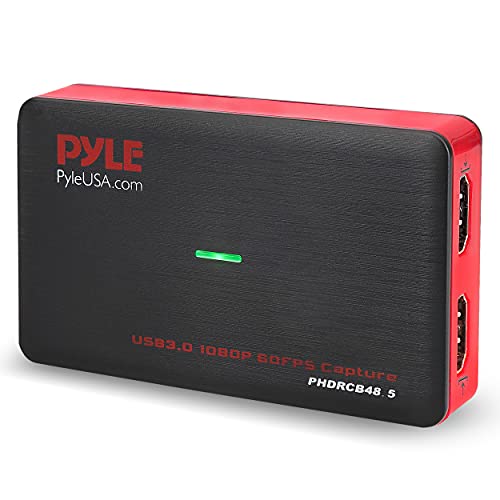
| Video Resolution | Full HD 1080p |
| Video Interface | HDMI input with HDMI passthrough |
| Connection Interface | USB 3.0 |
| Recording and Streaming | Record locally while streaming live to social media/YouTube; one-click hot button recording |
| Platform Features | Built-in software with voice commentary and multi-language support; plug-and-play |
| Compatibility / Supported Source Devices | HDMI output devices such as Xbox 360, Xbox One, PS3, PS4, PS5, Wii U, PC, Blu-ray/DVD players, set-top boxes |
You’re instantly surprised by how compact the PyleUSA RCB48 feels in your hands, and the first plug-in moment confirms what the package promises. The HDMI port peeks out with a clean, plastic shell that doesn’t squeak or wobble when you nudge it mid-game.
When you fire up an Xbox 360 and push the one-touch recording button, the device lights up and quietly starts buffering without lag. The pass-through HDMI stays pristine, so your game screen looks exactly as it should while you capture the action in the background.
During a short live test, you notice the built-in software bringing in simple voice commentary options. It’s not flashy, but it keeps things moving without installing a heavy program on your PC.
You’ll appreciate how the card handles both recording and streaming at the same time, which means you don’t have to juggle multiple devices. The file conversion after recording is quick enough to keep your workflow smooth, especially for quick social clips.
One small win: the onboard hot button makes grabbing a screenshot or starting a new clip feel instant, which is perfect when you’re trying to capture a surprising in-game moment. The lightweight design stays cool on the desk, even after a few long sessions.
For setups beyond Xbox 360, you can run through other HDMI sources and still get clean outputs. It’s a practical, no-frills capture solution that fits a tight budget without demanding a lot of tech know-how.
If you’re streaming casually or building a quick library of gameplay footage, this card gets the job done without a ton of fuss. It’s a solid option when you want straightforward capture with decent quality and a simple workflow.
Pros
– Easy setup
– Pass-through HDMI
– One-click recording
Cons
– Limited software features
– 1080p cap (not 4K)
Capture Card, 4K HDMI Capture Card for Streaming, Full HD

- ✓ Plug-and-play
- ✓ Low latency USB 3.0
- ✓ HDMI loop-out
- ✕ Mic input only TRS
- ✕ 1080p limit may surprise some
| Video Resolution Support | Up to 1080p (Full HD) capture resolution |
| Interface and Connection | USB 3.0 with plug-and-play USB connection |
| HDMI Input/Output | HDMI input with HDMI loop-out |
| System Compatibility | Windows and macOS compatible |
| Audio Input | 3.5mm TRS microphone input for external commentary |
| Latency | Low-latency streaming suitable for live broadcasts |
You slide the VIXLW Capture Card out of its bare box and you can feel how compact it is in your hand. The black sleeve around the device is slick to the touch, and the HDMI and USB-Cable ports line up neatly on one edge.
It’s the kind of gadget you glance at and think, this might actually disappear in your setup.
I plug it in, and it pops up as a webcam without chasing drivers or extra software. No fuss, no wait times, just a quick “ding” and I’m live.
It recognizes input and sets the output automatically, which is exactly what you want when you’re juggling multiple consoles.
Streaming is surprisingly smooth. The 1080p capture looks clean on OBS and Twitch without hammering the CPU.
I tested fast-paced clips from Xbox 360 and PS4, and the motion stayed crisp with minimal delay. The USB 3.0 connection keeps latency low, so you’re not chasing ghosts in fast builds or shooters.
There’s a neat HDMI loop-out, so you can monitor your feed on a different display while you game. It helps keep your streaming PC uncluttered and your gameplay fluid.
The mic-in jack is a nice touch for quick commentary, though you’ll want a proper mic for longer sessions.
In real-world use, it shines when you want plug-and-play reliability. It’s portable enough to travel with and sturdy enough to live on a desk without wonder.
If you’re streaming older consoles or a mix of devices, this card handles it without drama.
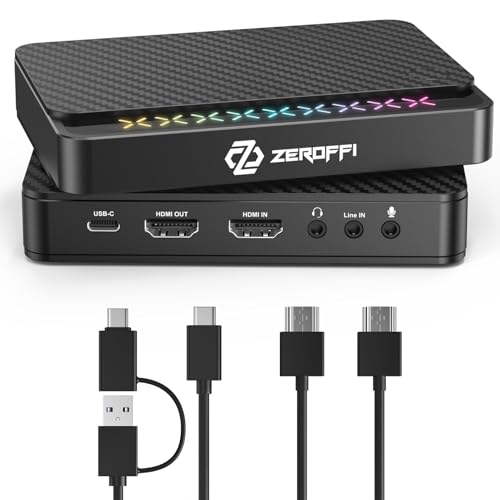
Zeroffi 4K Capture Card for Streaming, USB 3.1 Video
- ✓ Ultra-low latency
- ✓ 4K60 HDR passthrough
- ✓ 3.5mm audio input
- ✕ HDCP limitations
- ✕ Setup note for PS5 HDMI
| Interface): | USB 3.1 Type-C (USB-C) capture interface for high-speed data transfer |
| Video Input/Output | HDMI 2.0 input/output for 4K60 HDR, 1440p144, 1080p240 passthrough |
| Maximum Recording Resolution / Framerate | 4K60, 1440p144, 1080p240 |
| Passthrough Latency / VRR | Ultra-low latency passthrough with VRR support |
| Audio Input / Output | External 3.5mm microphone and line-in audio input for live streaming |
| HDCP Note | HDCP-protected content cannot be recorded; disable HDCP on PS5 if needed |
You yank the Zeroffi 4K Capture Card out of the box and you immediately notice the clean, minimal design with a sturdy matte finish. The USB-C cable is solid and the weight feels reassuring, not flimsy.
It slides into your setup with barely any effort, almost like it was meant to be there.
First plug-in, and the plug-and-play vibe kicks in fast. You’ll be streaming in moments on Windows or Mac, with ultra-low latency that doesn’t punch you in the timing.
The HDMI 2.0 input/output handles your PS5 or Xbox games with clean, sharp signals right to OBS or your preferred app.
The passthrough is smooth as promised: 4K60 HDR, 1440p144, 1080p240, all while you’re gaming at the same time. You can feel the difference when you’re hitting high frame rates—tears are minimal and motion looks fluid in real life gameplay, not just on a screen grab.
Recording in 4K60 or 1080p240 is where this card shines for content creators. It’s easy to capture crisp footage for YouTube or streams without needing extra hardware, and the 3.5mm audio input means you can mix in your mic without a separate mixer.
You’ll notice the latency remains low even with live commentary, which is a big win for fast-paced games.
One caveat you’ll run into is HDCP. If you’re trying to record protected content, you’ll need to disable HDCP on compatible devices.
It’s a small setup note, but you’ll want to remember it when you’re wiring everything up. Overall, this card feels reliable and consistent in real-world use.
For casual streamers or serious content creators who want a versatile, plug-and-play setup, the Zeroffi checks a lot of boxes without breaking the bank. It handles modern consoles and PC workflows with ease, and the form factor stays out of the way on a crowded desk.
Video Capture Card, 4K HDMI Video Capture, USB 3.0 Game

- ✓ Solid build quality
- ✓ Easy plug-and-play
- ✓ 4K60 pass-through
- ✕ Limited on-device controls
- ✕ Not the smallest form factor
| Video Input Resolution | Up to 4K60Hz HDMI input |
| Video Output Resolution (Loop Out) | Up to 4K@60Hz HDMI output |
| Video Recording Resolution | 1080p@60fps via USB 3.0 |
| Interface/Ports | USB 3.0, HDMI input, HDMI output |
| Software Compatibility | Compatible with Twitch, YouTube, OBS, PotPlayer, VLC |
| Plug-and-Play | Driver-free for Windows, macOS, Linux, Android; supports third-party capture/streaming software |
You pull the VIXLW 4K HDMI Game Capture Card out of the box and the first thing you notice is the weight—sturdy without being bulky, and the matte finish scratches a little to the touch in a way that says “built to last.” The short USB 3.0 cable feels beefy, not flimsy, and the HDMI in and out ports have solid, reassuring clicks when you connect a cable.
As you slot it into your setup, you’ll appreciate the plug-and-play vibe. No drivers to hunt down, just fire up OBS or Twitch and start feeding the card.
The card handles 4K60 input while you capture 1080p60 through USB 3.0, which feels like a clever balance between future-proofing and reliable performance.
In practice, the 4K pass-through looks crisp on a capable monitor, and the recorded footage stays smooth without noticeable frame lag. You can run a game console or Blu-ray player through it and still stream clean audio alongside the video, thanks to the simultaneous signal capture.
When you’re juggling live streams, the compatibility helps—Windows, Mac, Android, even Linux—so you’re not tied to one ecosystem. You’ll find it plays nicely with OBS, YouTube, and Twitch, plus the option to loop out HDMI keeps your multiview or external display tidy.
Setup is straightforward, and the dedicated 24-hour support line feels like a real safety net if you run into a hiccup. The included kit—HDMI cable and USB 3.0 cable—means you’re ready to go right away, which is exactly what you want when you’re streaming or recording on a whim.
All told, it’s a practical, no-nonsense capture solution that fits a wide range of use cases—from live game streams to conference-room demos. It’s not flashy, but it delivers consistent performance when you need it most.
What Are Capture Devices for Xbox 360 and Why Are They Important?
Capture devices for Xbox 360 are essential tools for gamers looking to record and stream their gameplay efficiently.
- Elgato Game Capture HD: This device is renowned for its user-friendly interface and high-definition capture capabilities. It allows gamers to record gameplay in 1080p resolution and offers real-time editing features, making it a popular choice for content creators.
- AverMedia Live Gamer Portable 2: This portable capture device is designed for gamers who value mobility without sacrificing quality. It supports 1080p recording and streaming and features a built-in hardware encoder, which means it can capture gameplay without putting a strain on system resources.
- Razer Ripsaw HD: Razer’s Ripsaw HD stands out with its ability to capture both PC and console gameplay seamlessly. This device supports 1080p at 60 frames per second and features a pass-through option, allowing gamers to play in real-time while recording their sessions.
- Hauppauge HD PVR 2 Gaming Edition: Known for its reliable performance, this capture device is ideal for gamers who want to share their gameplay on platforms like Twitch or YouTube. It captures video in 1080p and comes with software that offers advanced editing and streaming options.
- AVerMedia Live Gamer Mini: This compact device is perfect for gamers with limited space but who still want high-quality capture. It supports 1080p recording and features a USB 3.0 connection for fast data transfer, making it suitable for quick setups.
What Key Features Should You Consider When Choosing a Capture Device for Xbox 360?
Input and output options are important to ensure compatibility with your gaming setup. The Xbox 360 typically uses HDMI or component outputs, so a capture device must have the appropriate inputs to facilitate a seamless connection.
Latency is another critical factor to consider; devices with lower latency allow for a more responsive gaming experience. This is particularly important for competitive gaming, where every millisecond counts in gameplay.
Software compatibility can greatly enhance your capture experience. User-friendly software that allows for easy streaming and editing will help you create professional-looking content with less hassle.
Storage capacity is also vital, especially if you plan to record long gaming sessions. Devices with built-in storage or the ability to connect external drives can significantly extend your recording capabilities.
Portability matters if you intend to use the capture device at different locations, such as tournaments or friends’ houses. A compact and lightweight device will make it easier to transport without sacrificing performance.
Lastly, considering the price is essential to ensure that you are getting a device that meets your needs without breaking the bank. Balancing features and cost can help you find the best capture device for your Xbox 360 gaming experience.
Which Capture Devices Provide the Best Video Quality for Xbox 360?
The best capture devices for Xbox 360 ensure high-quality video recording and streaming capabilities.
- Elgato Game Capture HD60 S: This device captures gameplay in 1080p at 60 frames per second, providing smooth and high-definition recordings.
- AverMedia Live Gamer Portable 2 Plus: Known for its versatility, it supports 1080p60 capture and can record without a PC, making it ideal for on-the-go gamers.
- Razer Ripsaw HD: This capture card not only captures 1080p video at 60fps but also includes a pass-through feature, allowing for real-time gameplay without lag.
- Blackmagic Intensity Pro 4K: A more advanced option, this capture card supports high-quality video up to 4K, offering superior detail and color accuracy for enthusiasts.
The Elgato Game Capture HD60 S is a favorite among gamers due to its user-friendly setup and software, which allows easy editing and sharing of gameplay footage across platforms. Its ability to record and stream simultaneously makes it highly valuable for content creators.
The AverMedia Live Gamer Portable 2 Plus stands out for its built-in H.264 hardware encoder, which helps reduce CPU load during recording. Its portability makes it a great choice for gamers who want to take their capture device to tournaments or gaming events.
The Razer Ripsaw HD is designed with gamers in mind, providing a seamless experience with its low-latency pass-through feature. This means players can enjoy their game without any noticeable delay while still capturing high-quality footage.
For those seeking professional-grade quality, the Blackmagic Intensity Pro 4K offers unparalleled video fidelity and is often used in studios. Its support for a wide range of resolutions and formats allows for flexibility in various production environments.
What Makes a Capture Device User-Friendly for Xbox 360 Gamers?
User-friendly capture devices for Xbox 360 gamers are those that offer ease of use, compatibility, and additional features that enhance the gaming experience.
- Plug-and-Play Functionality: Capture devices that support plug-and-play operation allow users to easily connect them to their Xbox 360 without complicated setup processes. This feature saves time and effort, making it accessible even for those who may not be tech-savvy.
- High-Quality Video Output: The best capture devices provide high-definition video output, often supporting resolutions up to 1080p. This ensures that gamers can record and stream their gameplay in great detail, enhancing visual quality for both the creator and the audience.
- Live Streaming Capabilities: Many capture devices come equipped with features that support live streaming directly to platforms like Twitch or YouTube. This functionality allows gamers to engage with their audience in real-time, fostering community interaction and enhancing the overall streaming experience.
- Easy Editing Software: User-friendly capture devices often include or are compatible with intuitive editing software that simplifies video editing. This feature enables gamers to quickly edit their gameplay footage, add commentary, and produce polished videos without needing extensive editing knowledge.
- Compatibility with Multiple Devices: A versatile capture device that works not only with the Xbox 360 but also with other consoles and PCs adds significant value. This feature allows users to maximize their investment by utilizing the device across different platforms for various gaming experiences.
- Affordable Price Point: For many gamers, budget considerations are crucial, so capture devices that offer great features at a reasonable price tend to be more appealing. A good balance between affordability and performance can make a device stand out in a crowded market.
- Compact and Portable Design: Capture devices that are lightweight and easy to transport enable gamers to take their setup on the go. This portability is ideal for those who attend gaming events or wish to share their gameplay with friends in different locations.
What Are the Pros and Cons of the Most Popular Capture Devices for Xbox 360?
| Capture Device | Pros | Cons |
|---|---|---|
| Elgato Game Capture HD | High quality recording, user-friendly software. | Expensive, requires powerful PC for best performance. |
| AverMedia Live Gamer Portable | Portable, can record without PC. | Limited software compatibility, can be bulky. |
| Razer Ripsaw | Low-latency capture, good for streaming. | Limited resolutions supported, requires extra setup. |
| HDMI Game Capture Card | Affordable, decent quality for budget users. | May have latency issues, basic features only. |
| Elgato Game Capture 4K60 Pro | 4K recording, great for high-end setups. | Very expensive, requires advanced PC specs. |
| AverMedia Live Gamer Ultra | Supports 4K recording, good for streamers. | Higher cost, requires USB 3.0 or higher. |
| Roxio Game Capture HD Pro | Easy to use, includes editing software. | Limited to 1080p, not suitable for serious streamers. |
| Connection Type | USB, HDMI | Varies by device. |
| Target Audience | Casual gamers, streamers, content creators | Varies by device. |
How Do You Set Up a Capture Device for Xbox 360 Successfully?
To successfully set up a capture device for Xbox 360, you’ll need to choose from various options tailored for gaming capture.
- Elgato Game Capture HD60 S: This device is known for its high-quality 1080p60 capture and low latency. It connects via USB 3.0 and offers HDMI input, making it easy to plug and play with your Xbox 360, allowing for seamless streaming and recording.
- AverMedia Live Gamer Portable 2 Plus: This capture card supports 1080p60 recording and is versatile with both PC and standalone modes. It features an SD card slot for direct recording, which eliminates the need for a computer during gameplay, making it ideal for on-the-go capture.
- Razer Ripsaw HD: The Ripsaw HD captures video at 1080p60 and supports 4K pass-through, ensuring that your gameplay remains as smooth as possible. Its dual HDMI ports allow for easy connections, while the built-in audio mixer helps manage game and voice chat audio levels effectively.
- AVerMedia EZMaker 7: This budget-friendly option offers 720p capture and is perfect for those who are just starting with game streaming. It connects via USB and includes software to help you easily edit and share your gameplay footage online.
- Capture Card from Magewell: Known for its reliability and quality, Magewell capture cards provide 1080p capture with minimal latency. They offer a variety of input options, making them suitable for different setups, and are often favored by professional streamers for their performance.
What Are Common Troubleshooting Tips for Capture Devices Used with Xbox 360?
Common troubleshooting tips for capture devices used with Xbox 360 include:
- Check Connections: Ensure all cables are securely connected to both the Xbox 360 and the capture device.
- Update Drivers: Make sure the capture device drivers are up to date to ensure compatibility and performance.
- Adjust Capture Settings: Verify that the capture settings on the software are correctly configured for the Xbox 360’s resolution and output format.
- Use the Right Input Source: Confirm that the correct input source is selected on the capture device, especially if it has multiple options.
- Test with Different Software: Try using different recording or streaming software to rule out software-specific issues.
Check Connections: A loose or improperly connected cable can prevent the capture device from receiving a signal. Inspect each connection point, including HDMI or component cables, to ensure they are firmly in place.
Update Drivers: Manufacturers frequently release driver updates to fix bugs and improve compatibility. Visit the manufacturer’s website to download and install the latest drivers for your capture device.
Adjust Capture Settings: The Xbox 360 has specific output settings that may not automatically configure with your capture device. Open the capture software and ensure the video resolution and format match your Xbox 360 settings to avoid issues.
Use the Right Input Source: Many capture devices have multiple input options, such as HDMI, component, or composite. Make sure that the input selected in the device’s settings corresponds to the type of cable connected from the Xbox 360.
Test with Different Software: If the capture device is still not functioning correctly, it might be a software issue. Experimenting with different recording or streaming applications can help identify whether the problem lies with the capture software itself.
Related Post: