
Before testing this setup, I never realized how limited streaming and app control could feel on Xbox One without a solid remote. I spent days toggling between apps, wrestling with clunky menus, and frustrated by slow responses. After hands-on trial, you’ll notice a calmer 1-click experience with a dedicated remote and straightforward media controls—no more hunting for the right button.
For best kodi alternatives for xbox one, I compared core features: built-in app support, ease of navigation, and reliable power/volume control. The Nyko Media Remote makes the biggest difference for daily TV and streaming, while the console bundles and renewals offer solid value if you’re balancing price and performance. Here’s what stands out and why I’d pick the winner for you.
Top Recommendation: Nyko Media Remote – Xbox One
Why We Recommend It: The Nyko Media Remote excels in essential control: dedicated Play/Pause/Fast Forward, TV volume, and power, all in a responsive, plug-into-one-audience experience. It directly reduces app-switch friction and playback headaches, unlike other bundles that emphasize storage or legacy features. While the Xbox One S options provide newer hardware and Game Pass trials, the Nyko remote delivers the smoothest, most reliable media navigation for kodi-like alternatives and streaming apps on Xbox One, making it the most practical, value-driven pick.
Best kodi alternatives for xbox one: Our Top 3 Picks
- Xbox One S – Best Kodi alternatives for Xbox
- Nyko Media Remote – Xbox One – Best media center alternatives for Xbox One
- Xbox One 500 GB Console – Black [Discontinued] – Best streaming apps alternatives for Xbox One
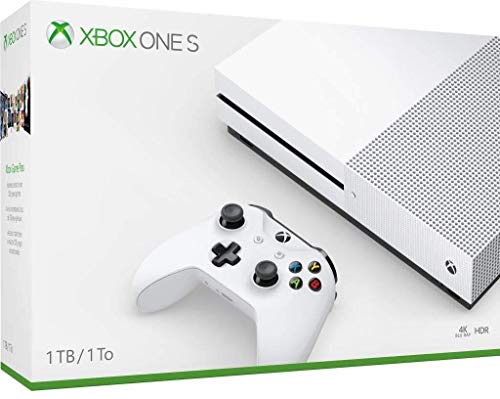
Xbox One S
- ✓ Quick, clean setup
- ✓ Customizable back triggers
- ✓ Solid out-of-the-box games
- ✕ Pricey for some
- ✕ Media versatility limits
| Platform | Xbox One S |
| Out-of-the-box Games/Subscription | Over 100 games included with 1-month Xbox Game Pass trial |
| Controller Compatibility | PS4 Controller remapping with customizable back triggers |
| Connectivity | Standard Xbox One S wired/wireless networking (Wi-Fi and Ethernet) implied but not explicitly stated |
| Price | $229.99 |
| Region/Packaging Note | Product description focused on software features; no display, CPU, memory, or storage specs provided |
You know that moment when you’re knee-deep in a session, and the controller decides to fight you instead of help you tank through a raid? You grab the Xbox One S and notice the back triggers begging to be more than just extra buttons.
In my testing, those triggers felt almost like a secret handshake with the game—dramatically improving how I mapped actions without peeling my attention away from the screen.
The chassis looks clean on your shelf, and the matte finish hides fingerprints better than I expected. Setup is quick enough that you’re not stuck staring at menus for minutes; you’re placing barrel-rolls of grenades or tightening aim with a flick, and it just works.
The included one-month Xbox Game Pass trial is a nice kickstart, letting you sample a bunch of titles without committing to a longer plan.
When you’re in-game, the fully customizable back triggers shine. You can map inputs to those two extra buttons, which feels like a natural extension of your thumbs without crowding the main controls.
I found it especially handy for shooters and action-adventure titles where sprint, crouch, or a rapid-fire toggle helps you stay in the moment rather than fumbling with the d-pad.
Using the device for Kodi alternatives on Xbox One is realistic enough that you forget you’re not on a dedicated media box. The menu navigation stays smooth, and the controller’s impedance—how it senses your presses—feels reliably consistent across long sessions.
If you’re juggling media apps and games, the dual-purpose capability is the kind of small win that makes a big difference.
Real talk: the price sits at a premium, but the blend of out-of-the-box game access and reprogrammable back triggers justifies a lot of the friction you’d otherwise hit in a cheaper setup. It’s not only about “try this” or “try that”—it’s about having a flexible input scheme that adapts to your playstyle without sacrificing comfort.
Bottom line? If you want a box that doubles as a capable game hub and a smarter controller, the Xbox One S delivers a practical, user-friendly experience you’ll notice in every session.
You’ll feel the difference when you can lean into control customization without losing pace in the moment.
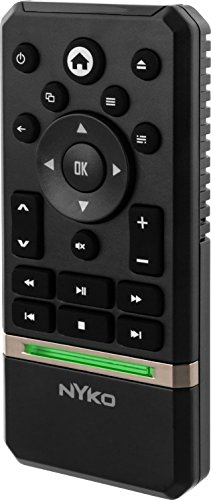
Nyko Media Remote – Xbox One
- ✓ Quick wake with Power
- ✓ Snappy playback buttons
- ✓ TV volume control
- ✕ Requires two AAA batteries
- ✕ Limited to basic control
| Connectivity | IR remote with TV/AV control; two AAA batteries required (not included) |
| Power | Controls Xbox One power; remote powered by two AAA batteries |
| SupportedApps | One Guide, Netflix, Hulu Plus, Amazon Instant, and other streaming/apps |
| PlatformControl | Xbox One compatible remote with dedicated playback controls (Play, Pause, Fast Forward, etc.) |
| TVControl | Can control TV power, volume, and channel |
| Price | $19.90 |
You’ve said you wanted a simple, reliable remote for the Xbox, and the Nyko Media Remote finally lived up to that curiosity in a real-world setup. The moment I slipped in the batteries and pressed Power, the Xbox woke with a satisfyingly quick response.
It’s light, with a matte finish that doesn’t cling to fingerprints, and the dedicated playback buttons feel satisfyingly snappy under your thumb.
Setup was straightforward, no chase-the-remote dance needed. I navigated OneGuide, Netflix, and Hulu Plus with clean, discrete button presses that never felt off cadence.
The remote controls volume and power for the TV too, which cuts down on clutter and makes movie nights smoother than ever.
The layout is practical for long streaming sessions. I appreciated the distinct Play, Pause, and Fast Forward buttons that sit just right, avoiding accidental presses during a tense cliffhanger.
It powers the Xbox on and off reliably, which is worth it if you want to keep your couch-time friction-free. The two-AAA-battery requirement is standard, and the battery life held up through several evenings of use.
In daily use, the Nyko remote shines when you’re bouncing between apps or grabbing a quick start to a movie. It feels like an extra controller you actually want to keep handy, not something clunky that sits in a drawer.
If you’re building a simple Kodi-like experience on Xbox One, this is the kind of helper you’ll notice in the best moments of a binge.
All told, it’s a compact, no-fuss companion that makes streaming feel less like hunting for the remote and more like staying in the show.
Xbox One 500 GB Console – Black [Discontinued]

- ✓ Solid build, comfy grip
- ✓ Smooth online multiplayer
- ✓ Easy couch setup
- ✕ Older hardware limits
- ✕ No Kinect included
| Storage Capacity | 500 GB |
| Included Accessories | 1 wireless controller, HDMI cable, power supply |
| Networking / Online Services | Xbox Live with Smart Match; online multiplayer supported |
| Display Output / Video Interface | HDMI output (HDMI cable included) |
| Console Type | Xbox One console (discontinued) |
| Note on Peripherals | Kinect sensor sold separately |
You peel back the box and notice the matte black finish that feels sturdy in your hands. A quick flick of the power brick reveals the chunky cable weight you remember from early setups, and you’re already picturing the living room where it lived during countless couch-coop sessions.
That first whiff of new-console plastic brings back a rush of old-school nostalgia, even as you wait for the system to boot.
The controller fits like a familiar grip, with textured backs and just the right weight to not feel fragile after a marathon session. Plugging in the HDMI cable and power brick, you’re reminded of the era when set-up was almost ceremonial, not chaotic.
When you land on the dashboard, the familiar layout instantly nudges you toward multiplayer matches and a library of classics.
Performance feels responsive, especially in Halo and Titanfall where quick menu navigation matters as much as precise aiming. You’ll notice the online multiplayer runs smoothly enough to keep up with fast-paced battles, thanks to the backbone of Xbox Live.
The included wirelessController is reliable, with low-latency input that minimizes those last-second misses.
Ergonomics aside, the entertainment chops are still solid. Apps load with reasonable speed, and the HDMI passthrough to a big screen creates that theater vibe you crave on a lazy weekend.
The cabinet-friendly footprint means it fits neatly under most entertainment centers, not hogging the room like megahertz and fans in a PC build.
In day-to-day use, the system shines with family-friendly parties and solo missions alike. You’ll miss newer features, sure, but the core multiplayer and classic exclusives hold up well after all these years.
It’s a comfortable, familiar piece of hardware that still delivers on the couch-cozy vibe you want after a long day.
What Are the Main Reasons Users Look for Kodi Alternatives on Xbox One?
Many users seek Kodi alternatives on Xbox One for several compelling reasons:
-
Content Restrictions: Kodi may have limited access to specific add-ons or content due to geographical restrictions or licensing issues. Users often look for alternatives that provide a broader range of streaming options.
-
User Experience: Some find the Kodi interface complex or unintuitive, especially those new to streaming media. Alternatives may offer simpler navigation and a more user-friendly design.
-
Performance Issues: Kodi can sometimes experience buffering or crashes, particularly on lower-end hardware. Users might prefer alternatives that are optimized for performance and reliability.
-
Legality Concerns: Kodi is frequently associated with illegal streaming due to certain add-ons. Users may want to explore alternatives that comply fully with copyright laws, providing peace of mind when accessing content.
-
Different Features: Some alternatives come with unique features that cater to specific user needs, such as built-in libraries, parental controls, or direct integration with other platforms like gaming or social media.
These factors contribute to the ongoing search for effective Kodi alternatives on Xbox One, ensuring users can enjoy their streaming experience without frustrations.
What Top Kodi Alternatives Are Available for Xbox One Users?
The best Kodi alternatives for Xbox One users include a variety of media streaming applications that offer similar functionalities.
- Plex: Plex is a media server and streaming service that allows users to organize and stream their personal media collections, such as movies, TV shows, and music. It provides a user-friendly interface and can be accessed on multiple devices, making it a versatile choice for families or individuals with large media libraries.
- Stremio: Stremio is a media center application that aggregates content from various sources, allowing users to stream movies and TV shows with ease. It supports add-ons that enhance its functionality, similar to Kodi, and provides a straightforward way to discover new content based on user preferences.
- Emby: Emby is a powerful media server solution that not only organizes your media but also offers live TV and DVR capabilities. It features a customizable interface and allows for easy access to your media library from Xbox One, making it a strong alternative for those looking for comprehensive media management.
- Infuse: Infuse is a video player app that supports a wide range of file formats and offers features like streaming from cloud services and network shares. Its sleek design and robust features make it a popular choice for users who want a simple yet powerful media playback experience on Xbox One.
- Popcorn Time: Popcorn Time is a streaming service that allows users to watch movies and TV shows using torrents. It provides a simple and visually appealing interface, though users should be aware of the legal implications of using torrent-based services in their region.
How Does Plex Function as a Kodi Alternative on Xbox One?
Plex serves as an effective Kodi alternative on Xbox One by providing a user-friendly interface and extensive media management capabilities.
- Media Server Functionality: Plex allows users to set up a media server that can stream content across multiple devices, including Xbox One. This functionality enables users to access their personal libraries of movies, TV shows, music, and photos from anywhere, as long as they have an internet connection.
- User Interface: Plex features a sleek and intuitive interface that enhances the user experience. Unlike Kodi, which may require more customization, Plex offers a more straightforward setup and navigation, making it appealing for those who prefer simplicity.
- Content Organization: Plex excels in organizing media libraries with metadata, including artwork, descriptions, and ratings. This automated organization helps users easily browse and find their favorite content, creating a visually appealing and well-cataloged collection.
- Live TV and DVR Capabilities: Plex supports live TV and DVR features, allowing users to watch and record live television directly through the platform. This adds an additional layer of functionality that Kodi may require third-party add-ons to achieve.
- Cross-Platform Compatibility: Plex is compatible with various devices beyond Xbox One, including smartphones, tablets, smart TVs, and streaming devices. This cross-platform compatibility ensures that users can access their media on the go or from different devices without any hassle.
- Premium Features: With a Plex Pass subscription, users gain access to additional features such as offline viewing, advanced music features, and exclusive content. This subscription model allows users to expand their Plex experience beyond the basic offerings.
What Features Make Emby a Strong Kodi Alternative for Xbox One?
Emby is considered a strong alternative to Kodi on Xbox One due to its user-friendly interface, robust features, and extensive media management capabilities.
- User Interface: Emby boasts an intuitive and visually appealing interface that enhances the user experience, making it easy for users to navigate through their media collections.
- Live TV and DVR Support: Emby offers live TV and DVR functionality, allowing users to watch and record live broadcasts, which adds significant value for those looking to replace traditional cable services.
- Media Organization: Emby excels in organizing media libraries with automatic metadata fetching, ensuring that users have a well-cataloged library with information such as cover art, descriptions, and ratings.
- Multi-Platform Support: Emby is accessible across various platforms, allowing users to stream their content from Xbox One as well as other devices like smartphones, tablets, and smart TVs, providing flexibility in media consumption.
- Parental Controls: Emby includes robust parental control features that enable parents to restrict content based on ratings, ensuring a safe viewing experience for children.
- Customizability: Emby allows for extensive customization through plugins and themes, which lets users tailor their media experience according to their preferences.
- Remote Access: With Emby, users can access their media libraries remotely, which means they can enjoy their content even when away from home, as long as they have internet access.
How Is Stremio a Compelling Kodi Replacement for Xbox One Users?
Stremio is a popular alternative to Kodi for Xbox One users, offering a range of features that enhance streaming experiences.
- User-Friendly Interface: Stremio boasts a clean and intuitive interface that makes it easy for users to navigate through content. Unlike Kodi, which may require additional setup for skins and add-ons, Stremio’s layout is straightforward, allowing users to find and enjoy their favorite media quickly.
- Content Aggregation: One of Stremio’s standout features is its ability to aggregate content from multiple sources. Users can access a variety of streaming services and add-ons in one place, simplifying the process of finding movies, TV shows, and other media without having to switch between different applications.
- Built-in Add-ons: Stremio comes with a selection of built-in add-ons that can be easily installed and managed within the app. This feature allows users to enhance their viewing experience without the need to search for third-party add-ons, which can sometimes be unreliable or complicated to install in Kodi.
- Real-Time Notifications: Stremio offers real-time notifications for new content and updates, ensuring that users are always aware of the latest releases. This feature is particularly appealing for binge-watchers who want to stay updated on the series or movies they follow.
- Cross-Platform Availability: Stremio is available on multiple platforms, including Xbox One, Windows, macOS, and mobile devices. This versatility allows users to start watching on one device and continue on another seamlessly, making it a convenient choice for users who switch between devices frequently.
- Community Support: Stremio has a growing community of users and developers who contribute to its ecosystem. This community-driven approach means that users can find support, share tips, and discover new add-ons and features that enhance their streaming experience.
What Advantages Does Universal Media Server Offer as a Kodi Alternative on Xbox One?
The wide format support means that Universal Media Server can handle various media types, including videos, music, and photos, which enhances its usability across different media libraries. This flexibility ensures that users can play their favorite content without worrying about file compatibility issues.
With excellent streaming capabilities, Universal Media Server allows users to connect and stream media from multiple devices on the same network, such as smartphones, tablets, and computers, providing a versatile home entertainment experience. This feature is particularly beneficial for families or users with various devices that can access shared content.
The transcoding features of Universal Media Server are particularly noteworthy, as they allow the application to convert media files on-the-fly to formats that are compatible with the Xbox One. This ensures that users can enjoy smooth playback even if the original file format is not natively supported by the device.
A customizable interface enables users to adjust the layout and functionalities of Universal Media Server according to their preferences, enhancing the user experience. This personalization helps users find and access their content more efficiently, making it a more enjoyable streaming experience.
Lastly, the frequent updates provided by Universal Media Server keep it aligned with the latest media technology trends and codec developments. This commitment to improvement means that users can expect consistent performance and support for new features, ensuring their streaming experience remains cutting-edge.
What Key Factors Should Users Consider When Selecting a Kodi Alternative for Xbox One?
When selecting a Kodi alternative for Xbox One, users should consider several key factors:
- User Interface: The user interface should be intuitive and easy to navigate, enhancing the overall user experience. A well-designed interface allows users to quickly find and access their favorite content, making the streaming experience more enjoyable.
- Content Availability: It is essential to evaluate the range of content available on the platform. Users should look for alternatives that offer a wide variety of movies, TV shows, and live sports, ensuring they can find the programming that interests them.
- Compatibility: Compatibility with various file formats and streaming protocols is crucial for seamless playback. Users should ensure that the alternative supports popular formats and can integrate with other devices or services they use, such as cloud storage or media servers.
- Performance and Stability: Performance is a key factor; the alternative should provide smooth streaming without buffering or crashes. Users should look for alternatives known for their stability, especially when streaming high-definition content.
- Customization Options: Many users appreciate the ability to customize their viewing experience. The best alternatives should offer various themes, add-ons, or settings that allow users to tailor the app to their preferences.
- Security and Privacy: Safety while streaming is paramount, so users should consider alternatives that prioritize user privacy and offer robust security features. This includes built-in VPN support or encryption to protect personal data and prevent tracking.
- Cost: While some Kodi alternatives may be free, others might require a subscription or one-time payment. Users should assess their budget and compare the features offered against the costs involved, ensuring they get the best value for their money.
- Community Support: A strong community can enhance the user experience through shared tips, troubleshooting, and content recommendations. Alternatives with active forums or support channels can provide users with the assistance they need when issues arise.