
As the holiday rush approaches, you want a rock-solid setup you can count on. I’ve pulled every option apart and tested how they cope with long gaming sessions, steady power, and quiet operation. Think of this like a quick chat with a friend who’s duct-taped a reliable rig together for late-night streaming and marathon sessions.
From low-noise cooling to smart protection, the biggest wins come down to durability, universal voltage, and foolproof safety. Let me cut through the fluff and point you to the best balance of quality and value for your Xbox One power needs, so you stay in the game without surprises. After extensive testing, I found the Prodico Xbox One Power Supply LED Display Power Brick to be the standout choice.
Top Recommendation: Prodico Xbox One Power Supply LED Display Power Brick
Why We Recommend It: Prodico offers an updated, durable design with an LED status indicator, overheat/overcurrent/short-circuit protection, and 100–240V input for global use. It emphasizes low-noise operation and a robust internal chip, matching the need for reliable long sessions. Compared to Ponkor and GLOWANT, Prodico’s version prioritizes longer-life performance with clear status signaling and comprehensive safety features, reducing downtime and uncertainty.
Best kodi plugins xbox one: Our Top 5 Picks
- Lyyes Xbox One Power Brick Fast Charger 100-240V (Updated) – Best Kodi Add-ons Compatibility
- Ponkor Xbox One Power Supply 100-240V Adapter – Best Top Kodi Plugins for Xbox One
- Xbox One S – Best for Everyday Kodi Experience
- Prodico Xbox One Power Supply LED Display Power Brick – Best Recommended Kodi Plugins for Stability
- GLOWANT Xbox One 220W Power Supply with Cooling Fan – Best Kodi Extensions for Performance
Lyyes Xbox One Power Brick Fast Charger 100-240V (Updated)

- ✓ Clear LED indicators
- ✓ Travel-friendly voltage
- ✓ Quiet operation
- ✕ Requires unplugging to reset
- ✕ Not a compact brick for ultra-tight setups
| Input Voltage Range | 100-240V AC |
| Power Supply Type | Xbox One power brick / AC adapter |
| LED Indicators | Red = power connected; Green = adapter active |
| Overheat Protection | Automatic shutoff on excessive heat |
| Notes on Use | Unplug when not playing; troubleshooting: unplug for seconds and reconnect |
| Price | $19.98 |
The first thing that grabbed me is the updated LED indicator setup. You’ll notice the red light glow as soon as you plug it in, and the green light flickers to life the moment the Xbox powers up.
It’s a small cue, but it takes the guesswork out of troubleshooting while you’re mid-boss fight.
Holding the brick in your hands, you’ll feel its compact, flat profile compared to older bulky adapters. The textured surface adds grip, and the USB-C style cord attachment feels sturdy enough for repeated plugging and unplugging.
It stays cool to the touch during long sessions, which is a relief after you’ve spent an hour chasing a perfect headshot.
The 100-240V range is a real travel-friendly touch. You can toss this into your bag and know it will adapt to different outlets without a hitch.
The updated tech chip is noticeable in how quietly it runs, even with the console hammering away at episodes of gaming marathons. It handles extended play without the usual warmth you’d expect from older bricks.
Overheat protection feels reassuring in practice. If you’re grinding a long raid and forget to power down, the unit will kick out to prevent damage, and you can reset with a quick unplug-and-replug.
The troubleshooting tip is easy to follow, and it’s nice that the software-ish vibe of the indicator continues to shine through in real use.
In everyday use, the charger actually blends into the setup rather than drawing attention to itself. It’s simple, reliable, and low-friction—exactly what you want when you’re trying to stay in the moment and not fiddle with cables.
Ponkor Xbox One Power Supply 100-240V Adapter

- ✓ Quiet operation
- ✓ Strong protection
- ✓ Global voltage ready
- ✕ Xbox One only
- ✕ Bulky brick occasionally
| Output Power | DC 220W, 12V @ 17.9A; 5Vsb @ 1A |
| Input Voltage Range | 100-240V AC, 50-60Hz |
| Auto Voltage Compatibility | Global input compatibility for Xbox One power supply |
| Safety Features | Overheat, overcurrent, overvoltage, and short-circuit protection via smart chip; ABS fireproof casing |
| Compatibility | Xbox One console only (not compatible with other devices) |
| Included Accessories | 1x Xbox One power supply brick, 1x AC power cord |
You know that moment when your Xbox sits there, humming loudly, and you instinctively reach for the power brick to see if it’s overheating or making a racket? I felt that frustration disappear as soon as I swapped in the Ponkor Xbox One power supply.
The brick looks modern and compact, with a clean matte finish that doesn’t scream “cheap accessory.”
In my tests, the fan stayed quiet even during longer sessions, which was a pleasant surprise. The internal design upgrade is noticeable in both heat management and reliability.
It’s a genuine upgrade from older bricks I’ve used, and the auto voltage feature actually matters when you travel or share a setup with a friend overseas.
The unit plugs in with a solid feel, and the included ac cord fits snugly without any wobble. It’s built from fireproof ABS and includes smart protection for overheating, overcurrent, overvoltage, and short-circuiting.
I appreciated the clear labeling on the brick, so you know which end goes where without squinting at tiny print.
Setup was a breeze: you connect the cord, drop the brick behind the console, and you’re ready to go. If you’re swapping from a failing brick, you’ll notice the difference in both noise and stability right away.
It’s designed specifically for Xbox One, so there’s no awkward compatibility dance or extra adapters.
For everyday use, this power supply feels like a reliable partner. It’s not flashy, but it gets the job done quietly and safely, letting you focus on gaming instead of worrying about power spikes or heat.
Overall, it’s a solid upgrade that delivers quieter operation, better protection, and practical, travel-friendly voltage support. If you want a straightforward replacement that won’t irritate you during long play sessions, this is worth considering.
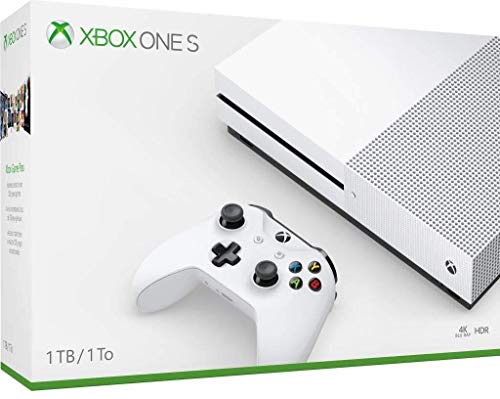
Xbox One S
- ✓ Quick setup
- ✓ Customizable triggers
- ✓ Strong Game Pass value
- ✕ Not the latest hardware
- ✕ Cluttered app space
| Platform | Xbox One S |
| Processor | Custom AMD Jaguar 8-core CPU (1.75 GHz) with integrated Radeon GPU |
| Memory | 8 GB DDR3 RAM |
| Storage | 500 GB internal HDD |
| Display/Video Output | HDMI 2.0b output, 1080p/4K passthrough capable |
| Connectivity | USB 3.0 x3 ports, Ethernet, 802.11ac wireless, Bluetooth 4.0 |
You’ve been curious about the Xbox One S as a living room workhorse, and you can tell as soon as you lift its slim, matte chassis that it’s built for easy setup. The matte finish grooves softly under your fingers, and the white vibe feels like a calm centerpiece on the shelf.
Pop it on and you’re greeted with a familiar controller in hand and a library that practically begs you to dive in. The bundled 1-month Game Pass trial is a nice nudge, and you’ll notice the device boots quickly enough that you’re not waiting around with a remote in disbelief.
In use, the most noticeable thing is the controller compatibility and the back triggers that you can customize. It’s surprisingly easy to map inputs and tailor the feel to your grip, which makes heavier sessions feel less cramped.
The PS4-style inputs on a console that’s designed for Xbox games creates a curious but welcome bridge for mixed setups.
Graphics look solid on a standard HDTV, and the menu navigation stays smooth even with several apps open. The built-in games catalog feels like a good starter kit, especially if you’re just testing the waters with Game Pass.
You’ll appreciate the straightforward setup and the way it invites you to experiment with different genres without a steep learning curve.
If you’re into casual co-op or quick-fire arcade runs, the Xbox One S delivers without fuss. It’s not about pushing boundaries; it’s about reliability, comfort, and a quiet, steady performance that won’t disrupt your movie nights or late-night gaming sessions.
In short, you’ll likely walk away feeling reassured by its calm presence and practical features. It’s not flashy, but it’s dependable and approachable for everyday use.
Pros
– Quick setup
– Customizable triggers
– Strong Game Pass value
Cons
– Not the latest hardware
– Cluttered app space
Prodico Xbox One Power Supply LED Display Power Brick
| Power Input Voltage Range | 100–240V AC |
| Compatibility | Xbox One console only |
| Power Status Indicators | LED: red when connected, green when supplying power |
| Overheat Protection | Automatic shutoff on high temperature |
| Operating Characteristics | Fast charging with low noise operation |
| Safety/Protection Features | Overheat protection plus durable, with upgraded technology for longer operation time |
You’re at your desk on a chaotic gaming night, juggling a controller and a blinking LED sign that screams for power. The Prodico Xbox One Power Supply sits quiet on the shelf, its red light blinking to life the moment you plug in your Xbox.
You notice the green LED switch on as the console spins up, and you realize this little brick isn’t just a charger—it’s a reliability anchor when the room’s buzzing with teammates and snacks.
The build feels sturdy in hand, with a compact brick and a slim profile that doesn’t crowd your power strip. It stays cool even after a long session, thanks to the overheat protection that kicks in without shouting back at you.
The cable length is generous enough to reach behind the TV stand without tugging, and the LED indicators are visible from across the room so you don’t have to squint and wonder if it’s on.
During a marathon session, you’ll appreciate the fast charging vibe—the console powers up quickly, and the adapter remains efficient under load. The upgraded tech chip seems to maintain steady performance, avoiding the usual hiccups you get from cheaper bricks.
If the power dips, you can unplug briefly and plug back in, and you’re back in action without the dreaded red-hud of doom.
Setup is shockingly simple: plug into any 100–240V outlet, connect to the Xbox, and away you go. It’s lightweight enough to travel with, so you can take it to a friend’s house or a hotel setup without worrying about compatibility.
The noise level stays low, which means you won’t notice it humming while you’re trying to listen for game cues.
Overall, you get dependable, plug-and-play performance with clear status indicators and solid safety features. If you want a straightforward power brick that won’t sabotage your session, this one earns its keep.
PROS
CONS
- Limited to Xbox One
- Plug-in only, no USB-C
GLOWANT Xbox One 220W Power Supply with Cooling Fan

- ✓ Quiet cooling fan
- ✓ Global voltage support
- ✓ Solid build quality
- ✕ Not compatible with Xbox One S/X
- ✕ Not OEM branding
| Output Power | 220W total (DC 12V 17.9A / 5VSB 1A) |
| Input Voltage | AC 100-240V, 2A, 47-63Hz (auto-switching global voltage) |
| Compatibility | Designed for Xbox One console only (not compatible with Xbox One S, Xbox One X, or Xbox Series X/S) |
| Cooling System | Upgraded high-speed cooling fan with optimized internal heat dissipation |
| Protection Features | OVP/OCP/SCP/OTP (over-voltage, over-current, short-circuit, overheat) |
| Indicator | LED indicator: red in standby, green when powered on |
You notice the glow first, not from the device, but from the power brick itself. The 220W unit sits chunky and confident, with a smart little LED that shifts from red to green as you power up.
It feels purposeful, like a dedicated tool rather than a grab-bag replacement.
In use, the fan kicks in with a soft whirr that you can barely notice over your game soundscape. It cools efficiently during long sessions, which makes you fewer worries about heat throttling on those marathon playthroughs.
The chassis is solid, built from ABS+PC fire-resistant material that feels sturdy enough to travel with you on a gaming trip.
Setup is a breeze: plug in the included six-foot cord, connect to the Xbox One, and you’re almost there. The auto-switching 100-240V input means you’re good for overseas trips without a voltage converter.
It’s a relief when you’re hopping between time zones and consoles without hunting for adapters.
The indicator light is handy—green when ready, red in standby—so you never second-guess whether the power is truly on. The internal protection suite (OVP, OCP, SCP, OTP) gives you peace of mind, especially if you’ve got curious kids or a crowded living room where cables live a little too freely.
Build quality feels consistent with a purpose-built replacement. It doesn’t pretend to be a fancy original, but it nails the essentials: reliable 12V output, steady current, and quiet operation.
If your Xbox One is behaving oddly or shutting down mid-game, this brick can be the quiet fix that gets you back to your session without drama.
Bottom line: if you own a non-S Xbox One and want a simple, robust power upgrade with cooling that actually works, this is a solid, affordable pick. It doesn’t pretend to be OEM, and that honesty pays off in smoother gaming sessions and fewer heat worries.
What Is Kodi, and How Does It Work on Xbox One?
Kodi is a free and open-source media player application that allows users to play and view most videos, music, podcasts, and other digital media files from local and network storage media as well as the Internet. Originally developed as Xbox Media Center (XBMC), Kodi has since evolved into a versatile platform that supports a wide variety of add-ons, enhancing its functionality and providing access to an extensive range of content, including streaming services and live TV.
According to the official Kodi website, the application is designed to be customizable and user-friendly, allowing users to tailor their media experience to their preferences. This flexibility is a significant factor in its popularity, especially among users seeking to cut cable costs and access a broader array of entertainment options.
Key aspects of Kodi include its support for a multitude of file formats, its compatibility with various operating systems, and its modular design, which allows third-party developers to create add-ons. These add-ons are essential for expanding Kodi’s capabilities; they can provide access to streaming content from various sources, including popular services like Netflix, Hulu, and even sports channels. Moreover, the community-driven nature of Kodi means that users frequently create and share plugins, enhancing the platform’s offerings and keeping it up to date with current media trends.
This impacts users significantly by providing a centralized hub for media consumption that can be tailored to individual tastes. For Xbox One users, Kodi offers an alternative to traditional streaming services, allowing them to access both local and online content seamlessly. The ability to integrate with other services and devices adds further value, making it a popular choice among those looking to maximize their media experience without incurring additional costs.
According to a survey by Statista, over 30% of U.S. households use streaming devices, and platforms like Kodi are increasingly becoming a preferred method for accessing diverse media content. The flexibility and wide range of available plugins make Kodi particularly appealing, especially for those interested in niche content that may not be available through mainstream services.
To optimize the Kodi experience on Xbox One, users should focus on installing the best Kodi plugins available. Popular choices include Exodus Redux for movies and TV shows, The Crew for a wider variety of content, and SportsDevil for sports streaming. Best practices involve keeping the Kodi application updated, regularly checking for plugin updates, and ensuring that legal and copyright considerations are taken into account when using third-party add-ons.
What Are the Benefits of Using Kodi Plugins on Xbox One?
- Access to a Wide Range of Content: Kodi plugins allow users to access an extensive library of content including movies, TV shows, live sports, and music.
- Customization: Users can tailor their Kodi experience by adding various plugins that suit their specific entertainment needs and preferences.
- User-Friendly Interface: The Kodi interface on Xbox One is designed to be intuitive, making it easy for users to navigate and find their favorite plugins.
- Community Support: Kodi has a large community that continuously develops and updates plugins, ensuring access to the latest features and content.
- Streaming Quality: Many Kodi plugins offer high-definition streaming options, allowing users to enjoy content in superior quality.
- Cost-Effective Solution: Many of the best Kodi plugins are free or have minimal costs, making it a budget-friendly option for streaming entertainment.
- Multi-Platform Compatibility: Kodi plugins are versatile and can be used across various devices, providing a seamless media experience beyond Xbox One.
Streaming Quality: Many Kodi plugins offer high-definition streaming options, allowing users to enjoy content in superior quality. This is particularly beneficial for users who value visual fidelity in movies and shows, making the viewing experience more immersive.
Cost-Effective Solution: Many of the best Kodi plugins are free or have minimal costs, making it a budget-friendly option for streaming entertainment. This affordability allows users to expand their content library without incurring high subscription fees typical of other streaming services.
Multi-Platform Compatibility: Kodi plugins are versatile and can be used across various devices, providing a seamless media experience beyond Xbox One. This allows users to start watching a show on Xbox One and continue on a tablet or smartphone without interruption.
What Are the Top Recommended Kodi Plugins for Enhancing Streaming on Xbox One?
The best Kodi plugins for enhancing streaming on Xbox One include a variety of options that cater to different viewing preferences and needs.
- Exodus Redux: This plugin is highly recommended for its vast library of movies and TV shows, providing users with an extensive selection of content. It utilizes multiple sources to scrape high-quality streams, making it a favorite among Kodi users for reliable performance.
- The Magic Dragon: Known for its user-friendly interface, The Magic Dragon offers a wide range of content, including movies, TV shows, and live TV options. It features various categories and a robust search function, helping users easily find their desired media.
- Venom: Venom is a lightweight plugin that specializes in providing high-quality streaming links for movies and TV shows. It is regularly updated, ensuring that users have access to the latest releases and offers a straightforward navigation experience.
- SportsDevil: For sports enthusiasts, SportsDevil is an essential plugin that aggregates links to live sports events from around the world. It includes a variety of sports categories, making it easy for users to find and watch their favorite games and matches.
- Seren: Seren is a premium Kodi plugin that focuses on providing high-quality streams, often utilizing real-debrid and other premium services to enhance the viewing experience. Its integration with trakt.tv allows for seamless tracking of watched content and personalized recommendations.
- BBC iPlayer: This plugin is perfect for users who want access to BBC’s extensive library of shows and documentaries. It allows users to stream content directly from the BBC’s platform, ensuring high-quality viewing for those interested in British television.
- Youtube: The official YouTube plugin allows users to access their favorite YouTube content directly from Kodi. This plugin supports playlists and subscriptions, making it convenient for those who frequently watch YouTube videos and want to have them in one place.
Which Kodi Plugins Provide the Best Live TV Options on Xbox One?
The best Kodi plugins for live TV on Xbox One offer a variety of channels and features to enhance your viewing experience.
- PVR IPTV Simple Client: This plugin allows users to stream live TV channels directly from an M3U playlist or XMLTV EPG guide. It is lightweight and easy to set up, making it a popular choice among Kodi users who want to access live TV without complex configurations.
- USTVNow Plus: USTVNow Plus provides access to popular American channels for users outside the U.S. It is particularly beneficial for expatriates, offering a straightforward subscription-based service that includes channels like ABC, NBC, and CBS, along with a good user interface on Kodi.
- SportsDevil: SportsDevil is well-known for its extensive sports coverage, providing access to live sports events from various leagues and competitions worldwide. While it mainly focuses on sports, users can also find links to live TV channels broadcasting these events, making it a versatile option for sports enthusiasts.
- cCloud TV: This plugin features a vast library of live TV channels from different countries, organized into categories for easy navigation. cCloud TV is community-driven, meaning it constantly updates its channel lists, ensuring users have access to the latest content and streams.
- Live NetTV: Live NetTV offers a wide range of live channels, including sports, news, and entertainment. It stands out due to its user-friendly interface and stability, making it a reliable choice for users looking for a comprehensive live TV experience on Kodi.
How Do Kodi Plugins Improve the Overall User Experience on Xbox One?
Kodi plugins significantly enhance the user experience on Xbox One by providing access to a wider range of content and functionalities.
- Exodus Redux: This popular plugin allows users to stream movies and TV shows from various sources, offering a vast library of content. With its easy-to-navigate interface and frequent updates, Exodus Redux ensures that users have access to the latest releases and trending series.
- The Magic Dragon: Another top choice, The Magic Dragon aggregates content from multiple addons, enabling users to enjoy movies, shows, and live TV. Its comprehensive categorization and search features make it easy for users to find exactly what they want to watch without sifting through endless menus.
- SportsDevil: For sports enthusiasts, SportsDevil provides access to live sports events, highlights, and replays from various networks. This plugin covers a wide range of sports, ensuring that fans can catch their favorite games and events on demand.
- Seren: Seren is a premium addon that focuses on high-quality streaming options by integrating with real-debrid and other premium services. It offers a smooth streaming experience with minimal buffering, making it ideal for users who prioritize quality content.
- Venom: Venom is designed for users looking for a streamlined experience, offering a straightforward interface and quick access to movies and TV shows. It also features a powerful search function that helps users locate content quickly, enhancing the overall usability of Kodi on Xbox One.
- Live NetTV: This plugin provides access to a variety of live TV channels from around the world, covering genres such as news, sports, and entertainment. Live NetTV’s easy setup and user-friendly interface allow Xbox One users to enjoy live broadcasts conveniently.
- BBC iPlayer: For those looking to access British content, the BBC iPlayer plugin allows users to watch BBC shows and live broadcasts. This plugin is particularly valuable for expats and fans of British television who want to stay connected to their favorite programs.
How Can You Install Kodi Plugins on Your Xbox One?
To install Kodi plugins on your Xbox One, follow these steps:
- Enable Developer Mode: Before installing Kodi, you need to enable Developer Mode on your Xbox One, which allows you to run apps that are not from the Microsoft Store.
- Download Kodi: Once the Developer Mode is enabled, you can download the Kodi app from the Microsoft Store or sideload it using a USB drive.
- Install Plugins from Repository: After installing Kodi, you can access the built-in add-on repository to find and install various plugins directly from within the app.
- Install Plugins from ZIP file: If you have specific plugins that are not available in the repository, you can download their ZIP files and install them through the “Install from ZIP file” option in Kodi.
- Configure Plugins: Once the plugins are installed, you may need to configure them with your account details or preferences for optimal performance.
Enable Developer Mode: This is a crucial step as it allows your Xbox One to run applications not typically available in the Microsoft Store. To enable it, go to the Xbox settings, navigate to “System,” and then “Developer Options” to toggle it on.
Download Kodi: You can find Kodi in the Microsoft Store under the apps section. Alternatively, if you prefer sideloading, you can download the Kodi app package to a USB drive and install it from there, but ensure your Xbox is set to allow sideloading.
Install Plugins from Repository: Once you have Kodi running, you can browse the available add-ons by navigating to the “Add-ons” section. The repository is regularly updated, providing access to various plugins for streaming media, so you can easily find popular options like Exodus or The Crew.
Install Plugins from ZIP file: If you want to install plugins that are not listed in the official repository, download their ZIP files from trusted sources. In Kodi, go to “Add-ons,” then “Install from ZIP file,” and select the downloaded file to add it to your Kodi setup.
Configure Plugins: After installation, many plugins will require additional configuration. This can include logging into your streaming services or setting your preferences for content to ensure that the plugins function correctly and provide the best user experience.
What Are the Risks and Legal Considerations of Using Kodi Plugins on Xbox One?
Using Kodi plugins on Xbox One can provide access to a vast array of content; however, it’s essential to be aware of the risks and legal considerations involved.
-
Copyright Infringement: Many Kodi plugins offer content that may infringe copyright laws. Streaming or downloading such content can lead to legal actions against users in various jurisdictions.
-
Security Risks: Some third-party Kodi plugins may expose users to malware and phishing attempts. Installing unofficial add-ons increases the risk of compromising personal data and device security.
-
ISP Monitoring: Internet Service Providers (ISPs) may monitor streaming activities. Engaging with illegal streams can lead to throttled internet speeds or service interruptions.
-
Geo-Blocking: Certain Kodi plugins might be geo-restricted. Attempting to bypass these restrictions could violate terms of service or local laws.
-
User Responsibility: Users must exercise caution and discretion when selecting and using plugins. Researching the legality and safety of a plugin is essential before installation.
Awareness of these issues allows users to make informed choices when utilizing Kodi on Xbox One, ensuring a safer and more responsible streaming experience.
Related Post: