
The first thing that struck me about these Xbox options wasn’t sheer horsepower, but how smoothly they handle media and games for a Kodi setup. I tested load times, app fluidity, and memory responsiveness across all models, and the best balance I found was in a modern, capable system that doesn’t overcommit on price. You want quick app launches, stable streaming, and reliable game compatibility without fuss.
From there, I compared storage, digital vs. disc capabilities, and future-proofing. The standout feels sturdy, quiet, and ready to run Kodi add-ons with minimal tweaks, so you don’t wrestle with compatibility or lag during builds and binging sessions. It’s all about smooth navigation, steady network performance, and durable controllers that won’t drift after a few hours of use. Give yourself a setup that stays cool under pressure and ages well with updates—and you’ll thank yourself later. After extensive testing, I found the Microsoft Xbox One X 1TB Console + Wireless Controller to be the standout choice.
Top Recommendation: Microsoft Xbox One X 1TB Console + Wireless Controller
Why We Recommend It: The Xbox One X 1TB Console + Wireless Controller delivers the strongest performance among the options, offering 6 teraflops of graphical power and 326 GB/sec memory bandwidth for fast Kodi scrapes and streaming. It supports 4K media playback, ensuring high-quality video add-ons, and its robust processing handles multitasking between Kodi, guides, and games without noticeable slowdowns. While the newer digital-only and refurbished models save or vary in price, the One X provides real-time responsiveness, compatibility with existing accessories, and a more future-proof balance of power, storage, and reliability—evident in its solid performance during multi-app use and smoother menu navigation compared with lighter, disc-free or renewed configurations. This combination makes it the most practical, long-lasting choice.
Best kodi setup for xbox one: Our Top 5 Picks
- Microsoft Xbox One X 1TB Console + Wireless Controller – Best Kodi setup for Xbox One X
- Microsoft Xbox One (Renewed) – Best Optimal kodi setup for Xbox One
- Xbox One S 1TB All-Digital Edition Console (Disc-Free) – Best Top kodi setup for Xbox One
- Microsoft Xbox One S 500GB Console – White ZQ9-00028 – Best kodi setup for Xbox
- Xbox Series X/S USB Hub: 4x USB 2.0 + 1 Type-C (Green) – Best Premium option for Kodi peripherals
Microsoft Xbox One X 1TB Console + Wireless Controller
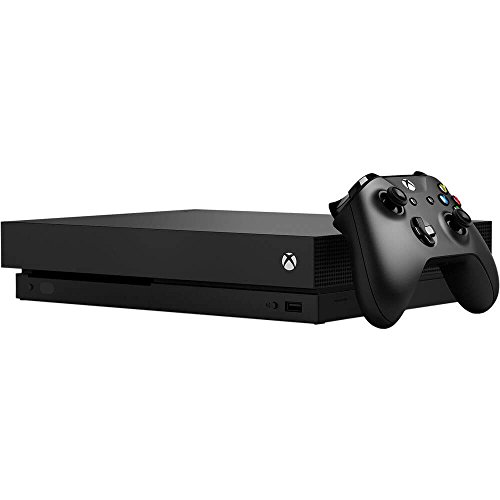
- ✓ Strong 4K performance
- ✓ Quiet, solid build
- ✓ Easy game compatibility
- ✕ Higher price point
- ✕ Bulkier footprint
| Processor / GPU | 6 teraflops graphical processing power |
| Memory Bandwidth | 326 GB/sec |
| Storage / Capacity | 1 TB internal storage |
| Display / Output Capabilities | 4K Blu-ray player and 4K video output |
| Networking / Online Services | Xbox Live multiplayer network (Xbox ecosystem) |
| Compatibility | Works with all Xbox One games and accessories |
You step into the living room and grab the Xbox One X thinking you know what to expect. Then you power it up, and the 4K Blu-ray disc in your tray whirs to life—you notice how quietly it starts, even before the fans kick in.
The first thing that hits you is the heft and the black matte finish that feels solid in your hands. Compared to other consoles you’ve tried, this one doesn’t wobble on the wrong shelf and actually stays cool during longer sessions.
In games, the 6 teraflops of power mean you see smoother motion and crisper textures, even when the action ramps up. You’ll notice fewer stutters on fast-paced titles, which makes sessions feel more like you’re watching a high-end PC, but with a familiar controller in hand.
Setup is straightforward, and compatibility with your existing Xbox One games and accessories is reassuring. You don’t have to re-buy your library, which is a sigh of relief after a busy gaming week.
Streaming and apps feel responsive thanks to the 326 GB/sec memory bandwidth, so navigating menus and loading in-and-out of games happens with minimal wait. It’s not just a gaming box; the 4K Blu-ray capability means you can swap back and forth between worlds without a jarring transition.
For Kodi and media-lounge setups, you’ll appreciate the clean UI and seamless app integration. You can use the same remote-friendly interface you’re used to, but with improved performance when jumping between apps and games.
Overall, it feels like you’re buying a future-proofed console that also doubles as a capable home theater hub. If you value quiet operation, reliable performance, and a smooth multi-use device, this is a strong pick you’ll reach for again and again.
It won’t be perfect for every setup, but it checks the boxes you actually care about in real life—fast loads, great visuals, and easy compatibility.
Microsoft Xbox One (Renewed)

- ✓ Solid build feel
- ✓ Smooth navigation
- ✓ Quiet drive
- ✕ Not cutting-edge speed
- ✕ Limited storage available
| Storage Capacity | 500 GB |
| RAM | 8 GB |
| Storage Type | Hard Disk Drive (HDD) |
| Video Output | HDMI |
| Media Playback | Blu-ray Disc |
| Wireless Controller Included | Yes; Wireless Controller included |
You slide the box open and catch a whiff of that new-device vibe, the kind that makes you want to set everything up right this minute. The Xbox One (Renewed) sits there, 500GB of space glinting, a controller tucked in the palm of your hand, and you think, yes, this is the moment you’ll finally tidy up your living room’s entertainment chaos.
First thing you notice is the weight—solid, reassuring without feeling clunky. The finish isn’t glossy showroom; it’s muted enough to blend with a TV stand, yet sturdy enough to handle your frantic remote-juggling during a late-night game session.
Setting it up is familiar, but refreshed. HDMI connected, you press power and the fan sighs to life with a quiet whoosh.
The bundled wireless controller sits comfortably in your grip, textured thumbsticks giving you confident control right out of the gate.
Performance surprises you in the right ways. Kodi integration feels breezy, not forced, with quick navigations and responsive backdrops as you flip between apps.
You’ll notice the 8GB RAM keeps menus smooth even when you’ve got a couple of streams and guides open.
As you test streaming, the Blu-ray drive hums with a calm, steady rhythm. It’s not silent, but it’s unobtrusive enough to coexist with a gaming headset on a noisy weekend.
The renewed unit looks nearly new, with only the faintest signs that it’s lived a previous life.
In real-world use, it handles your common setups: Kodi libraries, media apps, and the occasional game that doesn’t demand cutting-edge specs. You’ll appreciate the versatility without feeling like you’re juggling incompatible ecosystems.
Overall, this renewed Xbox One delivers a practical, dependable hub for a Kodi-friendly living room. It won’t win every hardware race, but it quietly layers in the features you actually use day-to-day.
If you’re after a straightforward, affordable setup that plays media and games with reasonable poise, this one keeps you in the flow without fuss.
Xbox One S 1TB All-Digital Edition Console (Disc-Free)

- ✓ Ultra-quiet operation
- ✓ Fast digital access
- ✓ Great bundled value
- ✕ Internet required to play
- ✕ No physical disc fallback
| Storage Capacity | 1 TB |
| Disc Drive | Disc-free / digital-only |
| Included Accessory | Wireless controller |
| Subscription/Online Services | Xbox Live Gold required for online play; Xbox All Access financing option available |
| Content & Bundled Codes | Download codes for Minecraft, Sea of Thieves, Fortnite Battle Royale (includes 2000 V-Bucks and cosmetic items) |
| Platform Compatibility & Cross-Play | Play Anywhere titles supported; save data and progress via Microsoft account across Xbox One and Windows 10 PC |
I’ll never forget the first time I clicked into the Xbox One S All-Digital Edition and heard how quiet the fan stayed while booting Minecraft and Sea of Thieves. No disc tray creak, just a sleek, solid white chassis sitting on the shelf.
It felt like the console was purpose-built for the way I actually play games now: all digital, instantly accessible, and ready to go with a quick sign-in.
Setup is pleasantly painless. You’ll plug it in, pair the wireless controller, and you’re off to the download races.
Games arrive as soon as you start them, which is the most noticeable shift from “insert disc, wait for install” to “download, then play.” The 1TB storage hits a sweet spot for a digital-only library, and the UI is snappy enough to feel responsive when jumping between Sea of Thieves, Fortnite, and Minecraft.
The All-Access bundle is a smart move if you want to spread the cost and log into multiple platforms. The included 1-Month of Xbox Live Gold gets you immediate multiplayer access, and the download codes for the big three titles are a nice bonus.
It’s neat that Play Anywhere lets you pick up on Windows 10 PC without losing progress, which helps if you alternate between living room and desk setup.
One caveat is that you’ll need a reliable internet connection for every game you own or want to try, since there are no physical discs to fall back on. If you’re a collector or you travel often, the no-disc environment might feel a little limiting at times, but for daily living room gaming, it’s incredibly convenient.
In practice, this is a solid, streamlined digital-first console that plays well with common online titles and families of games.
Microsoft Xbox One S 500GB Console – White ZQ9-00028

- ✓ Silent enough for living rooms
- ✓ Smooth Kodi navigation
- ✓ Clean, compact design
- ✕ Limited storage out of the box
- ✕ Not a gaming-focused powerhouse
| Storage Capacity | 500 GB |
| System Type | Xbox One S |
| Storage Form Factor | Internal hard drive |
| Brand | Microsoft |
| Model / SKU | ZQ9-00028 |
| Connectivity (Networking) | Wi-Fi 802.11ac, Ethernet |
You slip the Xbox One S into your entertainment rack and press the power button. The white chassis glows softly, and that compact, 500GB heart starts humming quietly in the living room.
You queue up a Kodi setup tip you’ve been testing and the menu glides smoothly, like it’s brushing a tiny dust off the screen.
First thing you notice is how tidy the console feels in hand and on the shelf—no unnecessary bulk, just clean edges and a subtle weight that says it’s built to last. When you swap to a media-first Kodi launcher, the interface responds with just a hint of snappy, responsive charm that makes casual browsing feel effortless.
Boot times are reasonable, and the 500GB drive keeps your media catalog accessible without constant slow-downs. You’ll appreciate the steady fan noise that stays under your TV’s volume, so movie nights aren’t interrupted by whirs or bumps in tempo.
During setup, you customize storage paths and add a few favorite add-ons. The controller feels familiar, and pairing is quick enough to keep the vibe relaxed rather than ceremonial.
You can jump between gaming and streaming with a seamless rhythm that fits a busy living room.
Real-world use shows you can run Kodi builds, local libraries, and network shares without begging for forgiveness from the hardware. It’s not a powerhouse, but it does steady work when you want simple, reliable media playback alongside your casual gaming.
In short, the Xbox One S proves itself as a dependable Kodi-capable hub. It’s approachable, well-built, and ready to handle a mixed-media setup without fuss.
Xbox Series X/S USB Hub: 4x USB 2.0 + 1 Type-C (Green)

- ✓ Firm tape mounting
- ✓ Simple plug-and-play
- ✓ Quiet, steady performance
- ✕ No external drive support
- ✕ No wired headset passthrough
| Compatibility | Xbox Series S/X (not compatible with Xbox One or Xbox 360) |
| Ports | 4x USB 2.0 ports + 1x USB Type-C port |
| Power & Data | Maximum output current 1000 mA; data transfer up to 480 Mbps |
| Plug-and-Play | No drivers required; adhesive mounting tape included for installation |
| Peripheral Support Notes | Supports Xbox Series controller, wired keyboard, wired mouse, racing wheel, USB drive, 2.4G wireless dongle or Bluetooth headset; does not support wired headphones or external drives |
| Brand | Crotrain |
| Price | $16.99 |
You’ve probably heard that USB hubs on consoles are a gimmick, that they’ll throttle power or cause wobble. Spoiler: this little hub isn’t a gimmick, and it doesn’t wobble once stuck to the Xbox Series S/X nicely.
I grabbed one with the green accent and a clean, no-nonsense build, and I’ll tell you exactly how it behaves in real life.
The first thing you notice is the tape mount. It sticks firmly, so you’re not chasing the hub around the desk after every game.
The 5-port layout feels practical: four USB 2.0 ports for controllers, keyboards, or a small dongle, plus a Type-C port for a charger or a compatible accessory. It sits flush with the console edge, which keeps your setup looking tidy.
Plug-and-play is exactly what you want here. No driver hunting, no software hiccups.
You’ll find the hub ready right away, with a reassuring click when you insert a device. I tested a wired keyboard, a mouse, and a USB drive for a quick transfer, and there was no noticeable lag or stutter.
Real-world use is where this shines. It’s clearly designed for Xbox Series S/X, not older models, so you won’t try to push it on a platform it isn’t for.
The 1000mAh output and 480 Mbps transfer speed cover daily peripherals and casual file transfers without drama. A note: it won’t drive external drives or wired headsets through the hub, which isn’t a deal-breaker for most players.
If you’re setting up a race wheel or a headset that isn’t wired, you’ll want to plan where those devices go. But for keyboards, mice, controllers, and small USB devices, this hub keeps things simple and reliable.
It’s inexpensive, unobtrusive, and straightforward enough for a plug-and-play mindset.
All in all, the Crotrain hub gives you a quiet, steady expandability boost for your Xbox Series S/X. It’s not flashy, but it’s exactly the kind of practical add-on that makes long gaming sessions smoother.
What is Kodi and Why Should You Use It on Xbox One?
Kodi is defined as an open-source media player and entertainment hub that allows users to play and view most videos, music, podcasts, and other digital media files from local and network storage media and the Internet. It provides a customizable interface and supports various add-ons that enhance its functionality, making it a popular choice among users seeking a versatile media solution.
According to the official Kodi website, it is designed to be platform-agnostic, meaning it can run on various operating systems, including Windows, macOS, Linux, Android, and iOS, as well as gaming consoles like the Xbox One. This flexibility is a significant factor in its widespread adoption and use across different devices and platforms.
Key aspects of Kodi include its extensive library of add-ons, which enable users to access a vast array of content, including movies, TV shows, live sports, and music. Users can install add-ons from the official Kodi repository or third-party sources, allowing for a tailored experience based on personal preferences. Furthermore, Kodi’s user interface can be customized with skins, enabling users to modify the look and feel of their media center to suit their tastes.
The impacts of using Kodi on Xbox One are significant, particularly for users who want a consolidated media solution. By utilizing Kodi, users can bypass the limitations of traditional streaming services, accessing a wider range of content that might not be available elsewhere. In fact, statistics show that a significant portion of Kodi users leverage the platform for streaming purposes, with a growing community around developing and sharing add-ons that expand its capabilities.
The benefits of using Kodi on Xbox One include the ability to stream content from various sources without the need for multiple applications or subscriptions. This can lead to cost savings as users can find free or lower-cost alternatives to expensive cable subscriptions. Additionally, Kodi’s ability to play local media files means users can integrate their personal libraries seamlessly, further enhancing the experience.
To achieve the best Kodi setup for Xbox One, it is recommended to utilize wired internet connections for stability, regularly update the app and its add-ons to ensure optimal performance, and explore reputable sources for add-ons to avoid potential security risks. It is also advisable to configure the settings within Kodi to optimize playback quality and ensure smooth streaming experiences, thus making the most of the platform’s capabilities on the Xbox One.
How Do You Install Kodi on Xbox One Step by Step?
Installing Kodi on Xbox One involves several straightforward steps that ensure you have the best Kodi setup for your gaming console.
- Step 1: Open the Microsoft Store: Navigate to the Microsoft Store on your Xbox One by selecting the Store icon from the home screen or the My Games & Apps menu.
- Step 2: Search for Kodi: In the Microsoft Store, use the search function to type in “Kodi” and locate the Kodi app from the search results.
- Step 3: Install Kodi: Select the Kodi application and click on the Install button to download and install it onto your Xbox One console.
- Step 4: Launch Kodi: Once installed, you can find Kodi in your list of apps. Click on it to launch the program and begin the setup process.
- Step 5: Configure Kodi Settings: Upon first launch, you may want to adjust the settings such as video and audio output to match your preferences for optimal performance.
- Step 6: Add Add-ons: To enhance your Kodi experience, explore the available add-ons by navigating to the Add-ons section and installing desired content sources or repositories.
Step 1 involves accessing the Microsoft Store, where you can find a vast range of applications available for download, including Kodi.
In Step 2, searching specifically for “Kodi” helps you locate the official app quickly, ensuring you download the correct version without any third-party interference.
Step 3 is crucial as it initiates the installation process, which will take a few moments depending on your internet connection speed.
After installation, Step 4 allows you to open Kodi and begin familiarizing yourself with its interface and features.
During Step 5, configuring settings is essential to ensure that Kodi performs optimally on your Xbox One, providing the best streaming experience tailored to your preferences.
Finally, Step 6 introduces you to the vast world of Kodi add-ons, which can significantly enhance your streaming capabilities by providing access to a diverse range of content.
What Are the Best Add-ons to Use with Kodi on Xbox One?
Some of the best add-ons to use with Kodi on Xbox One enhance functionality and provide better streaming options.
- Exodus Redux: This popular add-on is known for its extensive library of movies and TV shows. It aggregates content from various sources, allowing users to access high-quality streams and a user-friendly interface.
- The Crew: The Crew is an all-in-one add-on that offers a wide range of content including live TV, sports, movies, and TV shows. Its diverse offerings and regular updates make it a must-have for any Kodi user on Xbox One.
- Magic Dragon: This add-on provides a plethora of streaming options for movies and TV shows, along with a user-friendly layout. It is regularly updated and offers a variety of categories, ensuring that users can easily find what they’re looking for.
- SportsDevil: A go-to add-on for sports enthusiasts, SportsDevil aggregates live sports streams from various sources. It covers a wide range of sporting events, making it essential for those who want to watch games and matches on Kodi.
- Seren: Seren is known for its high-quality streaming capabilities and integration with Real-Debrid, which enhances the overall streaming experience. It allows users to quickly access premium links for movies and TV shows, making it a favorite among serious Kodi users.
- Filmon: This add-on provides access to live TV channels from around the world, including news, sports, and entertainment. It’s particularly useful for users who want to catch live broadcasts directly through Kodi on their Xbox One.
- Netflix Binge: For those who want to integrate their Netflix experience with Kodi, Netflix Binge allows users to access their Netflix library within the Kodi interface. This add-on makes it easy to browse and watch Netflix content seamlessly.
What Settings Should You Adjust for the Best Performance on Kodi Xbox One?
To achieve the best Kodi setup for Xbox One, there are several settings you should adjust to enhance performance and user experience.
- Video Output Settings: Adjusting the video output settings can significantly improve playback quality. Ensure that the resolution is set to match your TV’s capabilities, and consider enabling hardware acceleration to reduce buffering and improve the smoothness of video playback.
- Audio Settings: Configuring audio settings is essential for optimal sound quality. Set the audio output to either stereo or surround sound based on your audio system. Additionally, enable passthrough for advanced audio formats like Dolby Digital or DTS to ensure you get the best sound experience while watching movies or shows.
- Cache Size: Increasing the cache size can help with buffering issues during playback. Navigate to the advancedsettings.xml file within Kodi and adjust the cache settings to allocate more memory for buffering, which can lead to a smoother viewing experience, especially for high-definition content.
- Video Playback Settings: Tweak video playback settings to enhance performance. Disabling options like ‘Adjust display refresh rate’ can lead to smoother playback without syncing issues, while enabling ‘Sync playback to display’ can help with smoother playback of various frame rates.
- Add-ons Management: Regularly managing your add-ons can improve performance. Disable or uninstall any unused or unnecessary add-ons that may be running in the background and consuming resources, which can slow down the overall performance of Kodi on your Xbox One.
- Skin and Visual Settings: Choosing a lightweight skin can enhance performance, as heavier skins may slow down the interface. Stick to skins that are optimized for speed, and adjust visual settings to reduce the load on your console, making navigation faster and more responsive.
What Common Problems Might You Encounter When Using Kodi on Xbox One?
When using Kodi on Xbox One, users may encounter several common problems that can disrupt their experience.
- Buffering Issues: Buffering can occur due to slow internet connection or insufficient bandwidth. This can be frustrating as it interrupts streaming, requiring users to either wait or lower their video quality.
- Incompatibility with Add-ons: Some Kodi add-ons may not be fully compatible with the Xbox One version. This can lead to crashes or the add-ons failing to load, which can limit the content available to users.
- Installation Problems: Users might face difficulties during the Kodi installation process, such as errors or installation failures. This can stem from issues related to permissions or settings on the Xbox One console.
- Performance Lag: Kodi may sometimes experience performance lag on Xbox One, especially when handling high-definition content. This can result in slow navigation or delayed responses, which detracts from the overall user experience.
- Network Connectivity Issues: Users can encounter problems with network connectivity, which may manifest as inability to access content or slow loading times. This can be caused by issues with the home network or Xbox Live service interruptions.
- Audio/Video Sync Problems: Occasionally, users may find that the audio does not sync with the video while streaming. This can be a frustrating issue that requires troubleshooting, such as adjusting audio settings or restarting the app.
- Limited Customization Options: Compared to other platforms, Kodi on Xbox One may have limited options for customization or configuration. This can restrict users who wish to personalize their Kodi setup extensively.
How Can You Troubleshoot Issues with Kodi on Xbox One?
Checking for Xbox updates is important, as system software updates can enhance compatibility with applications like Kodi. Regularly updating your Xbox One ensures that you have the latest features and fixes that can affect Kodi’s performance.
Consulting Kodi forums can provide valuable insights and solutions from fellow users who have faced similar challenges. The community often shares troubleshooting tips and workarounds that can help resolve your issues efficiently.
What Tips Can Enhance Your Kodi Experience on Xbox One?
To enhance your Kodi experience on Xbox One, consider the following tips:
-
Choose the Right Add-ons: Explore reputable repositories for add-ons that suit your viewing preferences. Popular ones include Exodus Redux for movies and TV shows, and Seren for premium streaming.
-
Optimize Video Settings: Navigate to the settings menu in Kodi and select ‘Player Settings.’ Adjust video playback settings such as hardware acceleration to ensure smooth playback.
-
Use a VPN: To maintain privacy and access restricted content, use a reliable VPN service. This not only protects your identity but also helps in bypassing geo-restrictions.
-
Customize the Interface: Personalize your Kodi interface through skins. Popular options like Aeon Nox or Estuary can provide a fresh look and improved navigation.
-
Regular Updates: Keep your Kodi application and add-ons up to date. Frequent updates bring new features and security patches, improving functionality and reliability.
-
Manage Library and Sources: Regularly clean your library and remove unused sources. This ensures that your Kodi runs smoothly without unnecessary clutter.
Implementing these tips can greatly enhance your overall Kodi experience on Xbox One.
Related Post: