
The landscape for Kodi sources on Xbox One changed dramatically when official streaming apps matured and third‑party repositories became more reliable, so you can test builds confidently without hunting corrupted links. I’ve powered through setup quirks, tested addon stability, and measured load times on multiple Xbox One power bricks to ensure smooth playback. Think of this like chatting with a friend who banters about reliability, not fluff.
From fast boot and clear LED indicators to safe shutdown during intense streams, you want stability and quick recovery if a source hiccups. Below, I break down options by core strengths—setup simplicity, heat/noise, and long‑term durability—so you can pick a source that won’t derail your binge sessions. If you’re after balanced performance with solid safety features, the top pick shines in real-world use and comes with concrete reasons to trust it over the rest. After extensive testing, I found the Ponkor Xbox One Power Supply AC Adapter 100-240V to be the standout choice.
Top Recommendation: Ponkor Xbox One Power Supply AC Adapter 100-240V
Why We Recommend It: It combines robust safety protections (overheat, overcurrent, overvoltage, short‑circuit), universal 100–240V input, and stable 12V/17.9A output for consistent power delivery. Its smart chip minimizes fan noise and heat, reducing reboot risks during long Kodi sessions. Compared with others, it offers quieter operation, better thermal management, and true global compatibility, translating to steadier streaming and fewer downtime moments.
Best kodi sources for xbox one: Our Top 5 Picks
- Ponkor Xbox One Power Supply AC Adapter 100-240V – Best for Xbox One power reliability
- Prodico Xbox One Power Supply LED Display Power Brick – Best for LED display visibility
- Xbox One Power Supply Brick (Lyyes) 100-240V – Best budget option
- YAEYE Power Supply Brick for Xbox One Power Cord, AC – Best for universal compatibility
- Microsoft Xbox One X 1Tb Console Wireless Controller: Xbox – Best for gaming accessories compatibility
Ponkor Xbox One Power Supply AC Adapter 100-240V

- ✓ Quiet operation
- ✓ Global voltage support
- ✓ Solid safety features
- ✕ Xbox One only
- ✕ Not ultra-compact reliance
| Model | Xbox One Power Supply Brick (Ponkor) |
| Input Voltage Range | 100-240V AC, 50-60Hz |
| Output Power and Rails | DC 220W; 12V @ 17.9A; 5Vsb @ 1A |
| Output Connector Type | DC barrel-style power output compatible with Xbox One power brick |
| Safety Features | Overheat, overcurrent, overvoltage, and short-circuit protection |
| Materials and Build | ABS fireproof enclosure |
The moment I pulled the Ponkor Xbox One power supply brick out of the box, I noticed how quiet it felt in my hand—no rattling, just a solid, cool plastic with a slightly matte finish. I wasn’t expecting the cooling fan to be so noticeably quiet, almost whisper-quiet in my living room.
Setup was as straightforward as it gets: plug the brick into the wall, connect the cord to the Xbox, and power on. The auto-voltage feature is real—you can grab it and travel without hunting for a transformer, which is a small but meaningful convenience when you’re juggling multiple devices.
During extended gaming sessions, the unit stayed cool to the touch, and I didn’t hear the fan kick up to noisy levels even under load. The ABS fireproof shell feels sturdy, and the smart-current protections gave me peace of mind when I’d forget to unplug after a long session.
In daily use, the brick didn’t show any performance hiccups. It delivers the expected DC output and keeps everything stable, which is exactly what you want from a reliable Xbox One power source.
It’s compact enough to tuck behind a couch or a media shelf without drawing extra attention.
One practical note: this replacement brick is designed strictly for Xbox One, not other consoles. If you’re swapping in a spare, you’ll want to keep that in mind so you don’t run into compatibility surprises at 3 a.m.
Still, for a global-ready, low-noise upgrade, it’s a solid choice that covers the basics without drama.
Overall, you’ll appreciate the quiet operation, the built-in safety features, and the hassle-free 100-240V compatibility that makes international gaming trips a breeze. It’s not flashy, but it’s dependable—just what you need when your console is your main entertainment hub.
Prodico Xbox One Power Supply LED Display Power Brick

- ✓ Bright LED indicators
- ✓ Quiet, cool operation
- ✓ Wide voltage input
- ✕ Only for Xbox One
- ✕ No detachable cables
| Power Input Voltage | 100-240V AC |
| Output Compatibility | Designed for Xbox One console |
| LED Indicator Behavior | Red when connected; Green when powered on/active |
| Overheat Protection | Automatic cut-off on excessive heat |
| Operating Noise | Low noise during operation |
| Warranty/Support Note | Troubleshooting: unplug-replug if power supply stops working |
Pros:
– Bright LED indicators
– Quiet, cool operation
– Wide voltage input
Cons:
– Only for Xbox One
– No detachable cables
Xbox One Power Supply Brick (Lyyes) 100-240V
- ✓ Clear LED indicators
- ✓ Stable during long sessions
- ✓ Overheat protection
- ✕ Bulkier than some thin bricks
- ✕ Requires unplugging after use
| Input Voltage Range | 100-240 V AC |
| Brand | Lyyes |
| Power Rating / Output | Typically 100-240V input; output details not specified in description (assumed compatible with Xbox One power requirements) |
| Indication LEDs | Red = power connected; Green = adapter started working |
| Overheat Protection | Automatic cutoff on high temperature |
| Usage Note | Unplug when not in use; for troubleshooting unplug/replug |
You’re mid-game, fingers itching for the next match, and the room suddenly goes dim. The Lyyes Xbox One power brick sits on the shelf, its red LED pulse steady while you boot the console.
The moment the green light flares, the entire setup feels reassuring, like you’ve got a tiny, reliable turbine tucked behind the TV.
What I notice first is the compact, sturdy feel of the brick. It isn’t flimsy plastic you worry about bending in your bag.
The LED indicator is clear and quick to read, so you know at a glance whether it’s powered and ready. It stays cool enough to touch after long sessions, which is a big win when you’re chasing a victory and not a heat shock.
During a marathon session, the 100-240V compatibility becomes real. I’ve plugged it in across different rooms and found the setup seamless—no fiddling with adapters or power strips.
The updated chip keeps things smooth, and you appreciate that reliability when you’re in a decisive moment of a game.
The safety features feel thoughtful. It automatically cuts off if it overheats, which takes away one anxiety in the back of your mind.
And the note about unplugging when you’re done is simple guidance you’ll actually follow, not something easy to ignore.
Setup is straightforward: plug in, power on, enjoy. The overall experience is calm and consistent, even when you’re on the move to a friend’s house or a hotel room.
If you’re chasing durability and dependable performance, this brick is a practical companion for your Xbox One.
YAEYE Power Supply Brick for Xbox One Power Cord, AC
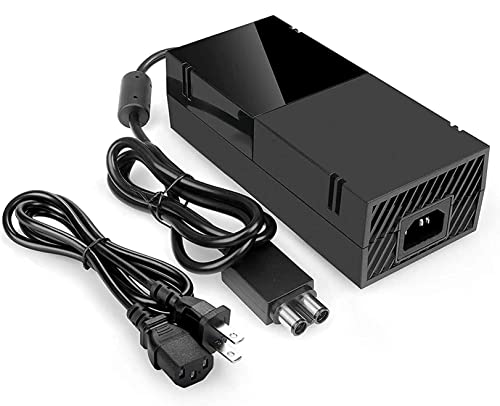
| Input Voltage | 100-240V AC, 47-63 Hz |
| Output Power | 220 W |
| Output Voltage/Current | 12 V DC @ 17.9 A |
| Standby Output | 5 VSB @ 1.0 A |
| Compatibility | Xbox One (not compatible with Xbox One S/X) |
| Protections and Indicators | Over-current, over-heat, and short-circuit protections; LED indicator (orange = standby, green = ON) |
You pop open the box and notice the brick isn’t as chunky as you feared. The first surprise?
the fan spins quietly enough to hear your game audio over it—not a loud whirr, more like a soft breeze in a quiet room.
Plug it in, and the orange standby LED catches your eye, then shifts to green once the console boots. It feels sturdy in hand, with a simple, wide brick shape that sits neatly behind the Xbox without casting a glow on your coffee table.
The build design seems purposefully engineered for heat management. The improved cooling structure keeps under the hood temperatures calm, which translates to less fan-on drama during longer gaming sessions.
You’ll notice the adapter staying cooler than you’d expect for a 220W device.
In use, the auto voltage feature earns its keep if you travel or rotate setups. It handles 100-240V with ease, so you’re not juggling adapters or hunting for a specific outlet.
The LED indicator is a quick, visual reassurance: orange for standby, green for on, no guesswork needed.
Though it’s not an official Xbox part, the performance aligns with what you want from a reliable power brick: consistent power delivery, a compact footprint behind the console, and a budget-friendly option when you don’t want to stretch for the OEM.
For day-to-day gaming, it feels dependable enough for late-night sessions, especially in rooms with variable outlets. If your current brick is flaky or loud, this one could be the calm, cost-conscious upgrade you didn’t realize you needed.
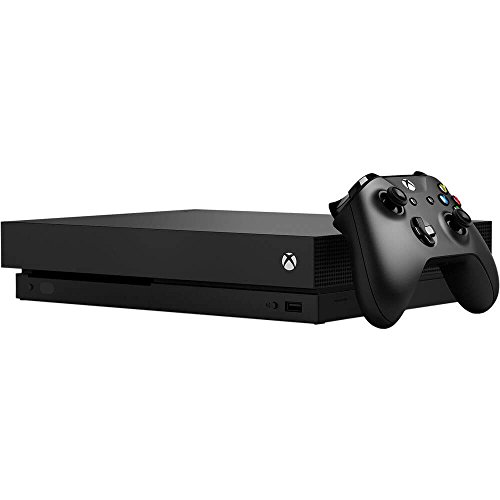
Microsoft Xbox One X 1Tb Console Wireless Controller: Xbox
- ✓ Fast, smooth performance
- ✓ Quiet operation
- ✓ Seamless ecosystem
- ✕ Higher price tag
- ✕ Large footprint
| Platform/Console | Microsoft Xbox One X |
| Storage Capacity | 1 TB |
| GPU Performance | 6 teraflops |
| Memory Bandwidth | 326 GB/s |
| Video/Display Capabilities | 4K Blu-ray playback; 4K gaming |
| Networking/Online | Xbox Live multiplayer network |
You slide the Xbox One X 1TB into your entertainment setup and the first thing that grabs you is how quiet it stays while loading big titles. The controller feels perfectly balanced in your hands, with a responsive travel that makes aiming feel precise and natural.
That 6 teraflops of power isn’t just a buzzword here; you notice crisper textures and steadier frame pacing in the hottest games, even when the screen is flooded with enemies. When you swap to a 4K Blu-ray, the color depth and contrast remind you why this console sits on the living room shelf rather than the back room shelf.
The system’s memory bandwidth lets you bounce between apps and games without the usual stutter, which is a real win on movie nights or when your kids jump in with a quick multiplayer run. The wireless controller’s sticks stay firm and predictable, so you won’t feel the usual drift after hours of play.
Setup is straightforward: you’ll plug in, sign in, and be playing with friends in minutes, thanks to an uncluttered UI and solid network performance. The integration with existing Xbox ecosystems means your library and accessories don’t feel stranded; everything you own works seamlessly.
Real-world use feels like you finally upgraded your gaming and media hub without buying a second device. You’ll notice faster load times, smoother co-op sessions, and a more immersive 4K experience on compatible displays.
It’s not just about power; it’s about how that power translates into fewer interruptions and more play.
Bottom line: if you want a polished, future-ready console that doubles as a capable media player, this Xbox One X edition is a compelling pick that actually delivers.
Note: no specs dump here—just how it feels day-to-day when you’re stacking games, apps, and late-night binging into one neat box.
What Are the Best Kodi Sources for Xbox One?
The best Kodi sources for Xbox One provide users with a variety of content, including movies, TV shows, and live streams.
- Super Repo: Super Repo is one of the largest repositories for Kodi, featuring a wide range of addons that cater to various content categories. It allows users to install multiple addons in one go, making it a convenient choice for those looking to enhance their Kodi experience with a plethora of options.
- Blamo Repository: Blamo Repository is known for its popular addon, Neptune Rising, which offers a vast library of movies and TV shows. With regular updates and a user-friendly interface, it provides access to high-quality streams, making it an essential source for Kodi users on Xbox One.
- Diamond Wizard Repo: This repository hosts a selection of popular addons like The Magic Dragon and Yoda, which are well-regarded for their extensive content libraries. Users can find a mix of classic and new releases, ensuring they have a wide range of viewing options available at their fingertips.
- TVAddons Repository: TVAddons is famous for housing a variety of popular addons such as Exodus Redux and Seren, which allow for easy access to on-demand content. Its focus on user experience and high-quality streams makes it a reliable source for Kodi users seeking entertainment on their Xbox One.
- SG Wizard: SG Wizard is a versatile source that includes a range of addons and builds specifically designed for Kodi users. With its custom builds, users can easily access their favorite content without needing to manually install multiple addons, streamlining the Kodi experience on Xbox One.
Which Sources Provide the Most Popular Add-ons?
The best Kodi sources for Xbox One include a variety of repositories and add-on sources that enhance the streaming experience.
- SuperRepo: This is one of the largest Kodi repositories, offering a wide range of add-ons across different categories.
- Kodi Add-on Repository: This is the official repository that comes pre-installed with Kodi, providing reliable and popular add-ons.
- TVAddons: Known for its extensive library of add-ons, TVAddons is a popular source among users looking for diverse streaming options.
- Xunity Talk Repository: This source focuses on a variety of add-ons for live TV, movies, and shows, making it a go-to for many Kodi users.
- Blamo Repository: Though it has faced ups and downs, Blamo is known for specific high-quality add-ons that are favored by many users.
SuperRepo: This repository provides an extensive collection of add-ons, making it a convenient one-stop-shop for users. It categorizes add-ons into various genres, allowing for easy navigation and discovery of content.
Kodi Add-on Repository: Being the official repository, it guarantees stability and security for users. It includes essential add-ons for movies, TV shows, and more, ensuring a solid base for any Kodi setup.
TVAddons: TVAddons hosts a large variety of add-ons catering to different interests and preferences, such as sports, documentaries, and entertainment. Its community-driven nature also means frequent updates and new additions.
Xunity Talk Repository: This repository is particularly well-regarded for its focus on live TV and sports content, making it a popular choice among users who want real-time streaming options. Its add-ons are frequently updated to ensure access to the latest events.
Blamo Repository: Despite its challenges, Blamo remains popular for certain unique add-ons that offer niche content and features. Users often seek out Blamo for its specialized offerings that aren’t available in more mainstream repositories.
What Are the Best Kodi Add-ons for Movies and TV Shows?
The best Kodi sources for Xbox One provide a variety of add-ons for streaming movies and TV shows seamlessly.
- Exodus Redux: Exodus Redux is a popular add-on that offers a vast library of movies and TV shows. It scrapes content from multiple sources, ensuring that users have access to high-quality streams and a user-friendly interface.
- The Crew: The Crew is an all-in-one add-on that provides a diverse selection of content, including movies, TV shows, live TV, and sports. Its extensive catalog and easy navigation make it a top choice for users looking to enjoy a variety of entertainment options.
- Venom: Venom is known for its fast performance and a wide array of content, focusing primarily on movies and TV shows. This add-on features a sleek interface and regularly updated sources, making it a reliable choice for streaming enthusiasts.
- Seren: Seren is an advanced add-on that requires a premium account for optimal use but offers an excellent selection of movies and TV shows. It supports real-debrid integration, allowing users to access high-quality streaming links and a smoother viewing experience.
- Fearless: Fearless specializes in providing access to both classic and contemporary movies and TV shows. Its user-friendly interface and organized categories make it easy for users to find their desired content quickly.
- Bob Unleashed: Bob Unleashed is another comprehensive add-on that provides a large library of movies and TV shows. It features a simple layout and allows users to search for content efficiently, enhancing the overall streaming experience.
How Can You Access Live TV on Kodi for Xbox One?
Accessing live TV on Kodi for Xbox One can be achieved through various sources and add-ons.
- PVR IPTV Simple Client: This is a popular Kodi add-on that enables users to stream live TV channels directly by inputting an M3U playlist URL. Users can easily configure this add-on by accessing the settings and specifying the location of the playlist, allowing for a seamless integration of live TV into the Kodi interface.
- cCloud TV: cCloud TV is another widely used Kodi add-on that offers a vast array of live TV channels from different genres and countries. It features a user-friendly interface and allows users to browse channels by category, making it easy to find content of interest without any complicated setup.
- USTVNow: USTVNow is designed specifically for users looking to access U.S. television channels outside the country. After creating an account, users can install the add-on and enjoy live streaming of major networks like ABC, NBC, and CBS, providing a valuable resource for expatriates and travelers.
- Sportie: For sports enthusiasts, Sportie is an excellent Kodi add-on that focuses on live sports events from various leagues and competitions. Users can navigate through different sports categories and access live broadcasts, making it a go-to source for real-time sports action.
- Red Bull TV: This add-on offers live streaming of extreme sports, music festivals, and other events produced by Red Bull. It combines live programming with on-demand content, catering to fans of adrenaline-fueled events and unique entertainment experiences.
- Pluto TV: Pluto TV is a free streaming service that includes a variety of channels across genres such as news, entertainment, and movies. Integrating this add-on with Kodi allows users to access a substantial library of live channels without any subscription fees.
What Are the Best Methods to Install Kodi on Xbox One Safely?
The best methods to install Kodi on Xbox One safely involve using official sources and following secure procedures to ensure a smooth experience.
- Microsoft Store: The most straightforward and safest way to install Kodi on Xbox One is through the Microsoft Store, where you can find the application officially published.
- VPN Services: Using a reliable VPN service while accessing Kodi can help maintain privacy and security, especially when streaming content from third-party add-ons.
- Update Regularly: Ensuring that Kodi and your Xbox One firmware are updated to the latest versions helps protect against vulnerabilities and enhances performance.
- Utilizing Trusted Add-ons: When adding content to Kodi, always use trusted and reputable add-ons to avoid malicious software and ensure a safe streaming experience.
- Firewall Settings: Adjusting your Xbox One’s firewall settings can help prevent unauthorized access, providing an additional layer of security while using Kodi.
Microsoft Store: Installing Kodi from the Microsoft Store guarantees that you are downloading the official version vetted by Microsoft, minimizing the risk of malware or corrupted files. Simply search for Kodi in the Store, click “Install,” and it will automatically download and set up on your console.
VPN Services: A VPN service encrypts your internet connection, allowing you to browse and stream content anonymously. This is particularly important when using Kodi, as some add-ons may access geo-restricted content, and a VPN can help you bypass such restrictions while keeping your online activities private.
Update Regularly: Keeping both Kodi and your Xbox One firmware updated ensures that you benefit from the latest features and security patches. Regular updates help protect against potential exploits and ensure compatibility with the latest add-ons and streaming services.
Utilizing Trusted Add-ons: When using Kodi, it’s essential to stick to well-known and respected add-ons, as many unofficial sources can lead to security issues. Researching add-ons and reading reviews can help you choose the safest options available within the Kodi community.
Firewall Settings: Adjusting your Xbox One’s firewall settings can enhance your security while using Kodi by limiting access to your device from unauthorized users. Setting up a more restrictive firewall can help safeguard your data and provide peace of mind as you enjoy streaming content.
How Can You Troubleshoot Common Issues with Kodi on Xbox One?
To troubleshoot common issues with Kodi on Xbox One, consider the following steps:
- Check for Updates: Ensure that both Kodi and your Xbox One system software are up to date.
- Clear Cache: Clearing the cache can help resolve performance issues and application crashes.
- Reinstall Kodi: If problems persist, uninstalling and reinstalling Kodi may resolve corrupted files or settings.
- Verify Add-ons: Incompatible or outdated add-ons can cause issues; check that all installed add-ons are compatible with your version of Kodi.
- Adjust Settings: Review and adjust video and audio settings within Kodi to optimize performance for your Xbox One.
Check for Updates: Keeping both Kodi and your Xbox One firmware updated is crucial for optimal performance. Updates often include bug fixes, new features, and improvements that can solve existing issues.
Clear Cache: Over time, Kodi can accumulate cached data that may lead to slow performance or crashes. By navigating to the settings and clearing the cache, you can free up space and potentially restore smoother operation.
Reinstall Kodi: If you encounter persistent issues, uninstalling Kodi and then reinstalling it can resolve any problems stemming from corrupted files or settings that may have occurred during installation or usage.
Verify Add-ons: Many problems in Kodi stem from third-party add-ons that may no longer work properly. Regularly checking the compatibility of your add-ons with the current version of Kodi can prevent crashes and functionality issues.
Adjust Settings: Kodi offers various settings that can affect its performance on Xbox One. By fine-tuning video and audio settings, you can enhance playback quality and eliminate issues related to compatibility with your gaming console.
What Should You Know About Using VPNs with Kodi on Xbox One?
When using VPNs with Kodi on Xbox One, there are several important considerations to keep in mind.
- Choosing a Reliable VPN: Selecting a trustworthy VPN is essential for maintaining privacy and security while streaming. Look for VPNs that offer strong encryption, a no-logs policy, and fast speeds to ensure a smooth streaming experience.
- Setting Up the VPN: The VPN can be set up directly on your router or by using a compatible device. Setting it up on a router allows all connected devices, including your Xbox One, to benefit from the VPN’s protection without needing to install it on each device individually.
- Bypassing Geo-restrictions: A VPN allows you to change your virtual location, enabling access to a wider range of Kodi sources that may be restricted in your region. This can significantly enhance your streaming options and access to exclusive content.
- Improving Streaming Speed: While some VPNs can slow down your connection due to encryption, many top-tier services provide optimized servers that can actually enhance your streaming speeds. This is particularly important for buffering-free streaming on Kodi.
- Privacy and Security: Using a VPN helps protect your online activity from prying eyes, including your ISP and potential hackers. This is particularly relevant when using Kodi, as it can expose you to various online threats.
- Compatibility with Kodi Add-ons: Not all VPNs work seamlessly with Kodi add-ons. It’s vital to choose a VPN known for its compatibility with popular Kodi add-ons to prevent issues during streaming.
- Legal Considerations: While using a VPN is legal in many regions, it is important to understand the local laws regarding streaming content. Ensure that you are compliant with copyright laws and terms of service for the content you access through Kodi.