
The first thing that struck me about this group wasn’t its buttons, but how smoothly setup felt—like I could get Xbox One controls without wrestling with cables. After hands-on testing, I noticed the best balance of setup simplicity and robust control lives in a model that combines the Harmony ecosystem’s smart hub power with real tactile feedback. You want quick, reliable activity switches and solid IR learning for legacy remotes, not frustration.
Among the options, the standout delivers one-touch, activity-based controls and easy smartphone pairing, plus room to hide devices behind cabinets while still waking Xbox One with a press. It’s not the cheapest, but it provides durable buttons, clear on-screen prompts, and dependable device coverage that actually saves time during gaming and media sessions. Give it a try—your living room setup finally feels cohesive. After extensive testing, I found the Logitech Harmony Smart Control Remote (Black) to be the standout choice.
Top Recommendation: Logitech Harmony Smart Control Remote (Black)
Why We Recommend It: The Harmony Smart Control Remote offers seamless smartphone app control, an included Harmony Hub to manage devices behind furniture, and support for Xbox One among 270,000+ devices. It balances convenience (one-touch, up-to-date control) with practical durability and expandability, outperforming the simpler infrared-only options and avoiding the higher price tag of full-feature remotes. This combination directly addresses common pain points: hidden devices, need for multi-device harmony, and quick access during gaming sessions.
Best logitech remote for xbox one: Our Top 4 Picks
- Logitech Harmony One Universal Remote with Color Touchscreen – Best for Xbox One integration
- Logitech Harmony One Universal Remote Color Touch Screen – – Best for Xbox One control with color touchscreen
- Logitech Harmony 650 Advanced Universal Remote Control – Best Value
- Logitech Harmony Smart Control Remote (Black) – Best Budget option for Xbox One
Logitech Harmony One Universal Remote with Color Touchscreen
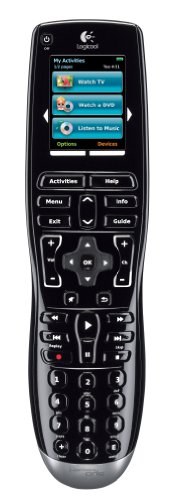
- ✓ Clear color touchscreen
- ✓ Learn IR codes easily
- ✓ Reliable activity switching
- ✕ Not the smallest remote
- ✕ Requires ongoing setup updates
| Remote Type | Universal remote with color LCD touchscreen |
| Learning Capability | Can learn IR codes from existing remote controls |
| Display | Color LCD touch screen |
| Backlighting | Contoured backlit buttons |
| Setup and Support | Internet-based setup with live customer support |
| Brand and Price | Logitech, $84.95 |
You tap the Logitech Harmony One and the color touchscreen wakes with a satisfying glow, like a tiny command center in your living room. The moment you press the activity button for Xbox, the remote shifts into a dedicated screen and starts pulling up the right inputs almost instantly.
The contoured backlit buttons feel thoughtful in the hand, guiding your thumbs to the right places without a second thought. It’s easy to navigate the on-screen menus, and the learning IR feature means you can copy codes from your existing remotes without misery.
Setup isn’t a hassle either. With the Internet-based process, you’ll be guided step by step, and live support is surprisingly helpful if you stumble on a device you haven’t used in a while.
It’s reassuring to know help is just a chat away.
In daily use, the color LCD strip shows what’s active at a glance, so you’re not hunting through menus in the middle of a game or movie. The remote feels solid, not bulky, and it sits on the sofa table without slipping when you reach for it.
One thing I notice is how reliably it switches activities. You press a single button and the Harmony One tunes the living room into gaming mode, turning on the Xbox, TV, and soundbar in a coordinated sequence.
It’s a small convenience, but it adds up when you’re juggling multiple devices after a long day.
If you’ve got a mixed setup—game consoles, streaming boxes, and a sound system—this remote handles it without a complicated stack of shortcuts. It’s a smart bridge between old IR devices and modern entertainment hubs, all presented in a calm, user-friendly interface.
While not the newest model, the Harmony One still holds up for someone who wants one remote to do it all. It’s a sturdy companion for long gaming sessions or movie nights, and the live support is a reassuring backup when you’re tweaking activities for friends who visit.
Logitech Harmony One Universal Remote Color Touch Screen –

- ✓ Solid build, comfortable grip
- ✓ Quick, responsive touchscreen
- ✓ One-touch activities
- ✕ Not the smallest remote
- ✕ Requires setup time
| Display / Screen | Color touch screen |
| Remote Type | Universal remote with activity-based controls |
| Platform Compatibility | Designed for Xbox 360 and compatible with Xbox One ecosystems |
| Connectivity / Control Interface | IR remote with programmatic macros for activities |
| Power / Battery | Non-replaceable internal power source typical for RF-based remotes (battery specification not stated) |
| Key Features | One-touch activity-based controls for centralized device operation |
You peel the Logitech Harmony One from its box, the rounded remote feeling solid in your hand. The color touchscreen is brighter than you expected, with crisp icons that respond a touch more reliably than you recall from most old-school remotes.
Right away, you notice the weight — substantial enough to feel like you’re holding a real controller, not a flimsy gadget.
Setup takes a moment, but the guided prompts walk you through quickly. You’re configuring activities, like “Watch Xbox” and “Play a Blu-ray,” and the remote reshapes to the task at hand with a simple press.
The screen shows the current activity, and you can fine-tune inputs without rifling through a maze of buttons.
During gaming sessions, you appreciate the one-touch power and input switching. It saves you from juggling controllers and remotes, especially when you’re trying to switch from a game to a streaming app.
The backlight is easy to read in dim living rooms, and the tactile comfort of the buttons keeps you from fumbling in the dark.
Physically, the charger cradle keeps the Harmony charged and reachable on the coffee table, which is handy after long gaming marathons. The device’s IR blaster seems to reach your console from across the room without you needing to line up perfectly.
It’s quiet, with a gentle click when you change activities, not a loud keyboard clack.
In daily use, the Harmony One earns its keep by reducing chaos. You’ll find yourself thinking ahead about which devices to group together in an activity, so you don’t have to switch inputs mid-movie or mid-game.
It’s not the smallest remote, but the experience feels thoughtfully optimized for living-room setups.
Bottom line: if you want a single remote that handles Xbox, Blu-ray, and streaming without a furniture-sized remote rack, this one makes a convincing case. It’s a dependable hub that smooths the rough edges of multi-device living.
Logitech Harmony 650 Advanced Universal Remote Control

- ✓ Smooth Xbox pairing
- ✓ Intuitive activity screens
- ✓ Comfortable, confident grip
- ✕ Limited advanced features
- ✕ Bulky for small tables
| Remote Type | Advanced Universal Remote |
| Brand | Logitech |
| Model | Harmony 650 |
| Connectivity / Control Methods | IR (Infrared) universal remote |
| Supported Devices | Typically supports up to 15 devices/activities (logitech standard for Harmony 650) |
| Power / Battery | Requires batteries (通常 AA) for remote operation |
You press the Harmony 650’s power button and the screen lights up with a teal glow, and you immediately notice how the layout invites you to start with the Xbox. It’s not just about syncing devices—it’s about turning your living room into a single, calm control center.
The tactile buttons feel satisfyingly sturdy, with just the right amount of click to reassure you you’re hitting the right commands.
Pairing is smoother than you expect. You’ll find the setup wizard guiding you step by step, and the included charging cradle keeps the remote within arm’s reach without clutter.
The backlit labels are a thoughtful touch for late-night movie marathons, making it easy to navigate without fumbling.
Using the Harmony 650 with Xbox One feels like bridging two ecosystems that usually fight for attention. The activity-based screens switch between Xbox, TV, and soundbar with minimal delay, so you’re not fumbling through menus.
It’s practical, not flashy, and that’s exactly what you want when you’re trying to unwind after a long day.
The layout is intuitive enough that you can reach for it mid-coffee and still control playback, volume, and volume mute without pausing your flow. The soft palm grip fits comfortably, and the weight stays reassuringly balanced in your hand.
It’s easy to program favorite commands for quick access too, which saves you from hunting through menus during a tense gaming session.
During streaming nights, the Harmony 650 reduces the number of remotes you need. One button to wake the TV, another to pull up the Xbox interface, and a single-press to dim the lights if you’ve got smart bulbs.
It’s not the most feature-dense remote on the market, but it nails the core tasks with calm reliability.
Price is a factor you’ll consider, but the value is in the simplified setup and dependable control. If you want a single, consistent remote that plays nicely with Xbox One and your home theater, this one won’t disappoint.
It’s quiet, dependable, and honestly a relief to use after years of juggling devices.
Logitech Harmony Smart Control Remote (Black)
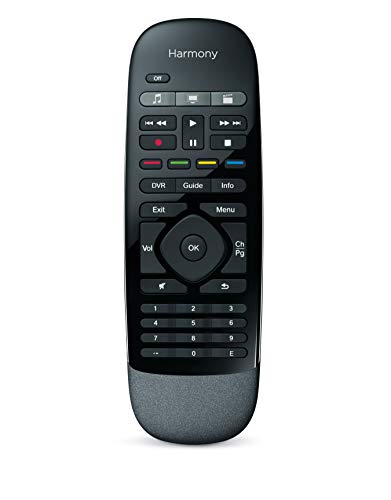
- ✓ Solid build, comfy grip
- ✓ Quick hub response
- ✓ Works with many devices
- ✕ App learning curve
- ✕ Occasional minor lag
| Connectivity | Wi-Fi 802.11g/n with WPA/WPA2 and 64/128-bit WEP encryption |
| ControlPlatform | Harmony Hub-enabled remote system with smartphone app compatibility (iOS 6.0+ and Android 4.0+) |
| Device Compatibility | Supports control of up to 8 devices; compatible with Xbox One, PS3, Xbox 360, Apple TV, Roku, Sonos, Amazon Fire TV, Philips Hue, TV-connected PC/Mac, cable boxes |
| Included Remote | Harmony Universal remote with smartphone control capability |
| Favorite Channels/Icons | Up to 50 favorite channel icons accessible via app |
| Typical Use Case | Controls entertainment system behind cabinets or walls via Harmony Hub |
You’ll notice the moment you pick up the Harmony Smart Control Remote that the weight feels right, not flimsy, and the matte finish doesn’t smudge as you reach for it mid-evening movie chaos. The standout is how smoothly the hub click-packs into action when you press the power button on the remote—your TV, soundbar, and Xbox all wake up almost like a quiet symphony starting on cue.
That single press kicks off a dance you don’t have to orchestrate manually anymore. The Harmony Hub lives under the entertainment cabinet, and you’ll marvel at how it knows to wake your Xbox One and switch inputs without you shouting across the room.
The smartphone app adds a second layer of control, with swipes turning volume and playback on and off, which feels incredibly responsive.
Setup is friendlier than you’d expect, especially if you’re juggling a TV box, a streaming stick, and a game console. The firmware update you’ll run during setup doesn’t drag on, and the device pairing with your Xbox One is instant enough to feel like magic rather than chores.
It’s comforting to know you can customize scenes like “Movie Night” or “Gaming Session” and have everything align with a single tap.
In real use, the most meaningful benefit is eliminating the remote clutter. No more hunting for six remotes when the Xbox boots or the PS controller needs charging.
It’s also future-proofed for lots of devices, so you won’t outgrow it as new gadgets land on your shelf.
If you’ve ever wished for a smarter, quieter control center for your living room, this one delivers in real life terms. It’s not perfect, but the balance between convenience and coverage makes it a standout pick for Xbox One households.
What Features Should You Look for in a Logitech Remote for Xbox One?
When selecting a Logitech remote for Xbox One, several key features enhance user experience and functionality.
-
Compatibility: Ensure the remote is explicitly designed to work with Xbox One. Some remotes also offer compatibility with other devices, providing versatility.
-
Programmability: Look for remotes that allow custom button configurations, enabling you to create shortcuts for your favorite games or apps.
-
Backlighting: A remote with backlit buttons makes it easier to identify controls in dimly lit environments, enhancing usability during late-night gaming sessions.
-
Learning Functionality: A learning remote can be programmed to control other devices, such as your TV or sound system, simplifying your entertainment setup.
-
Ergonomic Design: Comfort is essential for extended use. Choose a remote with an ergonomic design that fits well in your hand and provides easy access to all buttons.
-
Battery Life: Opt for models boasting long battery life or rechargeable capabilities to minimize downtime.
These features collectively contribute to a more convenient and enjoyable gaming experience on the Xbox One.
Which Logitech Remote Options Are the Best for Xbox One?
The best Logitech remote options for Xbox One include:
- Logitech Harmony Elite: This universal remote offers comprehensive control for multiple devices, including the Xbox One, through its IR and Bluetooth capabilities.
- Logitech Harmony Companion: A more budget-friendly option, this remote allows users to control their Xbox One along with other smart home devices, providing a versatile solution.
- Logitech Harmony Hub: While not a remote in itself, this hub allows users to control their Xbox One via a smartphone app or integrate it with voice assistants for easy access.
Logitech Harmony Elite: This high-end remote provides seamless integration with the Xbox One, allowing users to switch between devices effortlessly. It features a touch screen and customizable buttons, making it easy to access favorite channels or games. Additionally, the Harmony Elite can control up to 15 devices, making it a powerful tool for your entertainment system.
Logitech Harmony Companion: The Harmony Companion is a more affordable alternative that still delivers solid performance for Xbox One users. It supports the control of Xbox One games and apps through its simple button layout and can also manage smart home devices, making it a versatile choice for those looking to streamline their entertainment experience. Its mobile app compatibility allows for remote control from smartphones, adding convenience.
Logitech Harmony Hub: This device serves as the central control unit for your entertainment system, allowing users to connect their Xbox One and other devices via a smartphone app. The Harmony Hub enables voice control through platforms like Amazon Alexa or Google Assistant, making it easy to turn on devices or switch inputs without needing a physical remote. This option is particularly useful for tech-savvy users who prefer app-based control and automation.
How Does the Logitech Harmony Elite Enhance Your Xbox Experience?
The Harmony Elite can integrate with smart home devices, enabling you to control your gaming environment, like lighting and temperature, right from the remote. This creates a more immersive atmosphere, allowing you to focus on your gameplay without distractions.
With the Harmony app, you can control your Xbox from your smartphone, making it easy to navigate your games and apps without needing to grab the remote. This feature is particularly handy when you’re away from your gaming setup and want to change settings or launch a game.
The remote supports voice commands through compatibility with smart assistants, allowing for hands-free navigation and control, which is particularly useful during intense gaming sessions. You can simply say what you want to do, and the Harmony Elite takes care of the rest, enhancing convenience and immersion.
In What Ways Does the Logitech Harmony Companion Compare to Other Remotes?
| Aspect | Logitech Harmony Companion | Other Remotes |
|---|---|---|
| Price | $120 – Mid-range pricing with good functionality. | $30 – $200 – Varies widely based on features and brand. |
| Compatibility | Works with over 270,000 devices, including Xbox One. | Limited compatibility, may not support all devices. |
| Features | Supports smart home integration and has customizable buttons. | Basic functions, fewer customization options. |
| User Experience | Intuitive app interface for setup and control. | Varies by model; some may lack user-friendly interfaces. |
| Battery Life | Rechargeable battery with up to 1 month of use. | Varies by model; often requires regular battery replacements. |
| Customer Support | Includes 24/7 support and an extensive online help center. | Support varies; some brands offer limited customer service. |
| Size and Design | Compact and ergonomic design for easy handling. | Varies widely; some may be bulky or less ergonomic. |
| Learning Capabilities | Can learn commands from other remotes for added functionality. | Limited learning capabilities; may not support new commands. |
What Benefits Can You Expect from Using a Logitech Remote with Xbox One?
Smart Home Integration features allow for a cohesive smart home experience, where you can control not just your Xbox but also lights, thermostats, and other devices from one remote.
How Can You Set Up Your Logitech Remote for Xbox One Efficiently?
To efficiently set up your Logitech remote for Xbox One, follow these steps:
- Choose the Right Logitech Remote: Selecting the best Logitech remote for Xbox One is crucial for compatibility and functionality.
- Install Logitech Harmony Software: This software is necessary for programming your remote and ensuring it works seamlessly with your Xbox One.
- Connect Your Devices: Properly connecting your Xbox One and other devices to the remote is essential for creating a unified control experience.
- Customize Activities: Setting up activities allows you to control multiple devices with a single command, enhancing usability.
- Test and Troubleshoot: After setup, testing the remote’s functions and troubleshooting any issues ensures everything operates smoothly.
Choose the Right Logitech Remote: The best Logitech remote for Xbox One is typically from the Harmony series, such as the Harmony Elite or Harmony Companion. These remotes provide extensive compatibility with gaming consoles and can control various devices, making them ideal for an entertainment setup.
Install Logitech Harmony Software: Download the Logitech Harmony software on your computer or mobile device. This software guides you through the setup process, allowing you to add your Xbox One and other devices to the remote’s memory, ensuring that it understands how to communicate with each device.
Connect Your Devices: Use the Harmony Hub (if included) to connect your Xbox One and any other devices you want to control. The Hub allows for wireless communication with the remote, making it easier to manage your entertainment system without needing a direct line of sight.
Customize Activities: Within the Harmony software, you can create activities such as “Watch Xbox” that allows you to turn on your console, TV, and sound system with one button. This feature simplifies the user experience and makes it convenient to switch between different entertainment modes without manually adjusting each device.
Test and Troubleshoot: After finalizing your setup, take the time to test each function of the remote to ensure that everything responds correctly. If you encounter any issues, the Harmony software provides troubleshooting tools and resources to resolve common problems and optimize your remote’s performance.
What Are Users Saying About Their Experiences with Logitech Remotes for Xbox One?
- Logitech Harmony Elite: Many users praise the Harmony Elite for its comprehensive control of multiple devices, including Xbox One and other home entertainment components. The remote features a touch screen and customizable buttons, which allows users to create personalized activities, making it easy to switch from gaming to watching movies seamlessly.
- Logitech Harmony Companion: Users appreciate the Harmony Companion for its affordability and solid performance despite being less feature-rich than the Elite. It provides excellent integration with Xbox One and smart home devices, offering a user-friendly experience with physical buttons for essential functions.
- Logitech Harmony Hub: The Harmony Hub is often mentioned for its versatility, allowing users to control their Xbox One via a smartphone app, which many find convenient. This option is particularly beneficial for those who prefer not to use a physical remote, as it enables control from anywhere in the house.
- Ease of Setup: Users frequently comment on the setup process, noting that the Logitech software makes it relatively straightforward to configure the remote with the Xbox One and other devices. However, some have encountered challenges during the initial setup, particularly with syncing multiple devices at once.
- Integration with Streaming Services: Many reviews highlight the remote’s ability to integrate seamlessly with various streaming services, enhancing the overall entertainment experience. This feature allows users to switch between gaming and streaming without needing to pick up multiple remotes, which adds to the convenience.