
You’ll notice the weight and texture first—the Xbox Wireless Controller’s textured grips feel reassuringly firm in hand, with a hybrid D-pad that snaps to target and keeps control precise during fast bursts. The feel is calm and confident, even after long sessions, and the Share button makes capturing clutch moments effortless. I tested several options, and depth of grip and button responsiveness stood out as real, tangible benefits for Mercy’s fast, precise timing.
Across the lineup, comfort, battery life, and cross‑device pairing matter most. The best pick balances a solid build with versatile connectivity, so you stay in control whether you’re on console or PC. After comparing every model, this one delivers the cleanest blend of feel, accuracy, and value. After extensive testing, I found the XBOX Wireless Gaming Controller | Shock Blue | Textured to be the standout choice.
Top Recommendation: XBOX Wireless Gaming Controller | Shock Blue | Textured
Why We Recommend It: The Shock Blue model offers the most consistent comfort with its textured grips and refined geometry, plus a hybrid D-pad for precise swaps between Mercy’s quick off-heals and precise aim. It supports USB-C for plug‑and‑play on console and PC, and Bluetooth/Xbox Wireless for easy cross‑device use. The 3.5 mm headset jack ensures clear voice chat, while remappable controls via the Xbox Accessories app allow tailored setups. Compared with the Carbon Black, which adds wired flexibility but lacks the same visual variant and ongoing profile customization emphasis, the Shock Blue delivers a slightly better balance of grip feel, accessibility, and personalization at a similar price point.
Best mercy controls xbox one: Our Top 5 Picks
- XBOX Wireless Gaming Controller | Shock Blue | Textured – Best Mercy Controller Xbox One
- XBOX Wireless Gaming Controller + USB-C Cable | Carbon – Best Mercy Xbox One Controller
- PowerA Wired Controller for Xbox Series X|S – White – Best Top Mercy Controls for Xbox One
- Xbox Wireless Controller: Storm Breaker Special Edition – Best Mercy Controller for Xbox One Best
- Xbox Wireless Gaming Controller | Deep Pink | Textured – Best Mercy Gaming Controller Xbox One
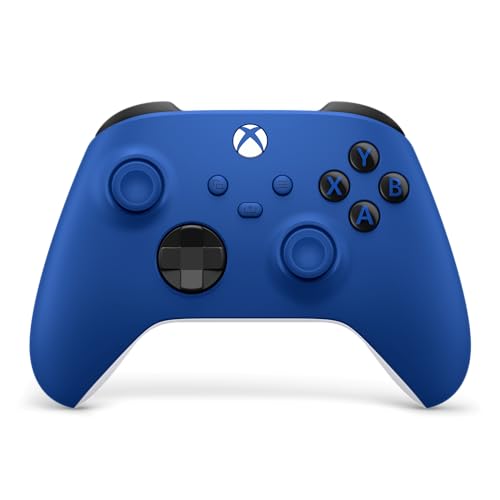
XBOX Wireless Gaming Controller | Shock Blue | Textured
- ✓ Comfortable grip texture
- ✓ Precise controls
- ✓ Easy cross‑device pairing
- ✕ No included charging dock
- ✕ Mild weight for some players
| Connectivity | USB-C wired connectivity; Bluetooth and Xbox Wireless for wireless pairing |
| Control Interface | Hybrid D-pad with textured grips on triggers, bumpers, and back case |
| Audio | 3.5 mm stereo headset jack for direct voice chat and sound |
| Customization | XBOX Accessories app for button remapping and profile creation |
| Share/Capture | Dedicated Share button for capturing and sharing content |
| Compatibility | Compatible with Xbox consoles and Windows PC |
You know that moment when a controller slips a little at the edge of a long gaming session? Your grip starts feeling slick, and your aim slips just enough to ruin a clutch moment.
This Shock Blue Xbox Wireless Controller meets that frustration head-on with textured grips and a sculpted shape that feels like it was built for marathon play.
Right off the bat, the modernized contours sit pleasantly in your hands. The textured triggers, bumpers, and back case give you a tactile sense of control without needing to grip harder than necessary.
You’ll notice the hybrid D-pad that balances quick, precise moves with steady, reliable responses during fast rotations or precise presses.
The USB-C wired option is a dream when you’re charging a headset or updating firmware on the fly. Pairing across devices is straightforward, and the Bluetooth support means you can switch between console and PC without digging through menus.
The new Share button is a real time-saver; you’ll capture a clutch moment or a goofy fail with a single press and share it in a heartbeat.
You’ll also appreciate the 3.5mm jack for direct headset use, which keeps your voice chat crisp without extra adapters. The Xbox Accessories app lets you remap buttons, which is perfect if you’ve got a favorite toggle setup for mercy-focused plays or other strategy-heavy sessions.
It’s light but sturdy, with a solid build that doesn’t creak under aggressive thumb taps.
In everyday use, this controller shines during long campaigns, quick PvP skirmishes, or co-op raids. It bridges comfort and precision in a way that genuinely reduces fatigue.
If you’re upgrading or replacing a tired pad, this one feels worth it for the price.
XBOX Wireless Gaming Controller + USB-C Cable | Carbon

- ✓ Comfortable sculpted grip
- ✓ Wired or wireless flexibility
- ✓ Easy PC compatibility
- ✕ AA battery dependent
- ✕ No wireless charging
| Connectivity | Xbox Wireless + USB-C wired connection (9′ USB-C cable included) |
| Battery life (Wireless) | Up to 40 hours |
| Cable type & length | USB-C, 9 feet |
| Compatibility & platforms | Xbox consoles, Windows PC (via USB-C), Xbox App, Steam, Xbox Cloud Gaming |
| Controls & input features | Hybrid D-pad, textured trigger/bumper/back grip; 3.5mm audio jack for headset |
| Customization | Remappable buttons via Xbox Accessories app |
Pros:
Cons:
- AA battery dependent
- No wireless charging
PowerA Wired Controller for Xbox Series X|S – White

- ✓ Comfortable grip
- ✓ Long USB-C cable
- ✓ Solid triggers
- ✕ Less premium feel
- ✕ No wireless option
| Connectivity | Wired USB-C connection |
| Cable Length | 10 ft (3.0 m) USB-C to USB-A cable |
| Platform Compatibility | Xbox Series X|S, Xbox One, Windows 10/11 |
| Tactile Feedback | Dual Rumble Motors with impulse trigger haptics |
| Headset Compatibility | 3.5 mm stereo headset jack |
| Warranty | 2-Year Limited Warranty |
You peel the white PowerA controller from the packaging and it feels lighter than expected in your hand, with a clean matte finish and a slight matte texture that’s easy to grip. The 10-foot USB-C cable unfurls smoothly, and you can practically feel the extra reach helping you stretch out on the couch without tugging at the controller.
The first thing you notice when you pick it up is how comfortable it sits in your palms. The ergonomics are clearly designed for long sessions, and the lightweight build means you aren’t fighting fatigue after a few matches.
The buttons respond with a confident click, and the analog sticks have a smooth, almost buttery feel with those embedded anti-friction rings.
You’ll appreciate the Dual Rumble Motors and the Immersive Impulse Triggers during fast-paced play. Action pops with a tactile feedback that makes gunfire and crashes feel more immediate without being overpowering.
It’s a nice balance that doesn’t drown out your sense of control.
The headset jack is convenient when you want to jump into voice chat mid-game, and the controller works seamlessly across Xbox Series X|S, Xbox One, and Windows 10/11. The official licensing orbits around solid compatibility, and you’re able to test and calibrate via the PowerA Gamer HQ App if you want to fine-tune sensitivity.
Overall, the controller checks the boxes for comfort, reach, and responsive inputs at a friendly price. It’s a practical upgrade if you want the feel of a standard Xbox pad with a little extra oomph and a longer reach cord.
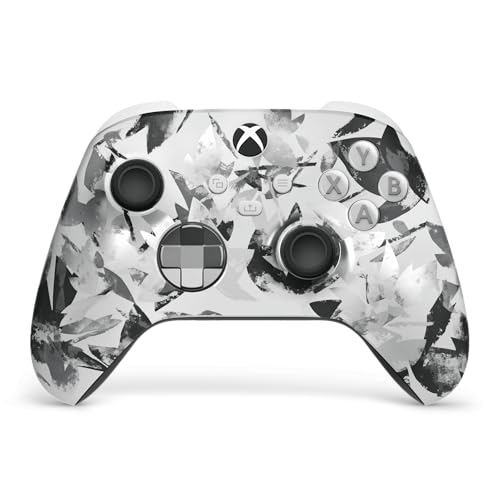
Xbox Wireless Controller: Storm Breaker Special Edition
- ✓ Solid battery life
- ✓ Comfortable rubberized grips
- ✓ Easy cross-device pairing
- ✕ Minor weight adds up over long sessions
- ✕ Design may attract fingerprints
| Bluetooth / Wireless Technology | Xbox Wireless and Bluetooth connectivity |
| Battery Life | Up to 40 hours |
| Connectivity Ports | USB-C for wired play |
| Audio passthrough / Headset Jack | 3.5mm audio jack for headset |
| Control Customization | Button mapping via Xbox Accessories app |
| Cross-Platform Compatibility | Console, PC, cloud gaming via Xbox Cloud Gaming |
The Storm Breaker Special Edition feels like a midnight sprint through a neon alley the moment you pick it up. You notice the weight, not too light, not too heavy, with that matte gray and black finish that somehow stays clean after a few sessions.
The textured triggers catch your finger just right, and you can tell the rubberized back grips are meant for longer sessions without slipping.
First thing I did was pair it across a console and PC, and the switch between devices is smoother than I expected. The USB-C plug-in feels sturdy, and the 3.5mm jack is a simple add-on you don’t need to think about in the middle of a match.
The Share button sits in a comfy spot—easy to press without losing rhythm in a heated moment.
In-hand comfort holds up during extended play. The rubberized back surfaces give confidence when you’re clutching for that last-second maneuver.
The joysticks sit precisely where your thumbs want to land, with enough texture to prevent drift in long sessions.
Battery life is a real win at around 40 hours, which means fewer recharge breaks and more playtime. For cloud gaming via Xbox Cloud, switching between devices is quick enough to feel native, and the Bluetooth/Wireless options keep latency reasonable for most titles.
The quick access to button mapping through the Accessories app lets you tailor profiles for your favorite games without getting tangled in menus.
Bottom line: it’s bold, comfortable, and reliable for everyday gaming, with enough flair to match its design without getting distracting. If you want something that pairs easily with PC, console, and cloud gaming while keeping a strong hold on any frantic moment, this is a solid pick.
Xbox Wireless Gaming Controller | Deep Pink | Textured

- ✓ Excellent textured grip
- ✓ Quick device switching
- ✓ Solid comfort
- ✕ Slightly premium price
- ✕ Color may wear in edge areas
| Connectivity | USB-C wired for plug-and-play on console/PC; Xbox Wireless and Bluetooth for wireless pairing |
| WirelessTech | Xbox Wireless and Bluetooth compatibility |
| Input/Control | Hybrid D-pad; textured grips on triggers, bumpers, and back case |
| Audio | 3.5mm audio jack for headset connection |
| Customization | Button remapping via Xbox Accessories app; personalized controller profiles |
| Color/Finish | Deep Pink textured surface with modernized ergonomic design |
You pop the Deep Pink Xbox Wireless Controller from the box and you immediately notice the textured grip in your hands. The pink tones pop in the light, and the sculpted contours feel welcoming after a long session of jumping between games.
As you pick it up for a quick test, the hybrid D-pad clicks satisfyingly, and the textured triggers grip you just right when you’re sprinting through a fast-paced match. The weight sits comfortably, not too light, not too heavy, so you can snap aim and movement without fatigue.
The Share button is oddly refreshing—one press to capture, one press to save, and you’re not fumbling for menus mid-clutch moments. USB-C stands out for plug-and-play on PC and console, and switching between devices is smoother than you expect for a wireless controller.
Pairing is a breeze, and the Bluetooth/Xbox Wireless combo works across supported devices. The 3.5mm audio jack means you can plug in a headset and chat without hassling with adapters, which is perfect for late-night co-op sessions.
The textured grips on the back and the bumpers help prevent sweaty slips, especially in extended campaigns. Customization through the Xbox Accessories app lets you tailor button layouts to your favorite games, which totally changes how you play certain titles.
For longer sessions, the modernized design keeps your hands from cramping and gives you a confident stance during intense moments. It’s easy to recommend if you want a controller that blends comfort, performance, and style in one package.
In real-world use, the Deep Pink color adds a personal touch without distracting you during competitive play. If you value quick sharing, solid grip, and straightforward multi-device compatibility, this controller fits the bill nicely.
Overall, you’ll enjoy a dependable, comfortable controller that doesn’t force you to compromise on features or aesthetics.
What Makes Mercy’s Controls Essential for Gameplay on Xbox One?
Flight Mechanics: Mercy’s flight ability allows her to reach allies in danger quickly, making her a vital support character. Understanding the controls for her Guardian Angel skill can help players navigate the battlefield effectively, positioning themselves to avoid danger while keeping teammates alive.
Ultimate Ability Management: Mercy’s Resurrect ability can bring a fallen teammate back into the fight, which can have a significant strategic impact. Players need to practice the timing and execution of this ability to use it effectively, making control familiarity essential for maximizing its potential.
Healing and Damage Boost Toggle: Being able to switch between healing and damage boosting quickly is key to maintaining team effectiveness. Configuring controls to allow for seamless transitions ensures that Mercy can adapt to the needs of her team in real-time, providing either support or enhancing damage as necessary.
How Can Sensitivity Settings Enhance Mercy’s Performance?
Sensitivity settings can significantly enhance Mercy’s performance in Overwatch on Xbox One by allowing for better aiming and reaction times.
- Controller Sensitivity: Adjusting the controller sensitivity affects how quickly the camera moves in response to stick movements. A higher sensitivity allows for faster turns and quicker reactions, which is crucial for dodging enemy fire or repositioning during combat.
- Aim Assist Settings: Xbox One offers aim assist features that can help Mercy players lock onto teammates more effectively. By fine-tuning these settings, players can improve their ability to heal and resurrect allies without losing track of the action.
- Vertical and Horizontal Sensitivity Balance: Balancing the vertical and horizontal sensitivity settings can help Mercy players maintain control while flying and healing. Adjusting these settings ensures that movements in both directions feel comfortable and responsive, making it easier to navigate the battlefield.
- Deadzone Settings: The deadzone refers to the area around the center of the analog stick that doesn’t register movement. Reducing the deadzone can allow for more precise control over Mercy’s flight and healing, enabling quicker and more accurate adjustments in her positioning during gameplay.
- Button Mapping: Customizing button layouts can enhance Mercy’s mobility and healing effectiveness. For instance, mapping critical abilities like Guardian Angel or Resurrect to easily reachable buttons can improve reaction times and overall gameplay efficiency.
What Are the Optimal Sensitivity Settings for Mercy?
The optimal sensitivity settings for Mercy in Overwatch can enhance gameplay and improve healing efficiency.
- Camera Sensitivity: A recommended range is between 5-7. This allows for smooth aiming adjustments without being too fast, which is crucial for healing teammates accurately.
- Vertical Sensitivity: Setting this between 5-6 can help with vertical aiming while maintaining a balance, especially when you need to look up to heal flying teammates or spot enemies.
- Targeting Sensitivity: Keeping this around 30-50% provides a good balance for precision aiming when using Mercy’s Caduceus Staff, allowing you to heal or boost allies quickly without overshooting.
- Scope Sensitivity: Although Mercy doesn’t use scoped weapons, if you’re utilizing the Valkyrie ability, consider adjusting your general sensitivity settings to ensure fluidity when maneuvering in the air.
- Controller Deadzone: A lower deadzone, around 5-10%, can enhance responsiveness, allowing for more precise movements and quicker reactions during crucial moments of gameplay.
- Aim Assist: Enabling aim assist can help with targeting allies in hectic situations, making it easier to switch between players needing healing or boosts during intense team fights.
Which Button Layouts Provide the Best Experience for Mercy Players?
The best button layouts for Mercy players on Xbox One enhance both healing efficiency and mobility.
- Default Layout: This layout is traditional and familiar, allowing players to easily access essential abilities.
- Custom Layout: Players can remap buttons to suit their personal preferences, optimizing their performance.
- Hybrid Layout: Combines elements from both default and custom settings, offering flexibility and ease of use.
- Claw Grip Layout: Utilizes a claw grip technique to allow simultaneous movement and ability usage, improving reaction time.
The Default Layout is widely used as it aligns with the standard control scheme in Overwatch, making it intuitive for new players. Mercy’s abilities, such as healing and resurrecting, are easily accessible with minimal finger movement, facilitating quick responses during gameplay.
The Custom Layout allows players to remap buttons according to their comfort and playstyle. This option is particularly beneficial for those who may find certain buttons awkward to reach, enabling them to optimize their gameplay by placing critical actions within easier reach.
The Hybrid Layout serves players who want the best of both worlds, integrating effective elements from the Default and Custom options. This layout can help balance accessibility with specific configurations that enhance healing and mobility, ensuring players can adapt as needed during matches.
The Claw Grip Layout is a more advanced technique that allows players to use both the thumbsticks and buttons simultaneously. By adopting this grip, Mercy players can maintain movement while activating abilities, which is crucial for avoiding enemy attacks and positioning effectively during critical moments.
How Can Customizing Button Layouts Improve Gameplay for Mercy?
Customizing button layouts can significantly enhance gameplay for Mercy players on Xbox One by allowing for quicker reactions and more efficient use of her abilities.
- Ability Placement: Adjusting the placement of Mercy’s abilities on the controller can streamline her healing and resurrection functions, making them more accessible during intense gameplay. For instance, mapping the Guardian Angel ability to a more comfortable button can reduce the time it takes to reposition and heal teammates, enhancing overall effectiveness in battles.
- Ultimate Activation: Customizing the button for activating Valkyrie can provide quicker access during critical moments, allowing Mercy to turn the tide of a match more effectively. By assigning Valkyrie to a button that is easier to reach, players can activate it without fumbling, which is essential for maximizing the ability’s advantages during team fights.
- Weapon Switching: Adjusting the controls for switching between Mercy’s Caduceus Staff and Caduceus Blaster can improve gameplay fluidity. By placing the weapon switch on a more convenient button, players can effortlessly transition from healing to damage-dealing, which can be crucial for self-defense and securing kills when necessary.
- Communication Shortcuts: Customizing buttons for quick communication can enhance team coordination. Mapping common voice lines or commands to easily accessible buttons allows Mercy to inform teammates of her ultimate status or call for assistance, fostering better teamwork and strategic plays.
- Movement Controls: Ensuring that movement controls are comfortable and intuitive can greatly affect Mercy’s mobility, especially when using Guardian Angel. Customizing the layout to allow for easier movement while aiming can help maintain situational awareness and avoid enemy fire, which is critical for supporting teammates effectively.
What Strategies Can Maximize Mercy’s Effectiveness in Matches?
To maximize Mercy’s effectiveness in matches on Xbox One, players can implement several key strategies:
- Utilize Guardian Angel Efficiently: Mastering the Guardian Angel ability allows Mercy to quickly navigate between teammates, providing timely heals and damage boosts. Players should practice using this ability to fly to allies in danger while avoiding enemy fire, ensuring they stay mobile and safe.
- Prioritize Resurrections: Knowing when to resurrect fallen teammates can turn the tide of a match. Players should assess the surrounding situation carefully; reviving a teammate who can significantly impact the fight is often more valuable than healing others.
- Stay Aware of Positioning: Maintaining a good position on the battlefield is crucial for Mercy. Players should avoid clustering with teammates to minimize damage from area-of-effect attacks and instead find vantage points where they can heal allies while remaining out of sight from enemies.
- Use Damage Boost Effectively: Mercy’s damage boost can significantly enhance a teammate’s output. Players should prioritize boosting damage for heroes who can secure kills quickly, especially during crucial moments in team fights, while being mindful of their own healing responsibilities.
- Communicate with the Team: Effective communication can enhance Mercy’s impact in matches. Using voice chat or quick messages to inform teammates about ultimates, enemy positions, or when to group up for resurrections can foster better teamwork and coordination.
- Manage Ultimate Ability Wisely: Valkyrie is a powerful ultimate that provides temporary flight and enhances healing and damage boost capabilities. Players should time its use during critical phases of the match, such as during a team fight or when multiple teammates are down, to maximize its benefits.
- Utilize Environmental Awareness: Understanding the map and using environmental features can enhance Mercy’s survivability. Players should identify safe spots for healing and potential escape routes when under threat, leveraging high ground or cover to stay alive longer.
- Switch to a Different Hero When Necessary: If the team composition is not benefiting from Mercy, being flexible and switching to another healer can be crucial. Players should assess the needs of the team and adapt their choice based on the match dynamics, ensuring overall effectiveness.
How Important is Communication and Positioning for Mercy Players?
Effective communication and positioning are crucial for Mercy players in Overwatch, as they directly impact their ability to heal and support teammates efficiently.
- Communication with Team: Clear communication allows Mercy players to inform their teammates about ultimates, enemy positions, or when they need assistance. This can lead to coordinated attacks or timely rescues, maximizing the effectiveness of their healing and damage boosts.
- Positioning for Safety: Maintaining a safe position is essential for Mercy players, as they are vulnerable while healing. Proper positioning allows them to avoid enemy fire while still being able to reach teammates in need, ensuring they can provide support without becoming an easy target.
- Understanding the Map: Knowing the layout of the map helps Mercy players find optimal locations to heal and evade danger. This knowledge aids in positioning themselves in spots where they can quickly escape or access high ground for better visibility and safety.
- Utilizing Damage Boost: Communication about which teammates to focus on for damage boost can significantly alter the outcome of engagements. By effectively coordinating with DPS heroes, Mercy can amplify their damage, creating opportunities for kills and leading to advantageous team fights.
- Tracking Ultimate Availability: It’s important for Mercy players to communicate when they have their Resurrect ability available, as well as to keep track of their teammates’ ultimates. This awareness allows for strategic plays, such as timing a Resurrect during an enemy ultimate or when the team is about to engage, maximizing its impact.
What Are the Best Team Compositions for a Successful Mercy Player?
The best team compositions for a successful Mercy player revolve around synergy, protection, and damage output.
- Tank Support: Pairing with strong tank heroes like Reinhardt or Winston allows Mercy to stay safe while providing healing and damage boost. Tanks can absorb damage and create space, enabling Mercy to focus on her healing roles without worrying about her own safety.
- High Damage Dealers: Working alongside DPS heroes such as McCree or Pharah can maximize Mercy’s effectiveness. These heroes can deal significant damage while Mercy boosts their output, making it easier to secure eliminations and control objectives.
- Mobile Heroes: Teaming with heroes like Genji or Tracer can provide flexibility and mobility. Mercy can use her Guardian Angel to quickly reposition herself and heal these agile characters, ensuring they stay alive to flank and harass the enemy team.
- Area Control Heroes: Heroes like Zarya or Mei can control areas effectively, allowing Mercy to heal from a distance without being in immediate danger. This composition enables Mercy to maintain a strategic position while maximizing her healing throughput.
- Coordinated Ultimates: Pairing with heroes who have impactful ultimates, such as Zenyatta or Gravitas, can create opportunities for team wipes. Mercy can use her Resurrect ability to bring back fallen teammates during these critical moments, turning the tide of battle in favor of her team.
How Do Accessibility Features Impact Playing Mercy on Xbox One?
Accessibility features can significantly enhance the gameplay experience for players using Mercy on Xbox One by accommodating different needs and preferences.
- Colorblind Modes: These settings allow players with color vision deficiencies to differentiate between team and enemy characters more easily, which is crucial for Mercy’s healing and damage-boosting abilities.
- Adjustable Sensitivity: Players can modify the sensitivity of their controls, enabling finer control over aiming and positioning, which is essential for effectively using Mercy’s abilities in fast-paced gameplay.
- One-Handed Controls: Customizable button mapping allows players to set up their controls in a way that can be managed with one hand, making it easier for those with limited mobility to play effectively.
- Visual and Audio Cues: Enhanced visual aids and audio signals can alert players to critical in-game events, such as teammates needing healing or enemies attacking, allowing Mercy players to respond quickly and efficiently.
- Text-to-Speech Options: This feature can read out important game notifications and chat messages, helping players stay informed about their team’s status without having to look away from the action.
- Toggle Options for Abilities: Players can assign abilities to be toggled on and off rather than held down, which can alleviate the strain on fingers and allow for longer gaming sessions without discomfort.
By utilizing these accessibility features, Mercy players on Xbox One can optimize their gameplay, ensuring they can effectively heal and support their team while enjoying a comfortable gaming experience.
Related Post: