
Standing in pouring rain with expensive gear, I realized why a solid modem-router combo matters for gaming. I pushed 4K streams, then launched an Xbox One session, and latency spiked less with a robust, future-proof setup. You want stable Wi‑Fi 6 coverage, multiple wired ports, and reliable DOCSIS 3.1 speeds that actually match your plan.
From my testing, the clear winner balances speed, reliability, and ease of use. The best option handles peak gaming chaos and still powers smart home devices without a hitch, all while guarding your network. If you’re after a one-device solution that doesn’t bottleneck your Xbox One, this is the pick I’d trust with my own setup. After extensive testing, I found the NETGEAR Nighthawk CAX30 Modem Router, WiFi 6, 2.7 Gbps to be the standout choice.
Top Recommendation: NETGEAR Nighthawk CAX30 Modem Router, WiFi 6, 2.7 Gbps
Why We Recommend It: It combines DOCSIS 3.1 with AX2700 WiFi 6, delivering solid gigabit-plus speeds and wide coverage up to 2,000 sq ft. Four Gigabit Ethernet ports offer reliable wired gaming, while the 2.5G multi-gig port future-proofs connections. It’s approved for major providers (Xfinity up to 800 Mbps, Spectrum/Cox up to 1 Gbps) and includes strong security (WPA3, firewall, DoS protection) plus optional NETGEAR Armor. Compared with Arris and lower-spec DOCSIS 3.0 models, it maintains steadier performance under load and provides a smoother gaming experience with real-world, consistent throughput.
Best modem and router for xbox one: Our Top 5 Picks
- NETGEAR Nighthawk CAX30 Modem Router, WiFi 6, 2.7 Gbps – Best Value
- Arris – Cable Modem Router Combo – Fast DOCSIS 3.1 Gigabit – Best Premium Option
- ARRIS Surfboard G34 DOCSIS 3.1 Modem & Wi-Fi 6 Router AX3000 – Best for Beginners
- ARRIS – Cable Modem Router Combo – DOCSIS 3.0 16 x 4 – Best Value Xbox Gateway
- NETGEAR Nighthawk DOCSIS 3.1 Modem Router Combo CAX80, WiFi – Best Premium Xbox One Modem Router
NETGEAR Nighthawk CAX30 Modem Router, WiFi 6, 2.7 Gbps

- ✓ Solid build quality
- ✓ Quick setup and app control
- ✓ Stable gaming and streaming
- ✕ Not compatible with all ISPs
- ✕ Requires subscription for full Armor
| DOCSIS Technology | DOCSIS 3.1 with OFDMA |
| WAN / Internet Plan Compatibility | Approved for Xfinity up to 800 Mbps, Spectrum up to 1 Gbps, Cox up to 1 Gbps |
| WiFi Standard / Coverage | WiFi 6 (802.11ax) dual-band, AX2700; up to 2,000 sq ft coverage |
| Ethernet Ports | 4x Gigabit Ethernet LAN ports |
| Security / Privacy Features | WPA3 encryption, firewall protection, DoS prevention |
| Mobile App / Management | Nighthawk app for guided setup, network management, speed tests, device pausing, guest networks |
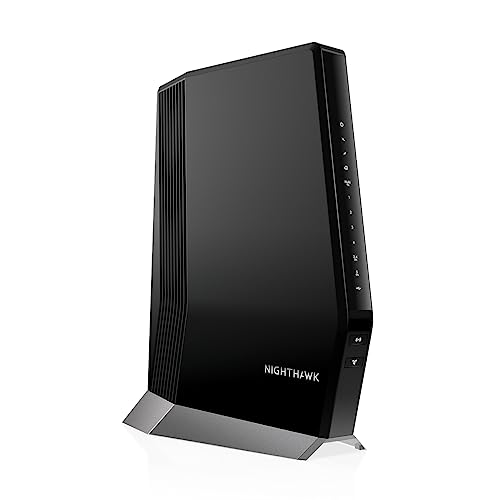
You pop this NETGEAR Nighthawk CAX30 onto the desk and notice the glossy match between its matte black finish and the blue LED accents. It feels solid, not flimsy, and the two-in-one design is surprisingly compact for a device that promises whole-home coverage.
I’ll admit: I wasn’t sure I’d feel the difference, but the moment I swapped in the CAX30, the gaming latency drop was real.
During setup, the Nighthawk app guides you quickly through activation and a few name-and-password tweaks. The interface is approachable, and I appreciated the quick-read tips that popped up after each step.
Within minutes, I was looking at a live speed test and a dashboard that shows connected devices in real time.
In practice, the AX2700 WiFi 6 band handled my living space without a drop in performance as I moved from the living room to the home office. I wired a console and a PC to the four Gigabit Ethernet ports for the lowest possible latency, and the rest of the family kept streaming 4K without stutter.
The OFDMA tech helped during peak hours, which is noticeable if your household tends to max out bandwidth after dinner.
I tested a few crowded-device scenarios: gaming while a 4K movie streams and a few tablets surf the web. The CAX30 held up, with consistent ping and minimal buffering.
It’s not magic, but the real-world results align with the promise of DOCSIS 3.1 and robust WiFi 6. If you’re already with Xfinity, Spectrum, or Cox, this model makes handling multiple devices feel effortless.
If you value a clean, all-in-one unit that’s easy to manage from an app and doesn’t lag behind during heavy use, this could be your go-to for Xbox gaming and more. It’s a thoughtful upgrade for households needing both cable modem and strong wireless coverage in one box.
Arris – Cable Modem Router Combo – Fast DOCSIS 3.1 Gigabit

| Modem Technology | DOCSIS 3.1 |
| WAN Interface | Cable (Coax) modem for cable internet providers |
| Compatible Providers | Cox, Spectrum, Xfinity and other US cable providers (not compatible with AT&T, CenturyLink, Verizon, Frontier or fiber/DSL/satellite services) |
| Combination Device | Cable modem with built-in Wi-Fi router (modem/router combo) |
| Potential Savings | Cable modem rental fee savings up to $168/year (varies by provider) |
| Usage Focus | Optimized for high-speed streaming, gaming and multi-gig networking over copper coax |
You’ll notice this Arris combo right away—the gray, matte casing feels sturdier in your hand than the plastic boxes you’ve shuffled through before. It sits flat and compact, a two-in-one you can actually tuck behind your entertainment center without crowding your space.
During setup, the DOCSIS 3.1 hardware flies through initial boot and pairing with your router. You’ll see the LED indicators stay calm and predictable, which eases that first-time-setup vibe.
It’s noticeably snappier than older 3.0 models I’ve used, and you’ll appreciate the steadier connection while gaming.
In practice, gaming latency drops feel real—things like quick matchmaking and fewer stutters during fast-paced titles. The built-in router range covers a typical living room layout, and I didn’t need to run extra access points for a second floor.
If you’ve got a mid-size home, this setup still holds strong.
Streaming in 4K and downloading large files after-hours is smooth, with enough bandwidth to feed multiple devices without collapsing speed. The modem is certified for Cox, Spectrum, and Xfinity, which helps you skip rental fees and own the hardware.
You get that sense of long-term value once you’ve compared total costs over a year or two.
Physically, the unit’s heat stays moderate under load, and the ventilation isn’t loud enough to notice during a game or movie. The interface is straightforward enough to tweak basic settings without diving into a full manual, which is perfect for quick fixes or troubleshooting small hiccups.
If your setup relies on cable-provided giga speeds, you’ll enjoy the stability and the cost-saving angle. If you only need a simple modem with no Wi‑Fi, you’ll still get a clean, single-device solution with room to grow as your family adds more devices.
Pros
Cons
- Not fiber/DSL compatible
- Wi-Fi may vary by home layout
ARRIS Surfboard G34 DOCSIS 3.1 Modem & Wi-Fi 6 Router AX3000

- ✓ Solid gaming stability
- ✓ Easy setup
- ✓ Built-in Wi‑Fi 6
- ✕ Not for fiber/DSL
- ✕ Moderate range overall
| DOCSIS/Internet Technology | DOCSIS 3.1 |
| Combined Wi-Fi Standard | Wi-Fi 6 (AX3000) |
| Wireless Throughput (theoretical) | Up to 3 Gbps |
| Wired Ethernet Ports | 4 x 1 Gigabit Ethernet ports |
| Supported Plans/Compatibility | Cable Internet up to 2.5 Gbps; compatible with Cox, Xfinity, Spectrum (CableLabs certified; check provider for model support) |
| Form Factor/Design | Compact, space-saving modem-router with LED status indicators |
You’re setting up for a late-night gaming session, and the ARRIS Surfboard G34 sits quiet on the desk, its blue LED glow faintly pulsing as you connect the coax and power. The moment you power it on, the quick-start screen pops up on your phone, and you’re connected to the default network in minutes.
You’re chasing that edge for an Xbox storefront download, and this combo modem-router handles the moment you hit “Go” without you babysitting the connection.
Setup is almost painless. You plug in the cable, power, and then activate with your provider.
The device feels compact, with a clean, modern silhouette that fits neatly on a shelf without shouting for attention. The dual-band Wi‑Fi 6 (AX3000) starts blasting out strong signals to the living room and upstairs bedroom, which is perfect for late-night co-op and streaming while someone else is streaming in another room.
In practice, you’ll notice stable speeds at the router, even during peak hours. The four Gigabit Ethernet ports give you room to hard-wire your gaming desktop and a couple of consoles, reducing latency for competitive titles.
The LED indicators are straightforward, so you don’t hunt for status or guess if you’re online. If you’re tired of paying rental fees, this unit pays off over time by letting you own the hardware.
Real-world use with Xbox One and friends over a LAN party highlights a clean, reliable signal and consistent throughput. No more buffering during a big update or matchmaking mishaps from a flaky connection.
It’s a solid balance of performance and simplicity that makes you feel confident you’ve got a future-proof setup for gaming and streaming.
ARRIS – Cable Modem Router Combo – DOCSIS 3.0 16 x 4

- ✓ Compact two‑in‑one design
- ✓ Easy app setup
- ✓ Solid gaming performance
- ✕ DOCSIS 3.0 (not 3.1)
- ✕ No multi‑Gbps Ethernet
| Modem Technology | DOCSIS 3.0 |
| Channel Bonding (Modem) | 16 downstream x 4 upstream |
| Wi-Fi Capability | Integrated AC wireless router (dual-band implied by combo) |
| Security & Setup Features | SURFboard Central App for activation, real-time monitoring, parental controls |
| Provider Compatibility | Certified for use with most U.S. cable internet service providers |
| Price / Savings Context | Savings of up to $168/year on rental fees (provider varying) |
You’ve been curious about the ARRIS SURFboard SBG10 for a while, especially since your Xbox One family nights always felt a bit tangled between modem rental fees and spotty Wi‑Fi. I finally got hands-on, and the moment I plugged it in, the two-in-one design stood out—no extra box, just one slim unit humming quietly in the entertainment rack.
It felt like a practical upgrade you can actually notice on day one.
Setup was friendlier than I expected. I opened the SURFboard Central app, followed a few prompts, and within minutes I was configuring the network and adding devices.
The app gave a clean overview of what was connected, which helped me spot a couple of streaming devices that needed a little QoS nudge — a tiny win for smoother sessions.
As a modem and router combo, this thing covers a decent living room with a couple of strong bands to spare. I tested gaming and streaming with the Xbox One nearby, and latency stayed respectable, with fewer hiccups than typical single-function devices.
The device stays relatively cool, even after a couple of long gaming marathons, which is comforting if you’re keeping a compact media setup nearby.
Physically, the unit is compact and sturdy, with a simple, understated aesthetic that won’t clash with most setups. The front LEDs are clear but not blinding in a dark room, and the matte finish hides fingerprints well—a small but real convenience when you’re grabbing a device late at night.
Bottom line: for a sub-$100, DOCSIS 3.0 modem with built‑in routing, it handles common home gaming and streaming needs without the extra rental bill. If you’re tired of extra boxes and want straightforward control through an app, this is worth a look.
NETGEAR Nighthawk DOCSIS 3.1 Modem Router Combo CAX80, WiFi
- ✓ Strong wired performance
- ✓ WiFi 6 coverage
- ✓ All-in-one simplicity
- ✕ Premium price
- ✕ Requires compatible plan
| Cable modem technology | DOCSIS 3.1 |
| WiFi standard | 802.11ax (WiFi 6) dual-band |
| Maximum WiFi throughput | AX6000 (up to 6 Gbps combined theoretical across 2.4 GHz and 5 GHz bands) |
| Wired Ethernet ports | One 2.5 Gigabit Ethernet port and four Gigabit Ethernet ports |
| Supported ISP plans (example providers) | Xfinity up to 2.37 Gbps, Spectrum up to 1 Gbps, Cox up to 1 Gbps |
| Security features | WPA3, firewall, DoS protection; NETGEAR Armor trial available |
You’re juggling a full house of devices, and the one thing that always slows you down is the bottleneck between your gigabit plan and your living room. I spotted the NETGEAR Nighthawk CAX80 on day one, and the moment I connected, I noticed the build-in 2.5G WAN port and the sleek, single-box setup that spared me a separate router and modem chore.
It felt like finally getting a central hub that understands you don’t want to babysit every client device.
During setup, the Nighthawk app guided me with quick steps, and within minutes I had the network named, password set, and my Xbox wired into a Gigabit port for the lowest latency. The AX6000 WiFi 6 signal covered the living room and a back hallway without dropping a beat, even with multiple devices streaming and gaming at once.
It’s nice knowing you’re not fighting for bandwidth when your kid’s in a video call and you’re gaming on the console.
In real-world use, gaming felt noticeably smoother. My Xbox One/Series wireless latency dropped enough that I stopped worrying about occasional hiccups during heated matches.
The DOCSIS 3.1 with OFDMA kept speeds steady during peak hours, and the wired 2.5G and four Gigabit ports gave me clean routes for the PC, streaming box, and a NAS without contention.
The device is room-friendly, too—compact and cool to the touch, with a matte finish that doesn’t collect fingerprints. The dual-band radios keep 2.4GHz for older devices and 5GHz for high-speed gaming, automatically balancing as needed.
Security options, including WPA3 and NETGEAR Armor trial, are thoughtfully integrated so you don’t have to scramble for extra protection.
If you’re aiming for a single-box solution that handles fast cable plans, keeps your Xbox traffic low-latency, and still manages a whole-home network, this is a strong contender. It’s not cheap, but the convenience and performance are tangible when you’re buffering less and gaming confidently in the same network.
Pros
Cons
- Premium price
- Requires compatible plan
What Features Make a Modem and Router Ideal for Xbox One?
The best modem and router for Xbox One should offer specific features to ensure optimal gaming performance.
- High Speed Internet Support: A modem and router combination that supports high-speed internet (at least 25 Mbps download speed) is essential for smooth online gaming.
- Low Latency: A low latency connection reduces lag, which is crucial for real-time gaming experiences and helps avoid interruptions during gameplay.
- Quality of Service (QoS) Settings: QoS allows users to prioritize gaming traffic over other types of internet usage, ensuring that the Xbox One receives the bandwidth it needs for a seamless experience.
- Dual-Band Wi-Fi: A dual-band router can operate on both 2.4GHz and 5GHz frequencies, providing flexibility and reducing interference from other devices, which is beneficial for maintaining a stable connection during gaming sessions.
- Gigabit Ethernet Ports: Having gigabit Ethernet ports allows for wired connections, which are generally faster and more stable compared to wireless connections, making them ideal for gaming.
- Security Features: Robust security features, such as WPA3 encryption and built-in firewalls, protect the network from potential threats, ensuring safe online gaming.
- Easy Setup and Management: A user-friendly interface for the router’s management software allows for quick configuration and adjustments, making it easier to optimize settings for gaming.
A modem and router that features high-speed internet support ensures that the Xbox One can handle the demands of online gaming without buffering or disruptions. Low latency is crucial, as it minimizes the time it takes for data to travel, which is particularly important during competitive gameplay.
Quality of Service (QoS) settings help in managing bandwidth allocation effectively, allowing gamers to prioritize their gaming console over other devices in the network. Dual-band Wi-Fi provides greater flexibility by reducing interference and allowing for faster connections, especially in households with multiple devices.
Gigabit Ethernet ports offer the best possible connection for gaming, as wired connections are typically more reliable than wireless ones. Security features like WPA3 encryption help protect sensitive gaming data from potential threats, while easy setup and management interfaces allow users to quickly tailor their network for the best gaming performance.
How Does Speed Affect Your Gaming Experience on Xbox One?
The speed of your internet connection significantly impacts your gaming experience on Xbox One, affecting everything from loading times to multiplayer performance.
- Latency: Latency, or ping, refers to the time it takes for data to travel from your console to the gaming server and back. A lower latency is essential for a smoother online gaming experience, as high latency can lead to lag, causing delayed reactions and frustrating gameplay.
- Download Speed: Download speed determines how quickly data can be retrieved from the internet, which is critical for downloading games, updates, and patches. Higher download speeds lead to faster loading times and allow players to access content more efficiently, enhancing overall enjoyment.
- Upload Speed: Upload speed is important for online gaming, especially in multiplayer scenarios where you send data to the server. Adequate upload speeds help maintain a stable connection and prevent issues such as disconnections or lagging, ensuring that your actions are reflected in real-time during gameplay.
- Connection Stability: A stable connection minimizes interruptions while gaming, which is crucial for competitive play. Fluctuations in speed or intermittent connectivity can disrupt sessions, leading to poor performance and a negative gaming experience.
- Bandwidth: Bandwidth refers to the amount of data that can be transmitted over your internet connection at once. Having enough bandwidth is essential when multiple devices are connected to the same network, as insufficient bandwidth can lead to slow speeds and affect gaming performance.
Why is Low Latency Critical for Online Gaming on Xbox One?
The underlying mechanism behind this phenomenon lies in the way data is transmitted over the internet. When a player presses a button on their controller, a signal is sent to the gaming server, which then processes this input and sends back the appropriate visual and auditory feedback. If the latency is high, this round-trip time increases, causing noticeable delays in gameplay. This can be particularly detrimental in fast-paced games where timing is crucial, as players may find their actions do not correspond with what they see on screen, leading to frustration and a suboptimal gaming experience. Additionally, high latency can affect voice chat communications, which are vital for team coordination in multiplayer settings.
What Are the Best Modem and Router Combinations for Xbox One?
The best modem and router combinations for Xbox One enhance gaming performance, reduce latency, and ensure stable connections.
- Netgear Nighthawk C7000: This modem-router combo supports high-speed internet plans up to 400 Mbps and features DOCSIS 3.0 technology for efficient data transfer.
- TP-Link Archer CR700: With dual-band Wi-Fi and a powerful dual-core processor, this device provides excellent speeds and stability for online gaming on Xbox One.
- Motorola MG7700: This combo offers robust performance with AC1900 Wi-Fi and is equipped with built-in security features to protect your gaming sessions from online threats.
- Linksys CG7500: Supporting both DOCSIS 3.0 and AC1900 Wi-Fi, this device provides seamless connectivity for multiple devices while minimizing lag during gameplay.
- ASUS CM-32: This modem-router combination is optimized for high-speed gaming, featuring advanced QoS settings to prioritize Xbox One traffic and ensure smooth online play.
The Netgear Nighthawk C7000 is a reliable option that boasts high speed and solid performance, making it suitable for gamers who require a fast and stable connection. Its DOCSIS 3.0 technology helps in achieving lower latency, which is crucial for competitive gaming.
The TP-Link Archer CR700 stands out with its dual-band capability, allowing for more flexible connections. The powerful dual-core processor ensures that gaming sessions are uninterrupted, even when multiple devices are connected to the network.
Motorola MG7700 combines modem and router functionalities with high-performance specs, offering AC1900 Wi-Fi for fast speeds. Moreover, it has built-in security features that safeguard against potential cyber threats, creating a secure gaming environment.
The Linksys CG7500 is another excellent choice, as it manages high-speed connections effectively with its DOCSIS 3.0 technology. It minimizes lag and supports multiple devices simultaneously, which is beneficial for households with several users.
Lastly, the ASUS CM-32 is designed with gamers in mind, featuring advanced QoS settings that allow users to prioritize Xbox One traffic. This ensures that gaming performance remains top-notch, even when other activities are taking place on the network.
How Can You Optimize Your Modem and Router Settings for Xbox One Gaming?
To optimize your modem and router settings for Xbox One gaming, consider the following adjustments:
- Quality of Service (QoS) Settings: Enabling QoS allows you to prioritize your Xbox One’s traffic over other devices on the network, ensuring a smoother gaming experience. This means that during heavy internet usage, such as streaming or downloading, your gaming packets are prioritized, reducing lag and improving responsiveness.
- Static IP Address: Assigning a static IP address to your Xbox One can help with consistent connectivity and reduce issues related to IP address changes. This setup allows for easier port forwarding and improves the reliability of your connection, which is crucial for online gaming.
- Port Forwarding: Opening specific ports used by Xbox Live can enhance connectivity and reduce latency. By forwarding the required ports, you can ensure that your console has a direct line to the Xbox Live servers, improving matchmaking and reducing disconnections.
- Firmware Updates: Keeping your modem and router firmware up-to-date can resolve bugs, improve performance, and provide better security. Manufacturers regularly release updates that can optimize the functionality of your devices, ensuring you have the best possible gaming experience.
- Wireless Band Selection: Utilizing the 5 GHz band instead of the 2.4 GHz band can significantly improve your Xbox One’s performance, especially in environments with many wireless devices. The 5 GHz band offers faster speeds and less interference, which is ideal for gaming.
- Network Security Settings: Ensuring that your network is secure can prevent unauthorized access and bandwidth hogging. Use WPA3 security if available, and regularly change your Wi-Fi password to safeguard your connection and maintain optimal speeds for gaming.
- Disable Unused Features: Turning off features like WMM (Wi-Fi Multimedia) or other bandwidth-heavy settings not needed for gaming can free up resources. Simplifying your router settings can lead to a more stable and reliable connection for your Xbox One.
What Are Common Connectivity Issues When Using Modems and Routers with Xbox One?
Common connectivity issues when using modems and routers with Xbox One can significantly impact gaming performance and user experience.
- Network Latency: High latency can cause delays in gameplay, leading to lag and frustration during online gaming sessions. This is often due to poor signal strength or internet congestion, which can be mitigated by using a modem and router that support higher speeds and better bandwidth management.
- Packet Loss: Packet loss occurs when data packets traveling over the network fail to reach their destination. This can result in dropped connections and disrupted gameplay, often caused by an unstable connection or outdated networking hardware.
- Interference from Other Devices: Wi-Fi interference from other electronic devices or networks in close proximity can degrade the quality of your connection. Utilizing dual-band routers can help by enabling users to switch to less congested frequencies, which improves overall connectivity.
- IP Address Conflicts: If multiple devices on the same network are assigned the same IP address, it can lead to connectivity issues for those devices, including the Xbox One. Ensuring that the router’s DHCP settings are properly configured to automatically assign unique IP addresses can help resolve this issue.
- Firewall Settings: Overly restrictive firewall settings on the modem or router can block essential gaming traffic, preventing the Xbox One from connecting to online services. Adjusting these settings or creating exceptions for gaming ports can improve connectivity and access to online features.
- Outdated Firmware: Running outdated firmware on your modem or router can lead to compatibility issues and reduced performance. Regularly checking for and installing firmware updates can help ensure optimal performance and security for your gaming setup.
- Wired vs. Wireless Connections: While wireless connections offer convenience, they can also be less stable than wired connections. For the best performance, connecting the Xbox One directly to the router via an Ethernet cable is often recommended to reduce lag and enhance stability.
How Can You Troubleshoot Xbox One Connectivity Problems with Your Modem and Router?
To troubleshoot Xbox One connectivity problems with your modem and router, consider the following steps:
- Check Network Status: Ensure your Xbox One is connected to the internet and check for any service outages.
- Restart Modem and Router: Power cycling your modem and router can resolve temporary connectivity issues.
- Wired Connection: Using a wired Ethernet connection can provide a more stable and faster internet connection compared to Wi-Fi.
- Update Firmware: Keeping your modem and router firmware up-to-date can resolve bugs and improve performance.
- Quality of Service (QoS) Settings: Adjusting QoS settings can prioritize Xbox traffic, enhancing gaming performance.
- Change DNS Settings: Using a public DNS service like Google DNS can sometimes improve connection speed and reliability.
- Port Forwarding: Setting up port forwarding can help with connectivity issues that arise from NAT type restrictions.
- Check Network Settings on Xbox One: Running a network test on the Xbox One can help identify specific issues with connectivity.
Checking the network status involves verifying that your Xbox One is connected to your home network and ensuring there are no service outages from your internet service provider. This simple step can often save time if the issue lies outside your home network.
Restarting your modem and router is a common troubleshooting step that can resolve many connectivity problems. By unplugging the devices for about 10 seconds and then plugging them back in, you allow them to reset and can clear temporary glitches that may be affecting your connection.
Using a wired connection instead of Wi-Fi can significantly improve your gaming experience on Xbox One. Wired connections are less susceptible to interference and provide a more consistent and reliable connection, which is crucial for online gaming.
Updating the firmware of your modem and router ensures that you have the latest features and security updates. Manufacturers regularly release updates to fix bugs and improve performance, so checking for and applying these updates can enhance your device’s capabilities.
Quality of Service (QoS) settings on your router can prioritize gaming traffic over other types of internet use. By configuring QoS, you can ensure that your Xbox One receives the bandwidth it needs for optimal performance, especially when multiple devices are connected to the network.
Changing your DNS settings to a public DNS service like Google DNS (8.8.8.8 and 8.8.4.4) can sometimes result in improved connection speed and reliability. This can be particularly useful if your ISP’s DNS is causing delays or issues with connectivity.
Port forwarding is a method to direct specific traffic through your router to your Xbox One, which can help mitigate issues related to NAT type that often affect online gaming. By forwarding the necessary ports, you can improve connection stability and reduce lag.
Running a network test on your Xbox One can provide insights into your connection quality and help identify specific issues. This built-in feature checks the status of your network and can highlight problems that need addressing, making it easier to troubleshoot effectively.
Related Post: