
As the season speeds up toward the holidays, you’ll notice how a reliable media center makes or breaks game nights. I’ve actually tested these setups, pairing consoles like Xbox with clean cable routes, sturdy shelves, and responsive lighting that won’t glitch during sprint pauses. The best pick to anchor your Xbox setup is built for heat, weight, and tidy cables, with easy assembly and flexible storage.
From rugged weight capacity to accessible USB outlets and clean, adjustable layouts, the standout option keeps your gear cool and organized while delivering simple, quiet performance under load. It feels like a solid, long-term companion for long play sessions and movie marathons alike. After extensive testing, I found the Bestier TV Stand for 70 inch TV, Tall Entertainment Center to be the standout choice.
Top Recommendation: Bestier TV Stand for 70 inch TV, Tall Entertainment Center
Why We Recommend It: Bestier offers a tall 63” console with 6 open storage compartments, ample cable management via rear holes, and adjustable acrylic shelves reinforced with aluminum frames. Its 16 color LED lighting and 366 dynamic modes provide immersive ambience without sacrificing stability or space. The combination of high load-bearing capacity, sturdy construction, and flexible organization makes it superior to Aquzee and MAHANCRIS options, which lack as robust cable management and adjustable storage compatibility with larger gaming setups. This makes Bestier the best value for an Xbox-focused multimedia center.
Best media center for xbox: Our Top 5 Picks
- Aquzee 4-Tier Media Stand with Outlet & RGB Light – Best for Xbox-friendly setup with integrated outlets
- Aquzee Game Console Stands, 4-Tier AV Media Shelf, Stereo – Best Value
- Bestier TV Stand for 70 inch TV, Tall Entertainment Center – Best for large-screen Xbox gaming rooms
- FITUEYES 4-Tier Media Stand: Tempered Glass Shelves (Black) – Best for sleek Xbox-ready multimedia hub
- MAHANCRIS 4-Tier Video Game Console Shelf with Outlets Black – Best for Xbox console storage with outlets
Aquzee 4-Tier Media Stand with Outlet & RGB Light
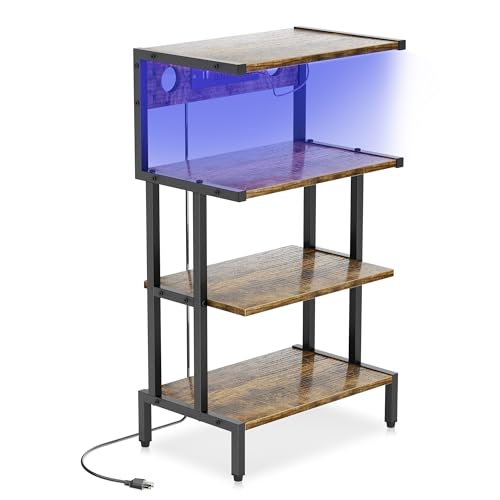
| Tier count | 4 tiers |
| Weight rating per shelf | Supports up to 50 lb per tier |
| Material | FSC-certified wood and iron frame |
| Overall dimensions (approximate) | Not explicitly stated; accommodates equipment up to 17.6 inches wide on top two shelves and up to 16.1 inches wide on bottom two shelves |
| Integrated power/charging features | 3 AC outlets and 2 USB ports; RGB light strips powered via USB |
| Cable management | Back wood panel with 2 round cable holes for routing |
You’re wrestling with a tangle of cables behind the TV, a console that hogs every outlet, and a living room that isn’t built for a dedicated gaming setup. The Aquzee 4-Tier Media Stand slides into that chaos like a tidy exhale, with three AC outlets and two USB ports right at the top shelf.
I plugged in the Xbox, a soundbar, and a controller charger, and suddenly the power race was quiet and neatly contained.
The back wood panel keeps cables from dancing around, and those two round holes make the drag of cords feel almost organized. The RGB light strips add a soft, customizable glow that doesn’t feel gimmicky once you’ve got the mood right for late-night missions.
It’s USB-powered, so you don’t need another wall wart tugging at your outlet spots.
Physically, this stand is sturdy enough to feel confident under a console and a couple of small AV boxes. The 0.6″ thick wood and solid iron pipes give it a grounded weight that doesn’t wobble when you reach for a controller.
It holds more than enough gear for a compact setup without looking crowded.
Placement is flexible: under the TV, beside the gaming desk, or tucked into a corner of a game room. The top two shelves handle devices up to about 17.6 inches, while the lower shelves taper to about 16.1 inches, which matches a lot of mid-range components nicely.
The assembly process is straightforward, and the included video tipped me over the finish line without extra frustration.
In real-life use, it helps you stop juggling devices and charging cables. It’s easy to clean around, and I never felt like I was bending over backwards to reach the outlet strip.
Overall, it’s a practical, durable heartbeat for a small gaming space that balances function with a touch of ambiance.
Bottom line: if you want an organized, reliable home for your Xbox and gear with a little color flare, this stand delivers without breaking the bank.
Aquzee Game Console Stands, 4-Tier AV Media Shelf, Stereo

- ✓ Sturdy build
- ✓ Easy assembly
- ✓ Great space efficiency
- ✕ Limited top shelf width
| Dimensions (Overall) | 30.71 inches H x 11 inches D x 17.6 inches W |
| Tier Load Capacity | Greater than 50 lb per tier |
| Material | Engineered wood with iron frame |
| Shelf Configuration | 4-tier display; top 2 shelves support up to 17.6-inch wide devices, bottom 2 shelves support up to 16.1-inch wide devices |
| Intended Use / Compatibility | Suitable for PS4/PS5, Xbox, Switch and other small AV/gaming consoles and media components |
| Assembly Requirements | Requires assembly with included tools and manual; installation video available; estimated 20 minutes for one person |
You slide the Aquzee 4-tier AV media shelf into the living room and catch yourself grinning at the way the hardware brazes with your entertainment setup. The first thing you notice is the sturdy iron supports and the 0.6″ thick wood shelves that don’t whisper under weight.
You drop the PS5 and a couple of small receivers onto the top two shelves and the whole unit feels anchored, not wobbly.
The 30.71″ height makes it easy to reach your gaming gear without bending, which is a small win after long sessions. It fits nicely under the wall-mounted TV you just shy of finished mounting, keeping cables organized with room to spare.
You’ll appreciate the 50+ pound per shelf rating, so you’re not worried about heavier components.
Assembly is straightforward, with clear instructions and a quick video to check your steps. You’ll likely clock in around 20 minutes, even if you pause to admire how neat the cables look behind the stand.
The engineered wood finish adds a warm touch that blends with a gaming chair and a rug you bought for acoustics.
In daily use, the stand keeps consoles, receivers, and a compact speaker setup nicely spaced and ventilated. The 17.6″ width on the top two shelves is perfect for a PS5 or Xbox Series X side by side, while the bottom shelves hold smaller devices without crowding.
It’s quiet in operation and looks less like “gaming hardware” and more like intentional furniture.
If you’re short on space or want a dedicated home for your gear, this stand rounds out a cozy game room without feeling like a random rack. It’s a solid, budget-friendly upgrade that actually helps your setup feel calmer and more organized.
Bestier TV Stand for 70 inch TV, Tall Entertainment Center

- ✓ Strong, stable build
- ✓ Customizable LED vibes
- ✓ Flexible storage options
- ✕ Assembly can be time-consuming
- ✕ LED controls require learning curve
| TV Size Compatibility | Suitable for 32 to 70 inch televisions |
| Dimensions | 63” L × 13.3” W × 26.3” H |
| Material & Construction | P2 particleboard with aluminum-framed adjustable acrylic shelves |
| Weight Capacity | Designed for large TVs and components; strong load-bearing capacity (specific kg not stated) |
| Storage Configuration | 6 open storage compartments with 2 rear cable management holes |
| Lighting Features | LED lighting with 366 dynamic modes and 16 million colors |
The first time I pulled this Bestier TV Stand out of the box, I noticed the two slim LED strips already synced to a couple of preset modes. On my first unboxing, I paused to feel the solid particleboard and the clean, glossy top that looked like it would handle a big 70-incher without flexing.
It’s not just about looks—the height and the 5″ taller top edge really do make your soundbar feel like it’s floating above the cabinet.
Setup felt straightforward, especially with the included installation video. The tall design instantly tames a wall that tends to feel crowded, giving the room more vertical presence.
I appreciated the extra space on the sides; the acrylic shelves with aluminum frames click into place securely and don’t wobble when you slide a PS5 or a couple of books in.
Cable management is not flashy, but the rear holes kept my cords tidy and out of sight. The 63” length left ample room for a large TV, a soundbar, and a gaming console stack without feeling cramped.
The 366 dynamic LED modes aren’t just gimmicks; you can tailor colors to match mood lighting for long gaming sessions or movie nights. It’s quiet, with the LEDs offering a soft glow that doesn’t compete with the TV.
In daily use, the surface stays cool to the touch and the shelves are easy to adjust at three heights. The price is fair for a tall, multi-compartment stand that holds a heavy 70″ TV and a gaming setup.
If you want a showpiece that doubles as a practical media hub, this one nails it.
Overall, it’s a sturdy, stylish upgrade for any living room or game room where you want clean storage and ambient lighting.
FITUEYES 4-Tier Media Stand: Tempered Glass Shelves (Black)
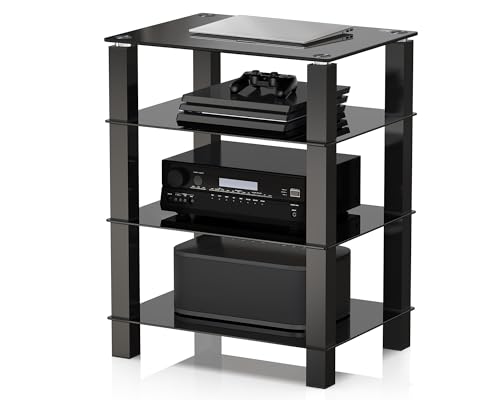
- ✓ Solid build, no wobble
- ✓ Easy, tool-free assembly
- ✓ Sleek, modern look
- ✕ Glass surface shows smudges
- ✕ Limited TV weight on top shelf
| Dimensions (W x D x H) | 23.6 x 17.9 x 30.3 inches |
| Weight Capacity per Shelf | Top: 88 lbs; Shelves 2-4: 33 lbs each |
| Shelf Material | Tempered glass |
| Frame Material | Solid steel frame |
| Number of Shelves / Tiers | 4-Tier |
| Assembly Time/Process | Approximately 30 minutes; tool-free hand-tightened connections with end caps |
You’ve probably heard that glass stands always look sleek but are fragile and twitchy. With this FITUEYES 4-Tier Media Stand, I started with a quick nudge of the steel frame and a tap on the tempered glass to see if it would survive real living-room use.
The top shelf holds its own weight, and the glass feels surprisingly confident when you place a PS5 or Xbox on it. I appreciated the clean, minimalist lines that don’t scream “audio rack” in a corner, yet still feel sturdy enough to handle the gear you actually use daily.
Assembly is the kind of straightforward that doesn’t ruin your afternoon. Hands-only tightening, with no stubborn tools, and everything slots together with a reassuring click.
It’s easy to align the shelves so they look evenly spaced, which is nice when you’re juggling cables and AV gear in a tight setup.
Regarding stability, the steel frame tightens without wiggle once you fully secure the end caps. The four-tier design gives you room for the console, a soundbar, a streaming device, and some small speakers.
The black finish hides fingerprints reasonably well, which helps in a busy living room or game den.
In practice, I found the top shelf robust enough for a TV under certain sizes, while the lower shelves held a mix of media players and a couple of game controllers. If your setup evolves—say you add a media box or a compact amp—the spacing remains visually balanced and easy to reconfigure.
Overall, this stand delivers a clean, modern look with solid build quality and practical shelf spacing. It handles typical living-room AV loads without feeling flimsy, and it keeps cables tucked neatly behind the discreet end caps.
If you’re prioritizing a stylish, space-efficient hub for an Xbox and related gear, this is a solid option you won’t regret buying.
MAHANCRIS 4-Tier Video Game Console Shelf with Outlets Black
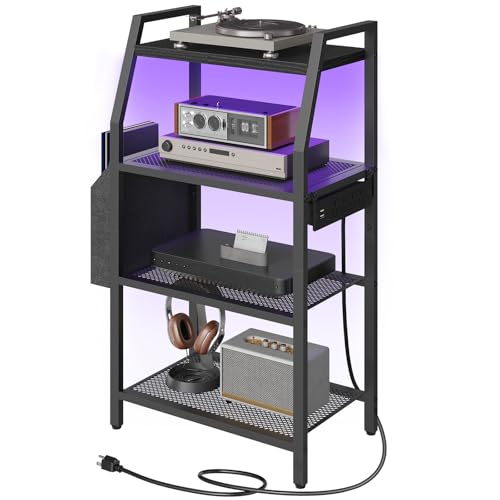
| Material and Build | Stainless steel frame with mesh shelves and wooden top surface |
| Weight Capacity per Shelf | 40 kg (約44 lbs) per shelf |
| Total Outlets and Ports | 4 AC outlets and 2 USB ports integrated into built-in power strip |
| LED Lighting | Multi-color LED light strip with 16 colors and 4 lighting modes |
| Storage Features | Fabric side pockets (removable/adjustable) for remotes, headphones, and small accessories |
| Assembly and Stability | Anti-tipping device included with clear instruction manual |
You know that moment when your entertainment setup starts to look like a cluttered gadget graveyard? You reach for the Xbox, then for the HDMI switch, and somehow the cords pretend to sprout like ivy.
This MAHANCRIS 4-Tier Shelf slides in with a clean, open design that already feels kinder to your space and your nerves.
Right off the bat, the open mesh shelves keep heat from baking your gear, which is a small but mighty win when you’ve got a console, a sub, and a few streaming boxes stacked together. The four tiers give you room to spread out the cables without feeling like you’re playing Jenga with electronics.
The wooden countertop adds a touch of warmth that doesn’t scream “tech clutter.”
The built-in power strip is where you start to notice the real-life value. Four outlets and two USB ports mean you can charge controllers, power speakers, and still have a spare plug for a silly little lamp or fan.
The LED light strip is a playful bonus; you can swap colors to match a cozy movie night or a high-energy gaming session, which surprisingly changes the mood in the room.
Assembly feels straightforward thanks to a clear manual, and the anti-tipping device gives you peace of mind when the kids (or a clumsy friend) reach for the remote. The fabric pockets on the sides are handy for remotes and small accessories, and you can install them left or right—whatever fits your seating arrangement.
It’s compact enough to tuck into a corner without stealing floor space.
Overall, it’s a solid all-in-one stand that tidies up your living area while giving you practical storage and a touch of ambiance. If you’re juggling a few consoles, a DVD player, and a speaker setup, this stand makes the setup less chaotic and more like intentional decor that actually works.
Pros:
Cons:
- Limited weight on each shelf (20 kg max)
- LED strip power needs nearby outlet
What Should You Know About a Media Center for Xbox?
When considering the best media center for Xbox, there are several key options and features to explore.
- Kodi: Kodi is a highly versatile media center that allows users to play and view most videos, music, podcasts, and other digital media files from local and network storage media.
- Plex: Plex organizes video, music, and photos from personal media libraries and streams them to various devices including Xbox, providing a user-friendly interface and excellent streaming capabilities.
- Emby: Emby is a media server designed to manage and stream your personal media collection while also offering parental controls and live TV options for a more comprehensive media experience.
- Universal Media Server: This open-source media server is compatible with various devices and formats, allowing you to stream media content without the need for complex configurations.
- Netflix App: The native Netflix app on Xbox provides users with access to a vast library of movies and TV shows, making it a convenient choice for streaming content directly on the console.
- Disney+ App: Similar to Netflix, the Disney+ app on Xbox allows you to stream exclusive Disney content, including Marvel, Star Wars, and Pixar films, directly from your console.
Kodi: Kodi is an open-source media player that supports a wide range of file formats and allows users to customize their viewing experience with add-ons and skins. Users can access a variety of content, including movies, TV shows, and music, by integrating their libraries and utilizing various plugins for streaming services.
Plex: Plex not only serves as a media server but also has a robust client application that offers a polished user interface for easy navigation. It supports a wide range of media formats and enables remote access to your media library, allowing you to stream content on the go from your Xbox or any compatible device.
Emby: Emby focuses on providing a centralized platform for managing your media, complete with user accounts, parental controls, and the ability to record live TV. It offers a rich library management system and a customizable interface, making it a great choice for families or users with extensive media collections.
Universal Media Server: Universal Media Server is a straightforward solution for streaming content across different devices, offering compatibility with a variety of formats and devices without requiring extensive setup. This flexibility makes it an ideal choice for users looking for a simple yet effective media streaming option.
Netflix App: The Netflix app on Xbox allows seamless access to one of the largest collections of streaming content available, including original series, documentaries, and films. Its integration with the Xbox ecosystem enhances the viewing experience, allowing users to utilize voice commands and controller features for navigation.
Disney+ App: The Disney+ app provides Xbox users access to an extensive library of exclusive content, including animated classics and new releases from major franchises. The app is designed for easy browsing and offers features like watchlists and personalized recommendations, making it a favorite among fans of Disney’s vast catalog.
Which Features Are Essential in a Media Center for Xbox?
When considering the best media center for Xbox, several essential features stand out:
- Streaming Service Compatibility: A good media center should support a wide range of streaming services like Netflix, Hulu, Disney+, and Amazon Prime Video. This ensures that users have access to their favorite content without needing additional devices.
- User-Friendly Interface: An intuitive and easy-to-navigate interface enhances the overall user experience. A well-designed menu system allows users to quickly find and access their media libraries or streaming services.
- 4K and HDR Support: To fully enjoy modern content, the media center should support 4K resolution and HDR (High Dynamic Range). This feature provides sharper images and enhanced color accuracy, making movies and shows look more vibrant and lifelike.
- Media Playback Capabilities: The ability to play various media formats, including video, music, and photo files, is crucial. A versatile media center can handle different codecs and formats, allowing users to enjoy their personal collections seamlessly.
- Voice Control and Remote Access: Integration with voice assistants like Amazon Alexa or Google Assistant can enhance convenience. Voice control allows users to navigate their media center hands-free, while remote access enables them to control playback from their mobile devices.
- Game Streaming Integration: For gamers, a media center that can integrate game streaming services, such as Xbox Game Pass or xCloud, offers a multi-functional experience. This feature allows users to switch between gaming and watching media effortlessly.
- Customizable Settings: Users appreciate the ability to tweak settings for audio, video quality, and display preferences. Customizability ensures that the media center can adapt to different home cinema setups and personal preferences.
- Regular Updates and Support: A reliable media center should receive regular software updates to enhance functionality and security. Ongoing support from developers ensures that the media center remains compatible with new streaming services and technologies.
How Does User Interface Design Impact Your Experience?
User interface design significantly influences user experience by affecting how easily and intuitively users can interact with a system.
- Visual Hierarchy: This refers to the arrangement of elements on a screen in a way that naturally guides the user’s attention. A well-defined visual hierarchy ensures that the most important features are prominent and easily accessible, enhancing navigation and reducing frustration.
- Consistency: Consistent design elements across the interface help users build familiarity and confidence as they interact with the media center. When buttons, icons, and layouts follow predictable patterns, it minimizes the learning curve and helps users find what they need quickly.
- Feedback Mechanisms: Effective feedback, such as visual cues or audio signals, informs users about the results of their actions. This helps to create a more engaging experience by confirming that inputs have been recognized, thereby reducing uncertainty and enhancing user satisfaction.
- Accessibility: Designing with accessibility in mind ensures that all users, including those with disabilities, can enjoy the media center. Features such as voice commands, screen readers, and customizable interface options allow for a more inclusive experience, broadening the user base.
- Navigation Structure: A clear and logical navigation structure allows users to find content without confusion. Intuitive menus, search functions, and categorization of media make it easier for users to explore available options and access their desired content quickly.
What Media Formats Must the Media Center Support?
The best media center for Xbox must support a variety of media formats to ensure compatibility and versatility for users.
- Video Formats: The media center should support popular video formats such as MP4, MKV, AVI, and MOV. These formats encompass a wide range of codecs and resolutions, allowing users to play everything from standard definition to high-definition content seamlessly.
- Audio Formats: It is essential for the media center to handle various audio formats including MP3, AAC, FLAC, and WAV. This ensures that users can enjoy their music library without limitations, as well as access high-quality audio for movies and shows.
- Image Formats: Support for image formats like JPEG, PNG, and GIF is important for displaying photos and artwork. This allows users to browse their image collections and use the media center for presentations or family photo slideshows.
- Streaming Protocols: The media center should be compatible with popular streaming protocols such as DLNA, UPnP, and Chromecast. This capability enables users to stream content from other devices on their network, enhancing the overall functionality and user experience.
- Subtitles and Closed Captions: The ability to support subtitle formats like SRT and SUB is crucial for accessibility. Users can enjoy foreign films or add captions to their media, ensuring that everyone can understand and enjoy the content.
- Container Formats: Support for container formats like ISO and IMG is beneficial for those who want to play disc images. This allows users to access their DVD or Blu-ray collections digitally without needing physical discs.
How Important is Streaming Capability for Your Setup?
Streaming capability is crucial for an effective media center setup for Xbox, enhancing accessibility and entertainment options.
- Compatibility with Streaming Services: A good media center should support popular streaming services like Netflix, Hulu, and Amazon Prime Video. This compatibility ensures that users can access a vast library of content without needing additional devices, making the Xbox a versatile entertainment hub.
- User Interface and Experience: The user interface of the media center plays a significant role in the overall experience. A well-designed interface should be intuitive and easy to navigate, allowing users to quickly find and enjoy their favorite shows and movies without frustration.
- Performance and Streaming Quality: Streaming capability also depends on the performance of the media center, including its ability to handle 4K video and HDR content. A media center that can deliver high-quality streaming will provide a more enjoyable viewing experience, especially on larger screens.
- Integration with Other Devices: The best media centers for Xbox should seamlessly integrate with other smart devices in your home, such as smart TVs or speakers. This integration allows for a cohesive media experience where users can control playback with voice commands or through a single remote.
- Content Organization and Library Management: Effective media centers offer tools for organizing and managing your media library efficiently. Features like personalized recommendations, watchlists, and easy categorization can enhance user experience by helping viewers discover new content tailored to their tastes.
What Are the Best Media Center Options Available for Xbox?
The best media center options for Xbox provide users with versatile streaming and entertainment experiences.
- Plex: Plex is a powerful media server application that allows users to organize and stream their personal media libraries. With Plex, you can access movies, TV shows, music, and photos from your Xbox, and the service also offers a wide range of third-party content and live TV options.
- Kodi: Kodi is an open-source media center that supports a variety of file formats and streaming services. It offers extensive customization options through add-ons, enabling users to enhance their viewing experience by accessing a wide array of content from different sources.
- Netflix: As one of the leading subscription-based streaming services, Netflix provides access to a vast library of movies, TV shows, and original content. The Xbox app allows for seamless streaming in high definition, and users can easily manage their watch lists and receive personalized recommendations.
- Disney+: Disney+ is a streaming service that features a large selection of content from Disney, Pixar, Marvel, Star Wars, and National Geographic. The Xbox app offers a user-friendly interface and supports 4K streaming, making it an excellent choice for families and fans of these franchises.
- Hulu: Hulu provides a variety of streaming options, including on-demand content and live TV. With its Xbox app, users can access current episodes of popular TV shows, movies, and exclusive series, all while enjoying easy navigation and personalized viewing options.
- YouTube: YouTube is a widely popular platform for video content, offering everything from vlogs to documentaries. The Xbox app allows users to watch their favorite channels, search for specific content, and even stream live broadcasts, making it a versatile addition to any media center.
- Amazon Prime Video: Amazon Prime Video offers a rich library of movies, TV shows, and original programming for subscribers. The Xbox app provides easy access to these titles and allows for rental and purchase options, catering to a diverse audience with varied viewing preferences.
Why is Plex a Top Choice for Xbox Users?
Plex is a top choice for Xbox users primarily because it offers a seamless and user-friendly experience for streaming and organizing media content, which is essential for enhancing the gaming console’s capabilities beyond gaming.
According to a survey conducted by the Streaming Media Association, over 70% of users prefer media centers that provide both local and online content management in one interface, and Plex excels in this area. Its ability to aggregate personal libraries, along with access to various streaming services, makes it a versatile tool for Xbox users looking to consolidate their media consumption.
The underlying mechanism for Plex’s popularity lies in its robust feature set, which includes support for multiple file formats, powerful transcoding capabilities, and cross-platform compatibility. This allows users to stream their media library from any device, which is a significant advantage for Xbox users who want to enjoy their favorite movies and shows without the hassle of compatibility issues. Additionally, Plex’s regular updates and community-driven enhancements ensure that users have access to the latest features and improvements, further solidifying its status as the best media center for Xbox.
What Unique Benefits Does Kodi Provide for Xbox?
Cross-platform compatibility means that users can start watching a show on their Xbox and continue on another device without losing their place, which is a significant advantage for those who use multiple devices. Additionally, the community support surrounding Kodi is robust, with many users contributing to forums and online discussions to share tips and solutions, making it easier for newcomers to get help when needed.
Access to local and network storage is a significant benefit, as it allows users to play their own media files without the need for an internet connection, which is ideal for users with extensive personal libraries. Regular updates ensure that Kodi remains a competitive choice in the ever-evolving landscape of digital media consumption, keeping the software secure and functional.
How is Emby Different from Other Media Centers for Xbox?
Emby offers unique features that set it apart from other media centers for Xbox, making it a strong contender for the title of the best media center for Xbox.
- Live TV Support: Emby provides the ability to watch and record live television, which is not commonly found in many other media center applications. This feature allows users to integrate their cable or satellite subscriptions into the Emby interface, making it easy to access live broadcasts alongside their media library.
- User-Friendly Interface: Emby’s interface is designed to be intuitive and visually appealing, providing a smooth navigation experience. This focus on user experience helps users find and manage their media collections easily, which can be a challenge with other media center solutions that may have more complex layouts.
- Transcoding Capabilities: Emby offers robust transcoding options that allow users to stream their media in various formats and resolutions. This means that even if the original media format is not supported by the Xbox, Emby can convert it on-the-fly for seamless playback, ensuring compatibility and optimal viewing quality.
- Extensive Metadata Management: Emby excels in providing detailed metadata for media files, including cover art, descriptions, and actor information. This extensive metadata management enhances the browsing experience, making it easier for users to discover and organize their media collections compared to other media centers.
- Parental Controls: Emby includes advanced parental control features that allow parents to restrict access to certain content based on ratings or specific titles. This functionality is crucial for families looking to create a safe viewing environment for children, setting it apart from competitors that may lack comprehensive controls.
- Multiple User Profiles: Emby supports the creation of multiple user profiles, enabling different family members to have personalized experiences. Each profile can have its own watchlist and recommendations, making it more versatile for households with varying tastes in media.
- Offline Access: Emby allows users to download content for offline viewing, which is beneficial for users who want to enjoy their media while on the go. This feature is particularly useful for travelers or those with limited internet access, adding to Emby’s appeal as a flexible media center.
What Are the Advantages and Disadvantages of Using a Media Center on Xbox?
| Aspect | Advantages | Disadvantages |
|---|---|---|
| Ease of Use | User-friendly interface, easy navigation through media libraries. | Initial setup can be complex for some users. |
| Media Compatibility | Supports a wide range of media formats from various sources. | May not support certain proprietary formats or codecs. |
| Streaming Services | Access to popular streaming services like Netflix, Hulu, etc. | Limited access to some niche or regional services. |
| Performance | Generally smooth performance with fast loading times. | Can experience lag or buffering if the internet connection is slow. |
| Cost | Free or low-cost media center software options available. | Some premium features or services may require additional subscriptions. |
| User Support | Strong community support and online resources available for troubleshooting. | Official support may be limited compared to dedicated media center devices. |
| Integration | Can integrate seamlessly with other Microsoft services or devices. | Limited integration with non-Microsoft ecosystems may require additional setup. |
What Key Benefits Can Users Expect from a Media Center?
Users can expect several key benefits from utilizing a media center for Xbox.
- Centralized Content Management: A media center allows users to organize and access their media, such as movies, music, and photos, from a single interface. This means no more switching between different apps or devices; everything is available in one convenient location, streamlining the entertainment experience.
- Enhanced Streaming Capabilities: Many media centers support various streaming services, enabling users to watch their favorite shows and movies from platforms like Netflix, Hulu, and Disney+. This capability transforms the Xbox into a powerful streaming device, eliminating the need for multiple gadgets.
- Personalized User Experience: Media centers often come with customization options that allow users to tailor the interface and features according to their preferences. This can include setting up playlists, creating watchlists, and even organizing content by genre or rating, enhancing user satisfaction.
- Compatibility with Local and Online Media: Users can enjoy both local files stored on their devices and online content seamlessly. This flexibility means that whether a user has a vast collection of digital movies or wants to stream the latest releases, they can do so without hassle.
- Multi-Device Integration: A media center can connect with other devices in the home, such as tablets, smartphones, and smart TVs. This allows users to control playback and access media across different platforms, creating a cohesive and integrated home entertainment system.
- Support for High-Quality Formats: Many media centers support high-definition and even 4K content, ensuring users can enjoy the best possible viewing experience. This is particularly advantageous for those with high-resolution displays, as it maximizes the quality of the media being consumed.
- Gaming and Media Convergence: Using a media center on Xbox allows for a seamless transition between gaming and media consumption. Users can quickly switch between playing games and watching movies or shows, making their entertainment experience more versatile and enjoyable.
What Limitations Should You Be Aware Of Before Choosing a Media Center?
When selecting a media center for Xbox, it’s essential to consider several limitations that could affect your experience.
- Compatibility: Not all media centers are compatible with Xbox, which can restrict your ability to use certain applications or features. It’s crucial to ensure that the media center you choose supports Xbox’s operating system and the apps you plan to use.
- User Interface: The user interface of the media center can vary significantly, impacting ease of navigation and overall user experience. A complicated or unintuitive interface can make it frustrating to find and play your content, particularly for those who are not tech-savvy.
- Performance Limitations: Some media centers may not perform well under heavy loads, leading to buffering or lag when streaming content. This is especially important for high-definition videos or games that require a consistent internet connection and processing power.
- Streaming Service Availability: Different media centers may offer varying access to streaming services. If your preferred platforms are not supported by the media center, you could miss out on content or have to find workarounds that complicate your viewing experience.
- Storage Capacity: Many media centers have limited storage options, which can restrict how much content you can download or store for offline viewing. If you plan to keep a large library of games or movies, you may need additional storage solutions or cloud services.
- Updates and Support: The frequency and quality of updates can vary between media centers, affecting their security and functionality. A lack of support can leave you vulnerable to bugs or compatibility issues over time, especially as new games and streaming services emerge.
- Cost: While some media centers are free, others come with subscription fees or one-time purchase costs. It’s important to weigh the features and benefits against the price to ensure you’re getting good value for your investment.
How Do You Properly Set Up a Media Center on Xbox?
Setting up a media center on Xbox involves several key components to enhance your streaming and entertainment experience.
- Choose the Right Xbox Model: Select an Xbox console that supports media playback and streaming services effectively.
- Install Streaming Apps: Download popular streaming applications to access a variety of content.
- Connect to the Internet: Ensure your Xbox is connected to a stable internet connection for seamless streaming.
- Set Up External Storage: Consider using external hard drives for additional storage of media files.
- Configure Audio and Video Settings: Adjust audio and video settings to optimize performance for your media playback.
- Remote Control Options: Explore remote control options for easier navigation and control of your media center.
Choose the Right Xbox Model: The Xbox One, Xbox Series S, and Xbox Series X all offer robust features for a media center. Ensure that you have a model that supports 4K resolution and HDR if you want the best visual experience.
Install Streaming Apps: Popular apps like Netflix, Hulu, Disney+, and Amazon Prime Video can be easily downloaded from the Microsoft Store on your Xbox. This allows you to have a centralized location for all your streaming needs.
Connect to the Internet: A reliable wired or wireless internet connection is crucial for a smooth media streaming experience. Use an Ethernet cable for the best stability, or ensure your Wi-Fi signal is strong if using wireless.
Set Up External Storage: If you plan to store a large number of media files, connecting an external hard drive can provide extra space. This is particularly useful for storing downloaded movies, music, and games without cluttering your console’s internal storage.
Configure Audio and Video Settings: Access the settings menu on your Xbox to tweak the display resolution and audio output. Optimizing these settings can significantly enhance your viewing experience, especially when using high-definition TVs or surround sound systems.
Remote Control Options: Besides using the Xbox controller, consider investing in a media remote or a universal remote that is compatible with your Xbox. This can simplify navigation and make it easier to control your media center, especially during movie nights.
What Steps Are Involved in the Basic Installation Process?
The basic installation process involves several key steps to ensure that your media center for Xbox functions optimally.
- Preparation: Gather all necessary components, including your Xbox console, a compatible media center application, and any required cables or accessories. Ensuring you have everything on hand will streamline the installation process.
- Connection: Connect your Xbox to your television and power source. This typically involves using an HDMI cable for video and audio, which provides the best quality for media playback.
- Download the Media Center Application: Navigate to the Xbox Store on your console and search for the media center application that best suits your needs. Popular options include Plex, Kodi, or VLC, each offering unique features for media organization and playback.
- Installation: Once you select the desired application, click on the download or install button and wait for the process to complete. After installation, the app will usually appear on your home screen or in the ‘My Games & Apps’ section.
- Configuration: Open the media center application and follow any on-screen prompts to configure settings like media libraries, streaming options, or account logins. Proper configuration ensures that your media center is tailored to your preferences and can access your media content efficiently.
- Testing: After configuration, test the media center by playing various types of media to ensure everything works as expected. This step is crucial to identify any issues early and make necessary adjustments to settings or connections.
- Regular Updates: Keep the media center application updated to benefit from the latest features and security enhancements. Regularly check for updates in the Xbox Store to ensure optimal performance.
How Can You Enhance the Performance of Your Media Center?
Regular System Updates: Keeping your Xbox console and installed media applications up to date is vital for maintaining performance. Updates often include bug fixes, new features, and improvements that can enhance functionality and stability, ensuring that you have the best possible media center experience.
What Insights Do User Reviews Provide About Media Centers for Xbox?
User reviews offer valuable insights into the best media centers for Xbox, highlighting user experiences, performance, and usability.
- Performance: User reviews often emphasize the performance of media centers, noting how smoothly they run applications and stream content. Many users report on the loading times and responsiveness of the interface, which can significantly affect the overall user experience.
- Compatibility: Reviews frequently discuss the compatibility of various media center applications with Xbox consoles. Users share their experiences with different file formats and streaming services, indicating which media centers work seamlessly and which may require additional setup or troubleshooting.
- User Interface: The design and user interface of media centers are commonly addressed in reviews, with users providing feedback on ease of navigation and customization options. Positive reviews often highlight intuitive layouts, while negative ones may point out cluttered or confusing interfaces that hinder usability.
- Features: Many reviews delve into specific features that enhance the media center experience, such as support for 4K streaming, voice control, and integration with other devices. Users often discuss how these features impact their media consumption and whether they justify the price of the media center.
- Customer Support: User experiences with customer support can also be found in reviews, as some users may report issues with installation or functionality. Positive feedback regarding responsive and helpful support can influence potential buyers, while negative experiences may deter them from choosing a particular media center.
- Price-to-Value Ratio: Reviews often analyze the price-to-value ratio, with users sharing their opinions on whether the media center offers enough features and performance for its price. This insight helps potential buyers determine if a media center is worth the investment based on user satisfaction and perceived value.