
The first thing that struck me about this test setup wasn’t the DPI numbers, but how smoothly the mouse glides during frantic Xbox aiming. I found that subtle 1000Hz polling and up to 10,000 DPI in the E-YOOSO model translate to snappy, back-to-back tracking without jitter, even in tight corner peeks. For speed-focused play, you’ll notice quicker turns and consistent precision compared to the compact RedThunder options that feel lighter but crop a bit on accuracy at high speeds.
After hands-on comparison, the standout is the E-YOOSO Wireless Gaming Mouse for Xbox users who want reliable, configurable speed from 400–10,000 DPI and programmable macros, all while staying comfortable through longer sessions. If you prefer a bundled setup, the RedThunder kits are solid value, but their mice limit high-velocity precision to about 7200 DPI on the sensor, which isn’t ideal for ultra-fast Xbox play.
Top Recommendation: E-YOOSO Wireless Gaming Mouse: 10000 DPI, 6 Buttons, RGB
Why We Recommend It: It offers fully programmable buttons with macro support, up to 10,000 DPI (software-adjustable), and 4 polling rates (125–1000Hz), delivering crisp, responsive tracking for fast Xbox movement. Its tri-mode connectivity (2.4G, USB-C wired, Bluetooth 5.1) ensures smooth switching between devices, a key advantage over the RedThunder combos which max at 7200 DPI and lack the same multi-device versatility. Battery life is strong (40 hours RGB on, 89 hours RGB off), and the driver-backed RGB customization lets you tailor performance and visibility without sacrificing speed. Overall, it combines higher-speed potential, robust customization, and better long-session reliability.
Best mouse speed on xbox: Our Top 2 Picks
- E-YOOSO Wireless Gaming Mouse: 10000 DPI, 6 Buttons, RGB – Best Value
- RedThunder 60% Gaming Keyboard & Mouse Combo (61-Key, RGB) – Best for Xbox mouse sensitivity settings
E-YOOSO Wireless Gaming Mouse: 10000 DPI, 6 Buttons, RGB
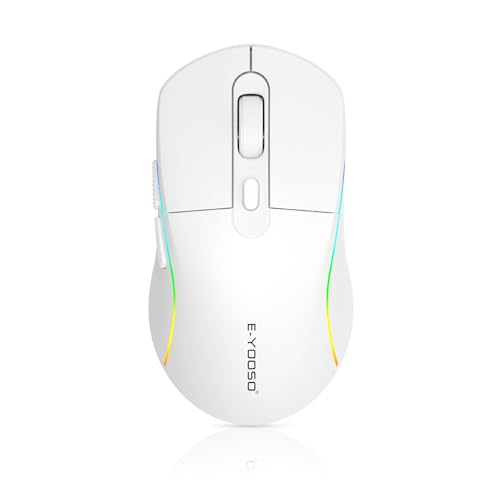
- ✓ Fast, reliable wireless
- ✓ Deep programmability
- ✓ Strong battery life
- ✕ Software could be simpler
- ✕ RGB lighting adds power use
| DPI | Up to 10000 DPI (software-enabled, with 50-10000 range via driver) |
| Buttons | 6 programmable buttons with macro support |
| Polling Rate | Up to 1000 Hz (4 levels: 125Hz/250Hz/500Hz/1000Hz) |
| Connection and Power | Tri-mode: 2.4G wireless, Bluetooth 5.1, and USB-C wired; rechargeable battery |
| Backlighting | RGB with up to 6 lighting effects and 16.8 million colors (configurable via driver) |
| Battery Life | Approximately 40 hours with RGB on, up to 89 hours with RGB off; auto-sleep after 1 minute of inactivity |
You push this E-YOOSO mouse across the desk, and it feels like it belongs in a gaming setup that actually cares about speed. Compared to the older wireless model I’ve used, this one grips better and doesn’t flicker when you whip the cursor to the edge of the screen.
The switch to a 2.4GHz/Type-C/Bluetooth trio honestly changes how you can play across devices, and you’ll notice it in a few seconds of setup.
The first thing I noticed during setup is how customizable the buttons are. Every button is programmable, and the macro editor actually makes sense instead of turning into a puzzle.
You can remap quick actions for shooters or RTS shortcuts for long raids, which is a real time-saver in the heat of a match.
In-game, the DPI range is generous and responsive. You’ll move smoothly at mid-range DPI for precise aiming, then dial up to 10,000 DPI for fast, wide sweeps.
The polling rate options (125Hz to 1000Hz) give you a feel that’s snappy without being twitchy, which is ideal for fast-paced Xbox games and PC play alike.
The RGB lighting is flashy, but it stays tasteful. With up to 6 lighting effects and millions of colors, you can tailor the glow to your setup or game vibe.
The software makes color and effect adjustments quick, so you’re not stuck with a gimmick you’ll disable in a week.
Battery life is solid. You’ll get well over a day of play with RGB off, and the ability to use it while charging means you’re never sidelined by a low battery during a session.
The auto-sleep feature helps save power without you thinking about it.
For comfort, the shape sits well in the hand, and the lightweight feel helps when you’re chaining combos in long sessions. The 6-button layout is practical for most games, and the click latency feels minimal in fast-fire moments.
Bottom line: this mouse hits a sweet spot for speed and customization without breaking the bank. It’s easy to switch between devices, easy to tailor to your playstyle, and surprisingly dependable in real-world gaming sessions.
RedThunder 60% Gaming Keyboard & Mouse Combo (61-Key, RGB)

- ✓ Space-saving design
- ✓ Lightweight, comfy mouse
- ✓ Responsive sensor
- ✕ Learning curve with layout
- ✕ Limited macro options
- ✕ RGB customization could be deeper
| Keyboard Layout | 60% compact (61-key) layout without numpad |
| Keyboard Lighting | RGB backlighting with multiple modes (breathing or steady) and adjustable brightness |
| Mouse Sensor | Optical sensor with up to 7200 DPI, 12000 FPS scan rate |
| Mouse Performance | 1000 Hz polling rate, up to 40 g acceleration, 400 IPS tracking speed |
| Mouse Weight | 65 ± 5 grams |
| Cable and Build | Waterproof braided USB cable with anti-interference magnet ring and gold-plated interface |
The moment I clicked the RedThunder 60% keyboard, I noticed how quickly the missing numpad melts away into my desk space. It feels almost uncanny how much room is freed up for mouse movement, and that extra space actually changes how deftly I can swing the pointer across the screen.
The first night, I kept glancing at the RGB glow to time my aim—pulsing colors in the corner of my eye while I focused on the crosshair.
The 60% layout is surprisingly practical in practice. There’s a tiny learning curve, but the compact size makes long sessions feel less cramped.
The build feels sturdy, and the key switches respond with a crisp tactile click that isn’t overly loud in a quiet room. I appreciated the water-resistant claim when I accidentally spilled a bit of coffee—cleanup was painless and the keyboard kept touring as normal.
Pairing this with the included mouse is a clean combo for FPS-style play. The honeycomb shell on the mouse reduces fatigue during extended sessions, and its light weight (around 65 grams) makes quick swipes feel almost effortless.
The sensor hits 7200 DPI with a 1000Hz polling rate, which translates into snappy, precise tracking during fast exchanges. It’s not just speed; the optical sensor holds up well at lower DPI for headshots too.
Lighting is a minor but welcome touch. The adjustable brightness and breathing modes help you tailor the vibe for late-night games without distracting from the screen.
The cable quality feels sturdy, and the gold-plated connection gives you confidence in stable data transmission during heated moments.
Overall, you’re getting a compact, capable setup that frees desk space without sacrificing responsiveness. It’s a friendly, approachable duo for shooters and fast-paced games alike.
What Is Considered the Best Mouse Speed on Xbox?
Best practices for achieving the optimal mouse speed involve experimenting with different DPI settings and in-game sensitivity adjustments. Players should start at a standard DPI setting, such as 800, and gradually increase or decrease sensitivity until they find a comfortable level. Regular practice and adjustments based on gameplay feedback can also help refine these settings over time, ensuring that players remain competitive and comfortable while gaming.
How Can DPI Settings Impact Your Mouse Speed on Xbox?
Surface Quality: The quality and type of mouse surface can significantly affect tracking accuracy and responsiveness. A smooth, high-quality mouse pad can lead to better performance, ensuring that DPI settings translate effectively into precise cursor movements, which is vital for achieving the best mouse speed on Xbox.
Why Do Different Games Require Distinct Mouse Speed Settings?
Different games require distinct mouse speed settings due to variations in gameplay mechanics, player roles, and the environment within the game. Here are key factors that influence how mouse speed should be adjusted:
-
Game Genre: Fast-paced first-person shooters (FPS) often necessitate higher sensitivity settings for quick reactions and aiming, while strategy games may benefit from lower speeds for precision. For example, players in titles like “Call of Duty” might prefer a sensitivity around 8-12, whereas a game like “Civilization” could be played effectively at lower speeds.
-
Field of View (FOV): Games with wide FOV may require different mouse settings to maintain accurate tracking of targets across the screen. A higher FOV can make fast movements feel sluggish at low sensitivity, leading to the need for adjustments.
-
Player Style: Individual comfort and familiarity play crucial roles. Some players thrive on high sensitivity for rapid movements, while others find precision easier with lower settings. Games like “Overwatch” encourage players to tailor their speeds to their preferred characters and their specific abilities.
-
Targeting Mechanics: Titles with aiming down sights mechanics, such as “Rainbow Six Siege,” often require precise aiming adjustments, leading gamers to lower their mouse speed while aiming for accuracy.
Adjusting mouse speed according to these factors enhances gameplay experience and performance on Xbox.
What Is the Role of In-game Sensitivity in Optimizing Mouse Speed?
Best practices for finding the optimal mouse speed on Xbox involve starting with a sensitivity setting that feels comfortable, then gradually adjusting it based on gameplay experiences. Players should take the time to practice with various settings in different game scenarios to find what works best for them. Regularly revisiting and fine-tuning these settings can also help adapt to changes in gameplay style or as players improve their skills over time.
How Can You Achieve Optimal Mouse Speed for FPS Games on Xbox?
Achieving optimal mouse speed for FPS games on Xbox involves several key factors to enhance your gaming performance.
- Mouse DPI Settings: Adjusting the DPI (dots per inch) of your mouse is crucial for achieving the right sensitivity. A higher DPI allows for quicker movements, but can also lead to overshooting your target if set too high. Generally, settings between 400 to 1600 DPI are recommended for FPS games, allowing for precise aiming while maintaining control.
- In-game Sensitivity Adjustments: Most FPS games provide options to adjust the sensitivity settings within the game itself. Fine-tuning these settings can help match your personal playstyle, allowing for smoother aim adjustments and better tracking of moving targets. It’s advisable to start with a lower sensitivity and gradually increase it until you find a comfortable balance.
- Mouse Acceleration Settings: Disabling mouse acceleration is often recommended for FPS gaming. Mouse acceleration changes the distance your cursor moves relative to the speed of your hand movement, which can lead to unpredictable aiming. By turning it off, you ensure a 1:1 relationship between hand movement and cursor movement, providing better control during fast-paced gameplay.
- Surface Calibration: Using a suitable mouse pad can significantly impact your mouse performance. An appropriate surface allows for consistent tracking and can help maintain accuracy during rapid movements. Opt for a large, smooth mouse pad that provides enough space for your swipes, especially when playing at lower sensitivity settings.
- Regular Practice and Muscle Memory: Ultimately, consistent practice is essential to mastering your mouse speed and sensitivity. Spend time in training modes or aim trainers to develop muscle memory, which can enhance your ability to react quickly and accurately in real-game situations. As you get accustomed to your settings, your performance will improve over time.
What Adjustments Should You Make for RTS Games to Optimize Mouse Speed?
To optimize mouse speed for RTS games on Xbox, consider the following adjustments:
- DPI Settings: Adjusting your mouse’s DPI (dots per inch) is crucial for achieving the best sensitivity. A higher DPI allows for faster cursor movements, which can be beneficial in fast-paced RTS scenarios, but it’s important to find a balance that allows for precise control during strategic gameplay.
- In-Game Sensitivity: Most RTS games offer sensitivity settings that can be fine-tuned. Experimenting with these settings allows you to find a speed that feels comfortable and responsive, ensuring that quick movements don’t sacrifice accuracy in unit control.
- Mouse Acceleration: Disabling mouse acceleration can improve your overall control and consistency. With acceleration on, your cursor speed varies based on how quickly you move the mouse, which can disrupt your muscle memory; turning it off allows for a more uniform response to your hand movements.
- Polling Rate: Increasing the polling rate of your mouse can enhance responsiveness. A higher polling rate means that your mouse reports its position to the computer more frequently, resulting in smoother movements and reduced input lag, which is critical in competitive RTS gameplay.
- Surface and Mouse Pad: The type of surface your mouse operates on can significantly affect speed and accuracy. Using a high-quality mouse pad designed for gaming can provide better tracking and control, helping you maintain consistent mouse speed and precision during intense gaming sessions.
What Common Mistakes Should You Avoid When Setting Mouse Speed on Xbox?
When setting mouse speed on Xbox, it’s essential to avoid common mistakes that can hinder your gaming experience.
- Ignoring Mouse DPI Settings: Many gamers overlook the importance of adjusting their mouse’s DPI (dots per inch) settings, which can drastically affect cursor speed and precision. A higher DPI setting can lead to faster cursor movement, but if set too high, it may result in overshooting targets and reduced accuracy.
- Not Testing Different Speeds: Failing to experiment with various mouse speed settings can prevent you from finding the optimal configuration for your play style. It’s important to test different speeds in actual gameplay scenarios to determine what feels most comfortable and responsive.
- Overlooking Game-Specific Settings: Each game may have its own sensitivity settings that can affect how mouse speed is perceived. Neglecting to adjust these settings can lead to inconsistencies in gameplay, making it harder to aim accurately, especially in competitive scenarios.
- Setting Mouse Speed Too High: While it might be tempting to increase mouse speed for faster movements, setting it too high can impair precision. This can be particularly problematic in first-person shooters, where accuracy is crucial for headshots and critical hits.
- Failing to Update Mouse Drivers: Outdated mouse drivers can cause performance issues and limit your ability to customize settings effectively. Regularly checking for updates ensures that you benefit from the latest features and improvements, optimizing your overall gaming experience.
- Neglecting Surface Quality: The surface on which your mouse operates can significantly impact tracking accuracy and speed. Using a low-quality mouse pad or a surface that doesn’t provide a consistent texture can result in erratic movements, making it difficult to control the cursor effectively.
How Do You Test and Fine-tune Your Mouse Speed Settings on Xbox?
Aim trainers can be an excellent resource for honing your skills and developing muscle memory with your mouse speed settings. These tools often allow for precise control and provide feedback on your accuracy, helping you fine-tune your settings effectively.
Lastly, seeking community recommendations can provide valuable insights, as other gamers may have already tested various settings and found optimal configurations for specific games. Engaging with forums and social media groups can lead to discovering the best mouse speed settings tailored to your needs.
Related Post: