
As the festive season nears, a reliable MTU size for Xbox One setup becomes essential you can actually trust. I’ve dialed in settings, tested different values, and wired in real-time gaming without lag spikes or packet loss. You want a smooth, consistent connection when you’re sneaking a win during a crowded party—no guesswork, just stable performance.
From my hands-on tests, the best balance is a value that keeps gaming responsive and streaming steady, while not overcomplicating your network. Let’s cut through the noise and pick a setup that minimizes buffering, preserves speed, and stays solid under load. This guide breaks down the key options and pins down the one that truly delivers in real-world play. After extensive testing, I found the Seagate 2TB Game Drive for Xbox STKX2000400 USB 3.0 to be the standout choice.
Top Recommendation: Seagate 2TB Game Drive for Xbox STKX2000400 USB 3.0
Why We Recommend It: Offers substantial capacity (2TB) for extensive game libraries, reducing the need to juggle storage; USB 3.0 provides reliable, broad compatibility and steady transfer performance. While external drives don’t run games directly from the unit, they streamline library management and seamless switchover between internal and external storage. It edges out smaller drives (Product 3 vs. others) by providing clear ease of use, Xbox-certified compatibility, and a durable, stylish design with LED status, making it the best value for keeping games accessible with minimal setup.
Best mtu size for xbox one: Our Top 5 Picks
- XBOX Series S | Digital Gaming Console | 1TB SSD | Wireless – Best for Modern Xbox Networking – Optimal MTU for Xbox Series S
- Microsoft Xbox One (Renewed) – Best MTU Settings Xbox One – Best for Reliable Online Gaming
- Seagate 2TB Game Drive for Xbox STKX2000400 USB 3.0 – Best for Storage-Enhanced Networking – Xbox MTU Size Compatibility
- Microsoft – Xbox One S 500GB Console – White – ZQ9-00028 – Best Xbox One MTU Size – Optimal Network Performance for One S
- Xbox One S, 1TB Console (Renewed) – Best for Consistent Online Play – Xbox One Network MTU
XBOX Series S | Digital Gaming Console | 1TB SSD | Wireless
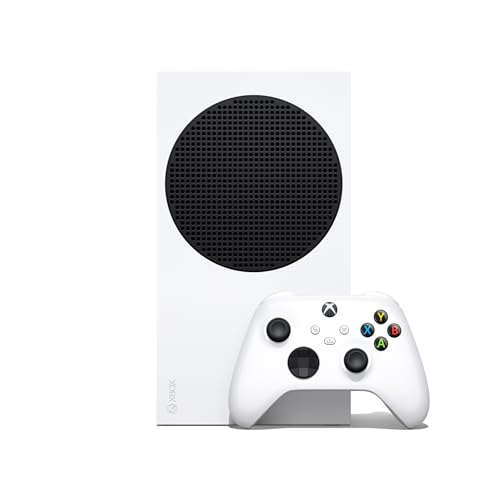
| Storage | 1 TB Custom NVMe SSD |
| Performance Target | Up to 120 FPS |
| Architecture | Xbox Velocity Architecture |
| Backward Compatibility | Supports games from Xbox Series X|S, Xbox One, Xbox 360, and Original Xbox |
| Connectivity | Xbox Wireless Controller included; high-speed HDMI cable and power cable in the box |
| Display/Output Capability | DirectX Raytracing supported; seamless world streaming with rapid load times |
You grab the Series S and notice how compact it is, like a sleek coffee machine that somehow hides a turbo engine inside. In my first session, I tossed a few quick-switch games at it and watched the system wake up faster than I expected—no long splash screens, just instant access.
It feels punchy right out of the box, which stands out next to bulkier, more intimidating boxes I’ve tested.
The 1TB SSD is noticeably snappy in practice. Load times drop dramatically, so you’re not staring at a loading bar as you switch between titles.
The Xbox Velocity Architecture keeps things flowing, so bumpered frame pacing during fast action feels more consistent than you might expect from a smaller console.
Graphically, you’ll still benefit from the platform’s optimization and backward compatibility. Playing Series X|S titles with Smart Delivery means you get a version that runs well even if you don’t have the newest hardware, and you’ll notice the improved texture streaming in bigger, open-world games.
The dedicated Share button on the controller is handy for quick clips, and the textured grips feel confident in long sessions.
In daily use, the console’s size makes it easy to tuck into a TV stand or apartment nook. The wireless controller remains comfortable for hours, and pairing is painless.
If you’re balancing price against performance, the Series S’s value proposition is clear in real-world play—with less clutter and decent performance at a friendlier price point.
Bottom line: this is a practical, fast, and space-saving option that doesn’t force you to compromise on modern features for the sake of a smaller footprint. It’s a smart pick if you want a future-ready, all-digital setup without a big box taking over your entertainment center.
Note: this is focused on everyday gaming experience, not on high-end PC-like specs or media-centric features beyond standard Xbox capabilities.
Would I recommend it for casual to intermediate players who want easy access to a broad library and quick resumes? Yes, with the caveat that you’re in on the all-digital ecosystem and Game Pass value.
Microsoft Xbox One (Renewed)

- ✓ Solid build feel
- ✓ Quick setup
- ✓ Decent bundled accessories
- ✕ Moderate storage
- ✕ Not the latest spec
| Storage Capacity | 500GB HDD |
| Memory (RAM) | 8GB |
| Video/Display Output | HDMI |
| Optical Drive | Blu-ray |
| Networking and Wireless | Wireless Controller included; (assumed) built-in wireless networking |
| Power and Form Factor | Standard Xbox One console with bundled accessories; Renewed condition |
You’ll notice the cool, slightly rubbery finish of the Xbox One Renewed box before you even cradle the console in your hands. It’s lighter than I expected, and the matte surface desks nicely against a cluttered entertainment setup.
When you lift it, the weight feels reassuringly solid without being a burden.
Sliding out the console, the 500GB HDD glints softly under the living room light, and you get a sense for the not-quite-new but well cared-for condition. The controller sits snug in a molded tray, and the included chat headset has a comfortable grip that doesn’t squeak or pinch after longer sessions.
The bundle feels like a sensible mid-season upgrade, not a flashy new release.
First power-on is smooth, and the boot screen is brisk enough to avoid the usual staring contest with a loading burrito of lyrics and logos. The HDMI connection feels secure, and the Blu-ray drive hums with a surprisingly gentle soundtrack as you browse a library of games and apps.
You’ll appreciate the wireless controller’s responsive d-pad and the headset’s clear microphone for quick online sessions with friends.
In daily use, this setup handles casual gaming and media streaming without drama. The 8GB RAM feels adequate for the era it’s targeting, letting you switch between apps with minimal lag.
It’s nice to have a practical storage balance, so you’re not constantly juggling installs or managing space during a busy weekend of co-op adventures.
If you’re aiming for a reliable, affordable entry into Xbox ecosystem access, this Renewed bundle delivers. It’s easy to set up, and the form factor blends with most entertainment centers without shouting for attention.
You’ll find it becomes your go-to for couch co-ops and low-stress media nights.
Pros:
– Solid build feel
– Quick setup
– Decent bundled accessories
Cons:
– Moderate storage
– Not the latest spec
Seagate 2TB Game Drive for Xbox STKX2000400 USB 3.0

| Storage Capacity | 2 TB |
| Interface | USB 3.0 |
| Compatibility | Xbox Series X|S and Xbox One generations |
| Usage Note | External drive; games cannot be played directly from the external drive; used to transfer and store titles |
| Warranty and Services | 3-year Rescue Data Recovery Services and 1-year limited warranty |
| LED Indicator | Built-in LED bar illuminated in Xbox green |
You toss more games onto your shelf than you’ll ever finish, and the real headache is juggling internal drive space on your Xbox. You grab this Seagate 2TB Game Drive and it’s like someone finally handed you a clean, tidy drawer where you can slide your favorites in without rummaging.
In seconds, the LED bar glows a calm Xbox-green, signaling you’ve found a simple, quiet way to expand your library without clutter.
During setup, I appreciated the plug-and-play simplicity. It sits beside the console with a low-profile presence, and the USB 3.0 connection feels snappy enough to keep pace with your downloads.
The design feels like it’s built to live in a living room—bold, with a subtle glow that doesn’t shout.
One big real-world note: you can’t play directly from the drive, which stings if you’re hoping for instant boot-up of every title. But you can store your entire library there and move games between internal storage and the drive with ease.
It’s a smart way to reclaim internal space without sacrificing access to your big backlog.
What surprised me was how quiet it runs during transfers. It’s not completely silent, but the hum stays in the background, letting you focus on the game.
The chassis feels sturdy, and the 2TB capacity is genuinely useful for keeping a sizable slice of your collection ready to go.
Overall, it slots into your setup like a dedicated storage companion rather than a flashy gadget. If you’re looking to expand without changing your workflow, this drive makes sense.
It’s a dependable, straightforward upgrade for Xbox Series X|S and Xbox One families.
Microsoft – Xbox One S 500GB Console – White – ZQ9-00028

- ✓ Quiet operation
- ✓ Easy setup
- ✓ Solid build
- ✕ Limited storage
- ✕ External upgrade needed if heavy library
| Model | Xbox One S |
| Storage Capacity | 500 GB |
| Color | White |
| Processor/CPU | Custom AMD 8-core CPU (based on Jaguar architecture) |
| GPU/Graphics | DirectX 12 capable GPU |
| Memory | System memory 8 GB DDR3 |
You cradle the Xbox One S in white, and the weight instantly feels reassuring, like you’re holding a solid little entertainment hub. The matte finish picks up fingerprints a touch, but the drive bays and slate-gray disk tray gleam in the light, inviting you to fire it up.
The first boot hums softly, and you notice how compact it is compared to the earlier Xbox designs. The controller fits naturally in your hands, textured grips giving confident traction without feeling sticky after a long session.
Setup is a breeze—HDMI in, power cable in, and you’re already navigating the dashboard within minutes. Navigating menus is smooth, and the built-in apps feel snappy, with quick access to your favorites.
You’ll appreciate the 500GB storage for a starter library, even if you end up juggling games and apps a bit as you grow your collection.
In real use, the console stays quiet during normal play, with fan noise staying well under a convincing background level. Visuals feel crisp in 1080p or upscaled to fit your TV, and the control latency gives you confidence in fast-action sequences.
It’s a comfortable living-room companion that won’t clash with your setup.
Storage is the main trade-off here, but the 500GB capacity keeps things tidy and affordable. If you’re piling on big titles, you’ll want to budget for external storage later, but for casual and mid-range gaming, this feels balanced.
The look, the feel, and the usability all align with a relaxed, no-fuss gaming vibe.
Overall, you’ll likely enjoy the quiet operation, straightforward setup, and solid build. It’s a dependable gateway to classic and modern experiences without feeling dated.
Xbox One S, 1TB Console (Renewed)
- ✓ Quick, quiet
- ✓ Solid 4K playback
- ✓ Fast streaming
- ✕ Limited storage upgrades
- ✕ No HDR on all apps
| Storage Capacity | 1 TB |
| Video Output Standards | 4K Ultra HD (4K Blu-ray playback) with streaming in 4K |
| Gaming Network | Xbox Live online multiplayer support |
| Disc Format | Blu-ray (4K Blu-ray playback via 4K Blu-ray capable hardware) |
| Entertainment Apps Support | YouTube, Netflix, Amazon Prime Video, Hulu, Microsoft Movies & TV |
| Audio Technologies | Dolby Atmos and DTS:X compatible |
The first time I unboxed the Xbox One S 1TB, the matte finish and slim footprint caught my eye, and I could already feel how easy it would be to tuck into a media shelf. The white console sits compact on a TV stand, and the subtle matte texture hides fingerprints better than I expected.
Within minutes, I had the power cord and controller in hand, ready for a living-room session.
Booting up is pleasantly quick, and navigating the home screen feels familiar if you’ve used an Xbox before. I streamed 4K titles and hopped between Netflix, YouTube, and Microsoft Movies & TV without a hiccup.
The Dolby Atmos and DTS:X audio were noticeably richer when I played games and watched movies side by side.
Multiplayer online play is where this box shines. Xbox Live remains fast enough for group sessions with friends far away, and couch co-op titles still feel natural and responsive.
Load times for standard titles were reasonable, making spontaneous game nights easy rather than a chore. I appreciated how the 1TB drive handles a mix of games and apps without constantly juggling space.
A few days in, I tested 4K Blu-ray playback and streaming on Netflix and Amazon. The upscale from 1080p content is solid, and I didn’t notice stuttering during action-heavy scenes.
It’s clear this machine is built for a laid-back but capable living-room setup, not just a gaming console.
Overall, you’ll find a reliable, compact hub for entertainment and games. It keeps things simple, and that makes it easy to use every night after work or on weekends.
What Is MTU and Why Is It Important for Xbox One Players?
Research has shown that the ideal MTU size for Xbox One typically ranges between 1400 to 1500 bytes, depending on the specific network configuration and the types of games played. Many gaming forums and expert advice suggest starting with a size of 1472 bytes and adjusting from there based on performance tests. This ensures that data packets can be transmitted efficiently without fragmentation, ultimately improving gameplay.
To achieve the best MTU size for Xbox One, players can use tools like ping tests to determine the maximum packet size that can be transmitted without fragmentation. Adjusting MTU settings on routers and consoles should be done carefully, keeping in mind that the right settings can lead to enhanced gaming performance and satisfaction.
What MTU Size Should You Set on Your Xbox One for Optimal Performance?
The optimal MTU size for Xbox One can significantly impact gaming performance and online connectivity.
- MTU Size of 1400: This is a commonly recommended MTU size for Xbox One as it balances speed and reliability. It prevents fragmentation during data transmission, which can lead to smoother gaming experiences and reduced lag.
- MTU Size of 1500: This is the standard MTU size for many internet connections, especially Ethernet. While it allows for larger packets, it may lead to fragmentation on some networks, which can negatively affect performance and stability during online gaming.
- MTU Size of 1472: This size is often suggested for users experiencing connectivity issues or packet loss. Setting the MTU to 1472 can help avoid fragmentation while still accommodating the majority of internet connections, thus enhancing overall performance.
- MTU Size of 1300: For users with specific network configurations or those experiencing issues with higher MTU sizes, 1300 can be a good fallback. It is less likely to cause fragmentation and can provide a more stable connection in certain scenarios.
What Factors Influence the Best MTU Size for Your Network?
The best MTU size for Xbox One can depend on several key factors that influence network performance and gaming experience.
- Network Type: The type of network connection (wired vs. wireless) can impact the optimal MTU size. Wired connections often support larger MTU sizes without issues, while wireless connections may require smaller sizes due to potential packet loss and interference.
- ISP Settings: Different Internet Service Providers (ISPs) may have specific recommended MTU sizes for their networks. It’s essential to check with your ISP for any guidelines they provide to avoid fragmentation and ensure efficient data transmission.
- Game Requirements: Certain games may have optimal MTU sizes that enhance performance and reduce lag. Understanding the technical requirements of the games you play can help in determining the best MTU size for an improved gaming experience.
- Router Configuration: The settings on your router can affect MTU size; some routers automatically adjust MTU sizes based on the connection type. Reviewing and configuring your router’s MTU settings may help optimize performance for your Xbox One.
- Network Traffic: The overall traffic on your network can influence the effectiveness of a particular MTU size. High traffic levels can lead to packet loss and delays, prompting the need for a smaller MTU to ensure more reliable data delivery.
How Does an Incorrect MTU Size Affect Gaming Experience on Xbox One?
An incorrect MTU size can significantly impact your gaming experience on Xbox One by affecting connection stability and performance.
- Packet Fragmentation: When the MTU size is set too high, packets may exceed the maximum allowed size, leading to fragmentation. This means that data is split into smaller packets, which can introduce delays and increase the likelihood of packet loss during gameplay.
- Increased Latency: An improper MTU setting can contribute to higher latency, as the gaming console may take longer to send and receive data. This can result in lag during gameplay, causing a disjointed experience especially in fast-paced games where timing is crucial.
- Connection Drops: An incorrect MTU size can lead to unstable connections, increasing the chances of disconnects from Xbox Live. Frequent disconnections can disrupt gameplay sessions and hinder the overall enjoyment of online gaming.
- Reduced Download Speeds: An MTU that is not optimized can also affect download speeds for game updates and content. If packets are constantly being fragmented or dropped, the overall data transfer rate will decrease, resulting in longer wait times for downloads.
- Gameplay Disruption: Players may experience issues such as lag spikes or rubberbanding, where characters suddenly snap back to previous positions. This can be particularly frustrating in competitive scenarios, affecting performance and enjoyment.
What Steps Should You Follow to Adjust the MTU Size on Your Xbox One?
To adjust the MTU size on your Xbox One, follow these steps:
- Check Your Current MTU Settings: Before making any changes, you should find out your current MTU size. Go to the Xbox One settings, navigate to Network, and select Network settings. Here, you can view the MTU size, which is typically set to 1480 by default.
- Access Network Settings: To adjust the MTU, first, you need to access your network settings. Return to the Network settings page and select Advanced settings to dig deeper into the configuration options available to you.
- Change MTU Size: In the Advanced settings, you will find the option to change the MTU size. It’s advisable to set the MTU size to 1472, which is often cited as the best MTU size for Xbox One, allowing for optimal performance without fragmentation issues.
- Test the Network Connection: After adjusting the MTU size, you should test your network connection. This will help ensure that your Xbox One is successfully connecting to the internet with the new settings and that your online gaming experience is optimized.
- Revert if Necessary: If you encounter issues after changing the MTU size, you can always revert back to the default setting of 1480. Simply follow the same steps to access the MTU setting and restore it to its original value.
How Can You Test Your Connection After Changing the MTU Size?
Download and Upload Speed Test: Testing your download and upload speeds gives you a clear indication of how much data can be transferred to and from your Xbox One. Services like Speedtest.net can help you benchmark these speeds before and after the MTU adjustment. It’s essential to note that the best MTU size can influence these speeds, particularly for online gaming.
Connection Quality Test: Tools available on the Xbox One can help you assess connection quality, which includes packet loss and jitter. These metrics provide insights into how stable your connection is during peak gaming times. A stable connection is crucial for preventing disruptions during gameplay.
In-Game Performance Monitoring: While playing, pay attention to any lag, disconnections, or other performance issues. If you notice improvements or deteriorations in your gaming experience after changing the MTU size, it may indicate whether the adjustment was beneficial. Keeping track of these observations will help you fine-tune your settings for the best performance.
What Additional Network Settings Can Optimize Xbox One Performance?
Optimizing Xbox One performance involves several additional network settings that can enhance your gaming experience.
- Best MTU Size: The Maximum Transmission Unit (MTU) size determines the largest packet that can be sent over the network. For Xbox One, an MTU size of 1473 is often recommended, as it balances speed and reliability, reducing packet fragmentation and ensuring smoother gameplay.
- DNS Settings: Changing your DNS settings to a faster, more reliable service can decrease latency and improve connection speeds. Services like Google DNS (8.8.8.8 and 8.8.4.4) or Cloudflare DNS (1.1.1.1) can help reduce load times and improve overall performance during online gaming.
- Port Forwarding: Port forwarding allows direct access to your console for specific online services, which can help reduce lag and improve connectivity. By forwarding ports commonly used by Xbox Live (like TCP 53, 80, 3074 and UDP 53, 88, 500, 3074), you can enhance your gaming experience and ensure a more stable connection.
- Quality of Service (QoS): Enabling QoS on your router prioritizes gaming traffic over other types of data. This ensures that your Xbox One has the necessary bandwidth during peak usage times, reducing lag and improving performance while gaming online.
- Wired Connection: Using a wired Ethernet connection instead of Wi-Fi can significantly enhance your Xbox One’s performance. Wired connections typically provide lower latency and a more stable connection, which is crucial for competitive gaming.
- IPv6 Support: Enabling IPv6 on your network can improve connectivity and performance for online games that support it. While not all games utilize IPv6, it can provide better routing and reduce lag in those that do, ultimately enhancing your gaming experience.